

Instructions, memory and team habits
The five sources Scenario Genie and the Node Agent read at the start of every conversation, who writes each and which wins, how to write them, and the team habits that keep agent results consistent.
- Guide
- Step 3 Delegate
On this page12 sections
Every new chat with Scenario Genie or the Node Agent starts by reading five sources: three kinds of instructions, written by people, and two kinds of memory, written by the agent. In this lesson you write organization, project and personal rules in Settings, check in a new chat that the agent follows them, look at what it remembers, and set up the team habits that keep results the same from one person to the next.
Quick version
- Organization rules: Settings › Organization › Agent, one rule per line, Save (admins).
- The project's brief: Settings › Project › Agent, Save (project admins).
- Your own defaults: Settings › You › Agent, Save.
- Start a new chat and ask for something with no details: the plan should already follow the rules.
- Ask the agent to "remember" small facts; see, edit or delete them in Settings. Turn a correction you make every time into an instruction.
- 1Organizationinstructions, org admins
- 2Projectinstructions, project admins
- 3Personalyour instructions
- 4Personal Memoryagent-written, all projects
- 5Project Memoryagent-written, this project
Before you start
- Who can edit what. Organization admins write Organization Instructions. Project admins, or organization admins, write Project Instructions. Everyone writes their own Personal Instructions. If you can't edit a level, the members page in Settings shows who can.
- Where it lives. Each level has an Agent page in Settings: under Organization, under Project and under You. A Learn more card on each page explains the sources.
- Instructions versus memory. Instructions are rules a person writes and edits. Memory is what the agent learns about how you work, written by itself and always private to you.
The five sources
| Source | Who writes it | Where | Applies to | Size limit |
|---|---|---|---|---|
| Organization Instructions | Organization admins | Settings › Organization › Agent | Everyone in the organization | 50 KB |
| Project Instructions | Project admins, or organization admins | Settings › Project › Agent | Everyone in the project; visible to its members | 50 KB |
| Personal Instructions | You | Settings › You › Agent | You, in every project | 20 KB |
| Personal Memory | The agent, automatically; you can edit | Settings › You › Agent | Only you, all projects | 30 KB |
| Project Memory | The agent, automatically; you can edit | Settings › Project › Agent | Only you, in this project | 30 KB |
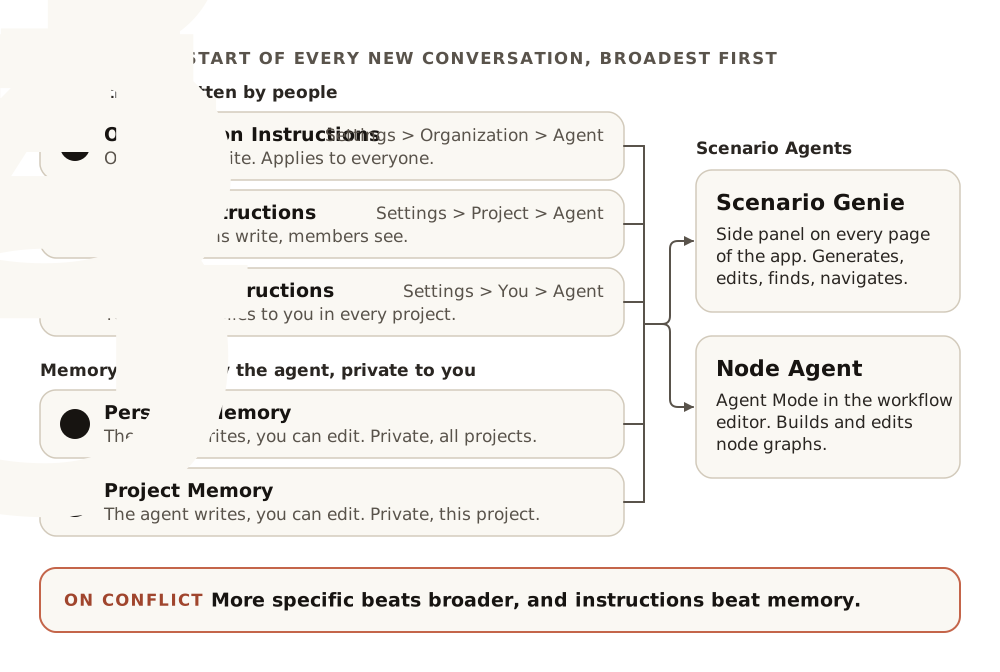
There is no shared or organization-wide memory: every teammate has their own. A convention reaches everyone only through Organization or Project Instructions.
When two sources disagree:
- More specific wins. If the organization says "render at 1024 x 1024" and the project says "hero shots at 1216 x 832", the project rule wins inside that project. Your Personal Instructions win over both, in your own conversations.
- Instructions beat memory. If the agent remembers you once wanted square images but the project instructions say 3:2, it follows the instructions.
Step 1: Write the organization's rules
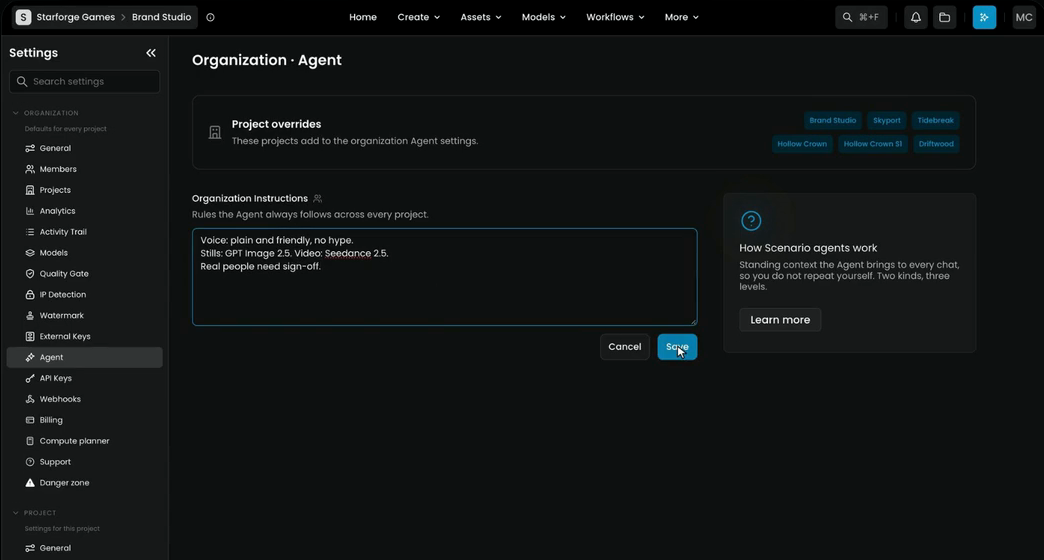
Open Settings › Organization › Agent. Under Organization Instructions ("Rules the Agent always follows across every project"), write the rules that hold everywhere: your voice, your default models, what needs sign-off. Keep them short, one rule per line. The film's rules:
Voice: plain and friendly, no hype.
Stills: GPT Image 2.5. Video: Seedance 2.5.
Real people need sign-off.
Click Save. The Project overrides box at the top lists the projects that add their own Agent settings on top of these.
Step 2: Write the project's brief
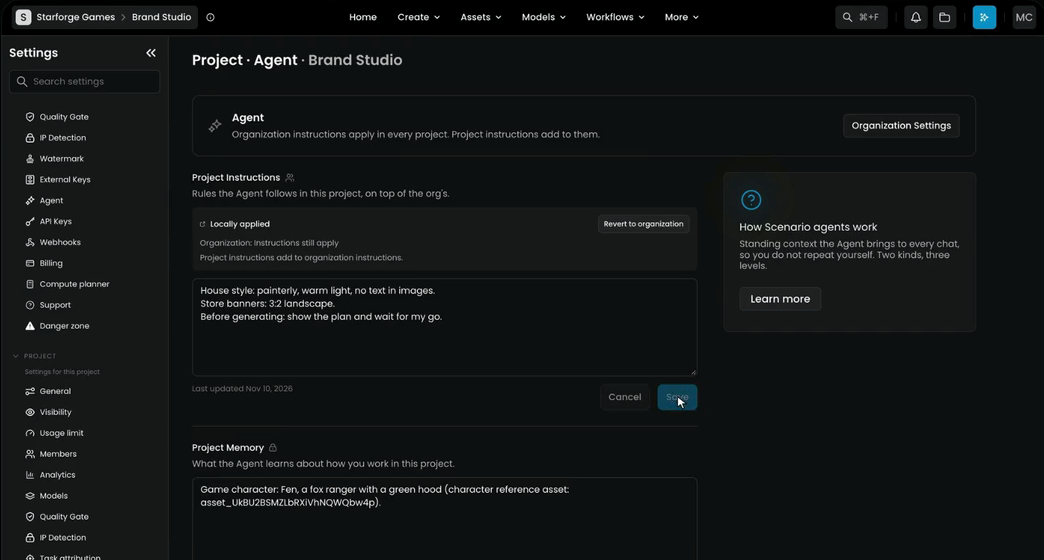
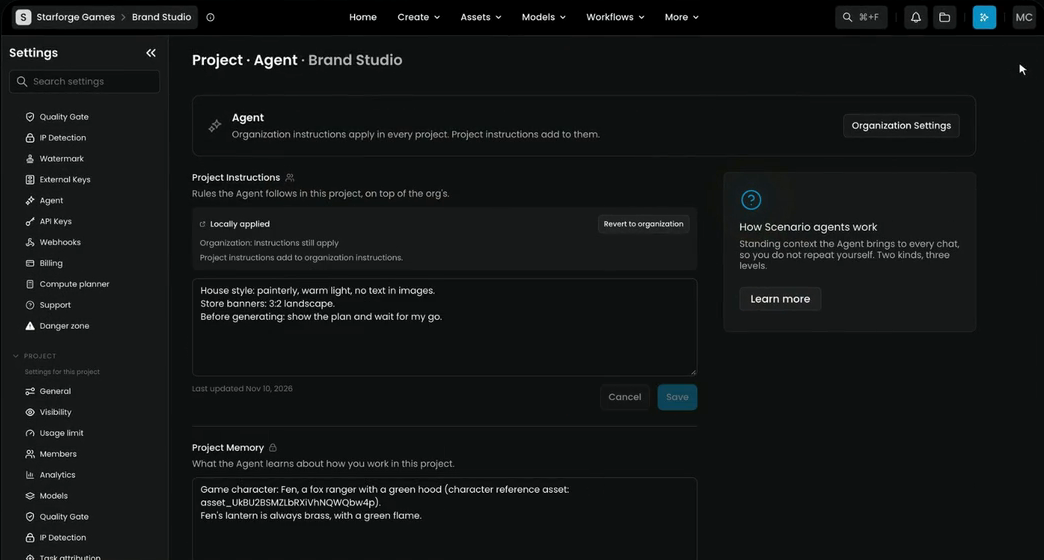
Open Settings › Project › Agent. The page says "Organization instructions apply in every project. Project instructions add to them," and has an Organization Settings button to go up a level. Under Project Instructions ("Rules the Agent follows in this project, on top of the org's"), write the brief you would give a new teammate: the look, the formats, where the references live. The film's project brief:
House style: painterly, warm light, no text in images.
Store banners: 3:2 landscape.
Before generating: show the plan and wait for my go.
Click Save. Once a project has its own instructions, it shows Locally applied, with a reminder that the organization's instructions still apply, and a Revert to organization button that removes the project's own.
Below, Project Memory ("What the Agent learns about how you work in this project") shows what the agent has saved for you here. In the film it already holds a note about Fen and the asset ID of his reference image.
Step 3: Write your own defaults
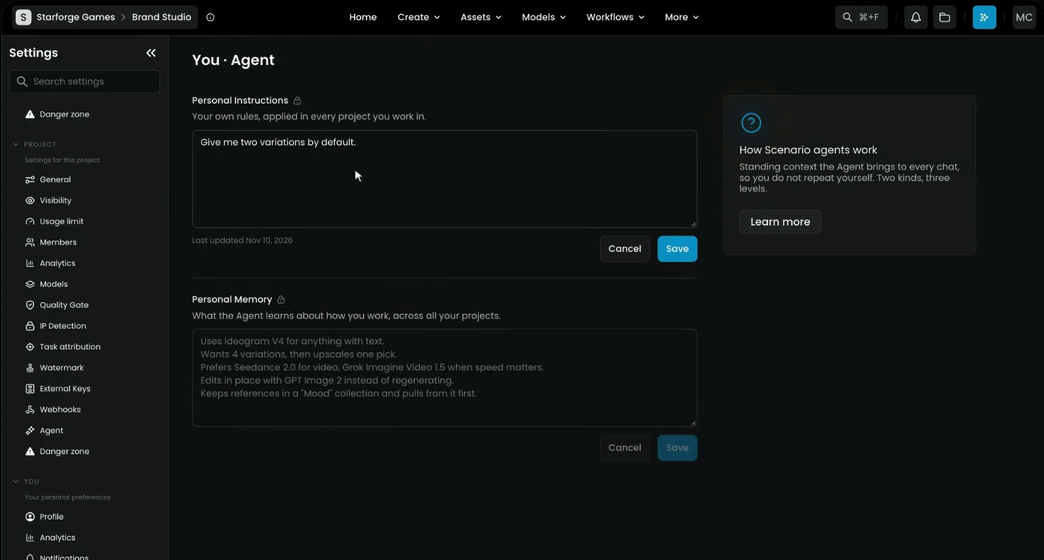
Open Settings › You › Agent. Personal Instructions are "Your own rules, applied in every project you work in." The film adds one line:
Give me two variations by default.
Click Save. Under it, Personal Memory is what the agent learns about how you work across all your projects.
Step 4: Check that the rules apply
Rules are read at the start of a chat, so start a new one: open Genie and click +. Then ask for a banner with no details:
Make a store banner of Fen.
Genie waits for your go and shows a plan that already follows every level: GPT Image 2.5 Sunburst, Fen's reference image, 3:2 landscape, 2 variations, painterly and warm with no text, logos or watermark. It also says which details came from the project's notes on Fen, so you can correct them.
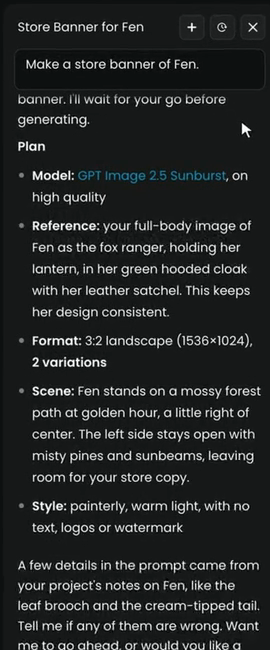
Read the plan before anything runs: the model, the settings, and the cost on the Generate button.
Step 5: Ask it to remember
The agent saves memory by itself when something will help later: a preference you corrected more than once, a shortcut you use often, a choice you confirmed. You can also ask:
Remember that Fen's lantern is always brass, with a green flame.
In the film the fact was already in Project Memory, so Genie said so, changed nothing, and pointed out that the current banner prompt didn't mention the green flame.
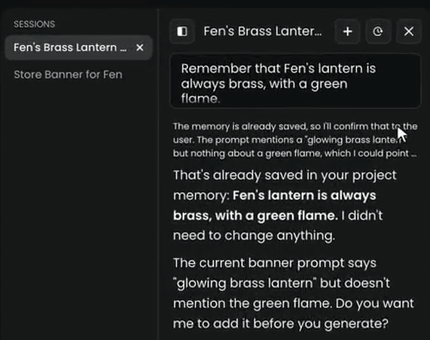
To remove an entry, say "Forget that."
Step 6: See and edit the memory
Memory is private to you: nobody else on the team sees yours. Open Settings › Project › Agent for Project Memory, or Settings › You › Agent for Personal Memory. You can see every entry, edit it, or delete it. A good entry is one short, factual line.
When a memory is full, the agent drops the least relevant entries the next time it writes. If you correct the same thing every time, it's a rule, not a memory: put it in instructions so the whole team gets it. For a team-wide rule, ask an admin to add it to the Project or Organization Instructions.
Write good instructions
| Level | Holds | Example |
|---|---|---|
| Organization | Short, stable rules for every project: brand voice, default models per job, safety and people rules, how to tag and file assets | "Real people need sign-off." |
| Project | The brief for a new teammate: the look, formats, where references live, which workflows and trained models to use | "Store banners: 3:2 landscape." |
| Personal | Your own working preferences | "Give me two variations by default." |
A longer set of Organization Instructions, one rule per line (review the model names whenever models change):
Voice: plain, concise, professional. No hype words.
Stills and edits: GPT Image 2.5 Sunburst. In-image text, logos, UI: Ideogram 4.5.
Video: Seedance 2.5. Lip sync to supplied audio: Sync-3 Lipsync.
3D from an image: Rodin Gen-2.5. Speech: ElevenLabs v4.
Aspect ratios: 16:9 for hero and marketing, 1:1 for icons, unless the project says otherwise.
People: never depict real, identifiable people without sign-off from the project lead.
Always state the model, ratio and expected cost before generating.
And Project Instructions for a different kind of project:
Project: a picture-book series for ages 4 to 7, twelve titles.
Look: soft gouache textures, rounded shapes, warm daylight, muted pastel palette.
Characters: always use the reference sheets in the "Cast sheets" collection.
Pages: 4:3 landscape at 2048 x 1536. Covers: 3:4 portrait.
Edits: change one thing at a time; keep characters and style fixed.
Never put text in images; text is set in layout.
- Be specific. "Use 3:2 at 1536 x 1024 for product heroes", not "make it look professional".
- Keep it short. Shorter sources are followed better than long ones.
- Don't repeat a rule across levels. The agent reads them all together.
- Keep confidential briefs at the project level, not in instructions the whole organization reads.
- Audit every few weeks. Stale instructions are the most common reason for off-brand answers.
Team habits
Brief like a producer. An agent fills every gap in a brief with a default. Name the decisions that matter: the deliverable (a store banner), the subject (Fen, the fox ranger), what stays fixed (Fen's look), the format (3:2, no text) and the decision rule ("quote the cost before you generate"). For the Node Agent, use four headings: Inputs, Steps, Output, Notes.
Read the plan, try one output first. Genie fills the form and waits for your go; the Node Agent reports the graph and waits for Run. Check the model, the settings and the cost on Generate, run one output, check it against the brief, and only then scale up.
Test your rules. Have two teammates run the same brief in two new chats. Same model, same format, same style: your rules work. If not, compare their Personal Instructions and memory, and move what should be shared into Project Instructions.
Turn repeats into Apps. When a Genie chat keeps repeating the same steps, build it once with the Node Agent and publish it as an App, so the team runs the same process.
Keep costs predictable. New task, new chat. Among the Claude models in the picker, Haiku costs least, Sonnet more and Opus the most; Sonnet is usually enough for routine requests. Approve stills before video or 3D.
Keep the rules working, as a team lead:
- Collect the corrections your team makes most often to agent output.
- Turn each into one line in Project Instructions.
- Test: the same brief, in new chats, by two people.
- Cut any rule that didn't change the result.
- Review the instructions every few weeks, and whenever the team changes its default models. Deleting a project deletes its Project Instructions and every member's Project Memory for it.
a new chat asked for a banner with no other details uses the model, ratio, style and number of variations your instructions set, and waits for your go; two teammates running the same brief get the same model, format and style; your memory pages list only entries that are still true.
the agent asks for something your instructions already answer; two levels give contradictory rules; the same correction appears in chats week after week; a memory entry contradicts the current project rules.
Common problems
| What you see | What to do |
|---|---|
| The agent ignores a new rule | Sources are read at the start of a chat. Start a new chat with +, then check the rule is specific and not overridden by a more specific level |
| It follows an old preference | Say "Forget that", or delete the entry under Personal Memory or Project Memory |
| Teammates get different answers | Their Personal Instructions and memory differ. Move shared rules to Project Instructions |
| You can't edit Project or Organization Instructions | You're not an admin at that level. Check the members page in Settings |
| A project should use only the organization's rules again | Click Revert to organization on its Agent page |
| Instructions grew long and results got worse | Cut to the rules that change outcomes |
| Costs rose after rollout | Look for long chats and for Opus on routine work. Set defaults in instructions |
What's next
Genie and the Node Agent work inside the Scenario app. To work with Scenario from your own AI assistant, such as Claude, ChatGPT or Cursor, read What the Scenario MCP is. For workflow briefs, see Build with the Node Agent.