About this lesson
A calm tour of the web app for people new to Scenario: Home and Scenario Genie, the three ways to use Scenario, every item in the top menu, the shortcuts on the right, Settings, and how to check and switch your organization and project. Nothing is generated, so it costs nothing. The models and settings in this lesson are as of November 2026.
See moreSee less
- After ten minutes of clicking along, you can find every main screen, say what each one is for, and tell which organization and project you are in.
- Check the pill at the top left before every run: everything you generate goes into the project shown there.
- Browsing costs nothing, and the CU price of any run shows on the Generate button before you click.
Step by step in the web app (13 steps)Hide the steps
Start on Home
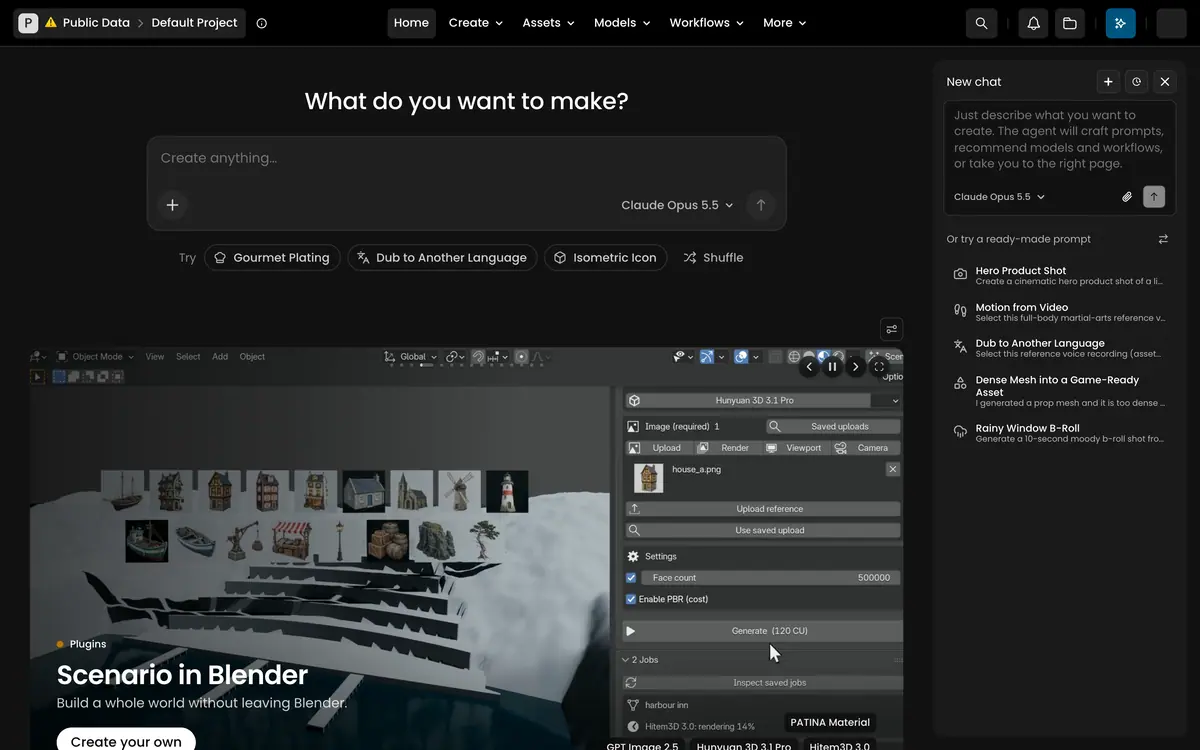
Click Home in the top bar. Type your idea in the box under What do you want to make?; sending it hands it to Scenario Genie, which uses the model shown in the box.
PromptA tiny mouse queen with a red cape and a gold crownTry a ready-made idea
Under the box, click an idea next to Try to load its prompt, or Shuffle for others. Scroll down for the showcase and the Tools list: Automate, Generate and Edit.
Know the three ways to use Scenario
The web app in your browser, the API for your own code, and the Scenario MCP for AI agents. All three share the same models, projects and credits.
Read the top menu
From left to right: the project pill, Home, Create, Assets, Models, Workflows, More, then search, the bell, the folder, the Genie button and your account.
Open Create
Create has four groups: Automate, Train, Generate and Edit. Click Images to open the playground: Model, Prompt, Reference Images and Settings on the left, your Session on the right.
Open Assets
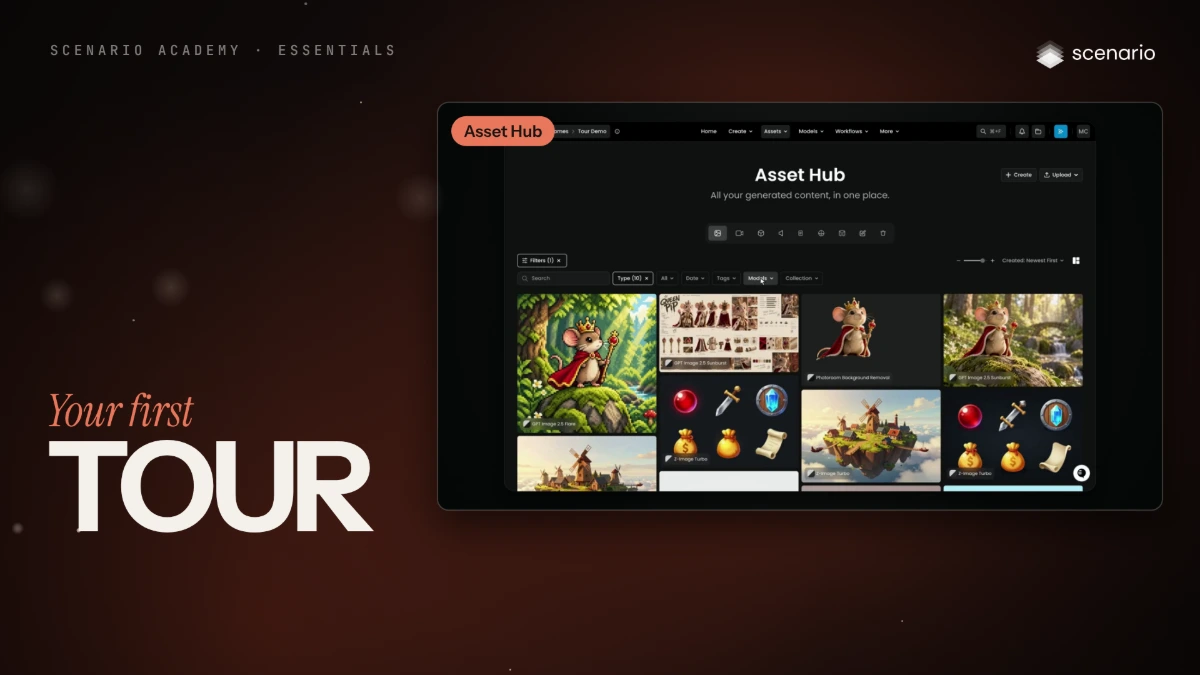
Assets › Images (or any type) opens the Asset Hub, where everything you make is saved. Filter it with Type, Date, Tags, Models and Collection, or search.
Open Models
Models › Images (or any type) opens the Model Hub. Platform holds the models everyone can use, Project your team's own; narrow the list with Search, Category, Type, Capabilities and Tags.
Open Workflows
Workflows › Workflows has a Platform tab and a Project tab, with Create and Import. Workflows › Apps holds simple forms that run a whole workflow in one click.
Open More
More holds Explore (examples by the Scenario team), the API page for your own code, the Scenario MCP page for AI agents, and the Knowledge Base.
Use search and notifications
The magnifying glass (Cmd+F, Ctrl+F on Windows) searches everything you made, by what is in each image. The bell shows Recent Tasks and Pending Reviews.
Open collections and Genie
The folder opens your Collections, with New Collection. The blue button (Cmd+K, Ctrl+K on Windows) opens Genie in a side panel that stays open as you move around.
Check your account and Settings
Click the circle with your initials for your Credits, Settings, Keyboard Shortcuts and more. Settings lists External Keys, Agent, API Keys, Billing and the Project settings.
Check your organization and project
Click the project pill at the top left: Organizations on the left, Projects on the right with your role in each. Click a project to switch; everything you make is saved there.