

Genie and the Node Agent
What Scenario Genie and the Node Agent each do, how to open, brief and iterate with Genie, what messages cost, and how both agents share instructions and memory.
- Guide
- Step 3 Delegate
On this page15 sections
- Before you start
- Step 1: Open Genie
- Step 2: Ask it anything in Scenario
- Step 3: Start a new chat
- Step 4: Brief it, with a reference
- Step 5: Read the plan
- Step 6: Say go
- Step 7: Ask for one change
- Step 8: New task, new chat
- Step 9: Build a process with the Node Agent
- What Genie can do
- What the Node Agent can do
- What they share
- Common problems
- What's next
Scenario has two agents built into the web app. Scenario Genie helps on every page with one-off jobs; the Node Agent builds workflows in the workflow editor. In this lesson you ask Genie a few questions, brief it for a painterly store banner of Fen, a fox ranger, change one thing in the result, then ask the Node Agent to build a three-step character pipeline.
Quick version
- Open Genie with the sparkle button in the top bar, or press Cmd+K (Ctrl+K on Windows and Linux).
- Lead with the outcome: what it's for, who's in it, the style, the light and the format. Attach a reference and say what it's for.
- Ask for the plan first. Check the model, prompt and settings Genie put in the form, and the cost on the Generate button.
- Say "Go ahead." Then ask for one change at a time, and say what must stay.
- For a new task, start a new chat with +.
- For a process you'll repeat, open a workflow, click the sparkle button in the editor's right toolbar (Agent Mode), describe the steps, read the report and click Run.
Before you start
- A role that includes Scenario Genie. The Editor role includes it by default.
- Credits. Every agent message uses credits, based on the text the agent reads and writes, and any generation it runs costs what it always costs. The price of a generation shows on the Generate button.
- A project. Conversations, history and memory belong to the project you're in. Switching project gives Genie a clean context. The film works in a project called Brand Studio.
- A reference image, if you have one. The film uses a full-body image of Fen already in the project.
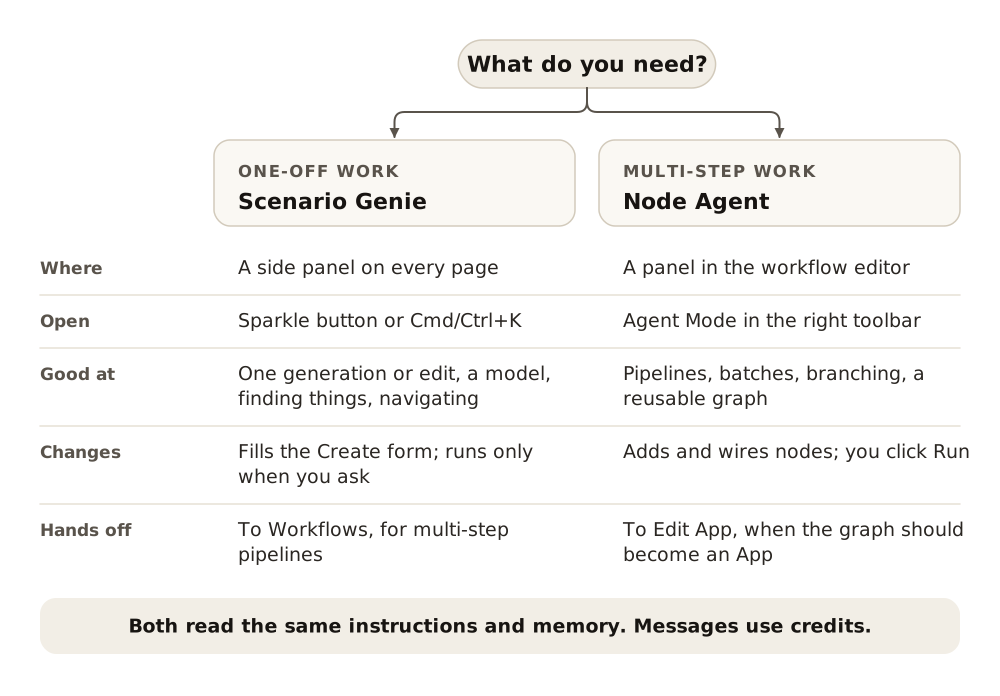
| Scenario Genie | Node Agent | |
|---|---|---|
| Where | A side panel on every page | A panel inside the workflow editor |
| Open with | The blue sparkle button in the top bar, or Cmd+K (Ctrl+K on Windows and Linux) | The sparkle button at the top of the editor's right toolbar (Agent Mode) |
| Good at | One-off generations and edits, choosing a model, finding assets and models, navigating, how-to questions | Multi-step pipelines, batches, branching, turning a process into a reusable graph |
| What it changes | Fills in the Create page form; generates when you ask it to | Adds, wires and configures nodes on the canvas; you click Run |
| Hands off to | Workflows for multi-step pipelines; Models › Trainings for training | Edit App when the graph should become an App |
Step 1: Open Genie
Click the blue sparkle button in the top bar, or press Cmd+K (Ctrl+K on Windows and Linux). The panel opens on the right, on any page, and stays open as you move around the app, keeping the conversation.
The message box says "Just describe what you want to create." Under it:
| Control | What it does |
|---|---|
| Model picker (under the message box) | Sets the language model Genie thinks with, for example Claude Opus 5.5. It doesn't change the image, video or 3D models Genie picks for you |
| Paperclip | Attaches a file from your device or your library |
| + | Starts a new chat |
| Clock | Opens the history of past chats |
| Or try a ready-made prompt | Starter prompts, with a shuffle button for more |
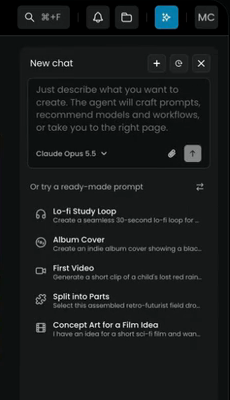
The models in the picker depend on your plan. Among the Claude models, Haiku costs least, Sonnet more and Opus the most. Sonnet is usually enough for routine requests; models your plan can't use show an upgrade prompt.
Step 2: Ask it anything in Scenario
You write to Genie in plain words. The film asks three kinds of question.
Recommend a model. Ask which model fits a job, and Genie tells you why:
Which model is best for a painterly store banner with no text?
It answers with a first choice, alternatives and what each is good at, plus prompt advice (here: add "no text, no lettering" to the prompt). Recommendations use your context, Scenario's quality rankings and your plan.
Take you there. Ask to go somewhere and Genie opens the page:
Take me to the 3D generator.
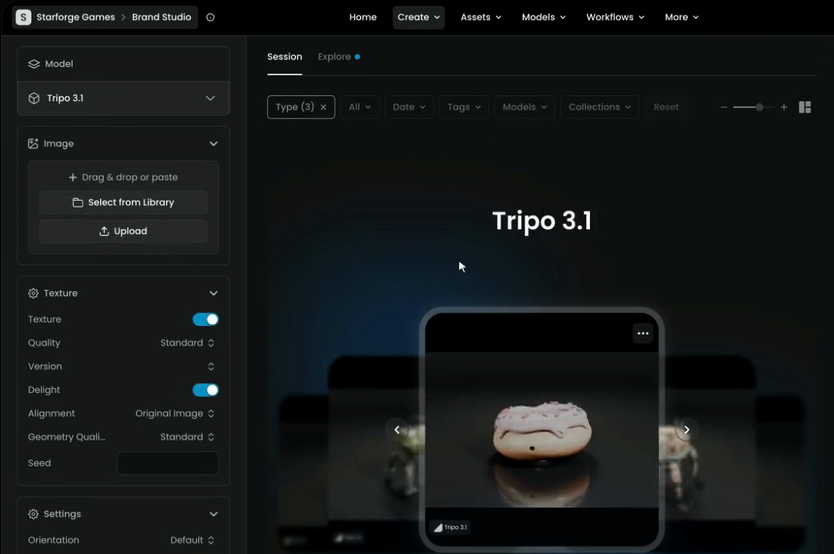
Genie opens Create › 3D with a model already chosen and tells you what it needs next (here, a source image).
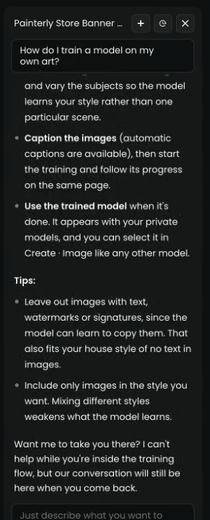
Help on Scenario. Ask how anything in Scenario works:
How do I train a model on my own art?
Genie explains the steps and offers to take you to Models › Trainings. For a training, it sets you up and you launch it there; it never starts one by itself.
Step 3: Start a new chat
Before a real job, click + to start a new chat. If you're not sure where to start, the list under Or try a ready-made prompt fills the box with a worked example you can adapt.
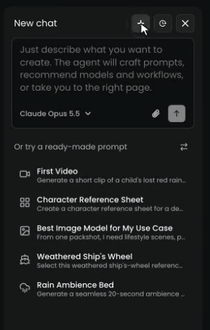
Step 4: Brief it, with a reference
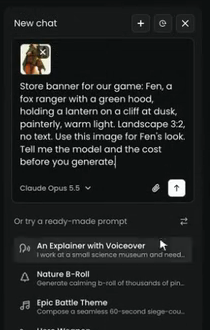
Lead with the outcome: what it's for, who's in it, the style, the light and the format. Then add a reference and say what it's for. Click the paperclip, choose the image of Fen from your library, and confirm. You can also drag an asset onto the panel, or paste an asset ID.
End the brief by asking for the plan before anything runs. The film's brief:
Store banner for our game: Fen, a fox ranger with a green hood, holding a lantern on a cliff at dusk, painterly, warm light. Landscape 3:2, no text. Use this image for Fen's look. Tell me the model and the cost before you generate.
Genie treats text inside images, pages and assets as content to look at, never as instructions.
Step 5: Read the plan
Genie picks the model, writes the prompt and fills in the form on the Create page. In the film it chose GPT Image 2.5 Sunburst, wrote a longer prompt from the brief (ending "No text, no logos, no lettering"), put Fen's image under Reference Images, and set a 3:2 landscape size. In the chat it listed the cost, the settings and a cheaper, faster option (GPT Image 2.5 Flare) for trying out compositions first, then asked which to use.
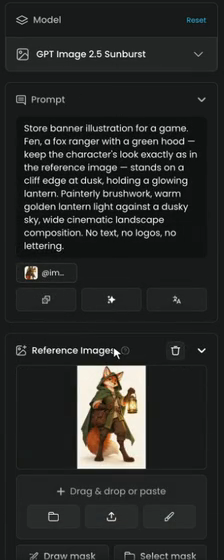
Check it against your brief: the model, every point of the prompt, the format and the reference. The cost is on the Generate button. Nothing is generated until you say go.
Step 6: Say go
Go ahead.
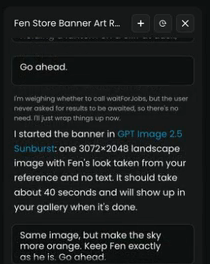
Genie starts the generation, tells you what it is running (model, size, reference) and reports back when the image is in your gallery.
Step 7: Ask for one change
Ask for one change at a time, and say what must stay. Genie keeps the context, so you don't repeat the brief:
Same image, but make the sky more orange. Keep Fen exactly as he is. Go ahead.
Genie runs an edit with the finished banner as the reference and asks only for the sky to change. Open both in the viewer and compare.
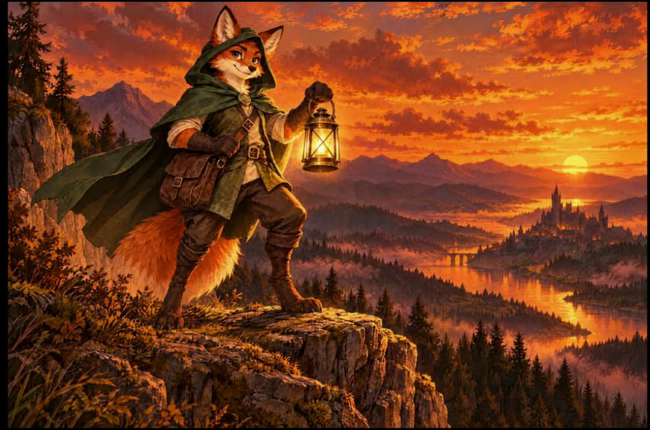
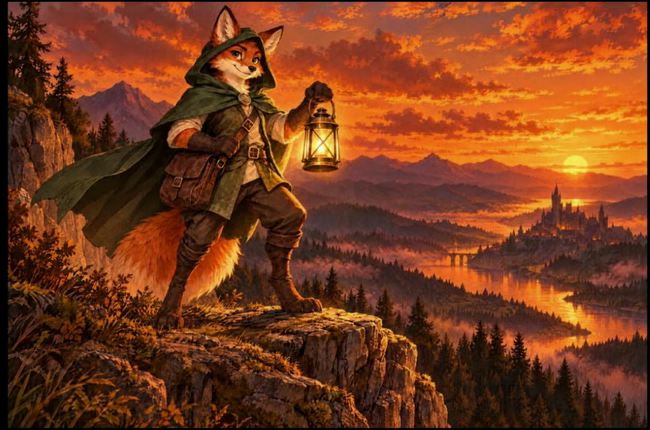
Short follow-ups such as "warmer light", "tighter crop" or "try it in 3:4" work the same way.
Step 8: New task, new chat
Each message uses credits, and long chats cost more, because each message rereads the conversation so far. When the task changes, click + and start a new chat: it's cheaper, and the old brief doesn't leak into the new job. Long chats compact by themselves when they reach the context limit; a banner counts down before it happens.
Step 9: Build a process with the Node Agent
The second agent lives in the workflow editor. Open Workflows in the top bar, click Create, and click the sparkle button at the top of the right toolbar (Agent Mode). Its panel opens on the right with a box that says "Describe the workflow to build or changes to make", the same model picker and its own ready-made prompts. A new workflow starts with two sample nodes, Text 1 and Image Generator 1; the agent works on whatever is on the canvas.
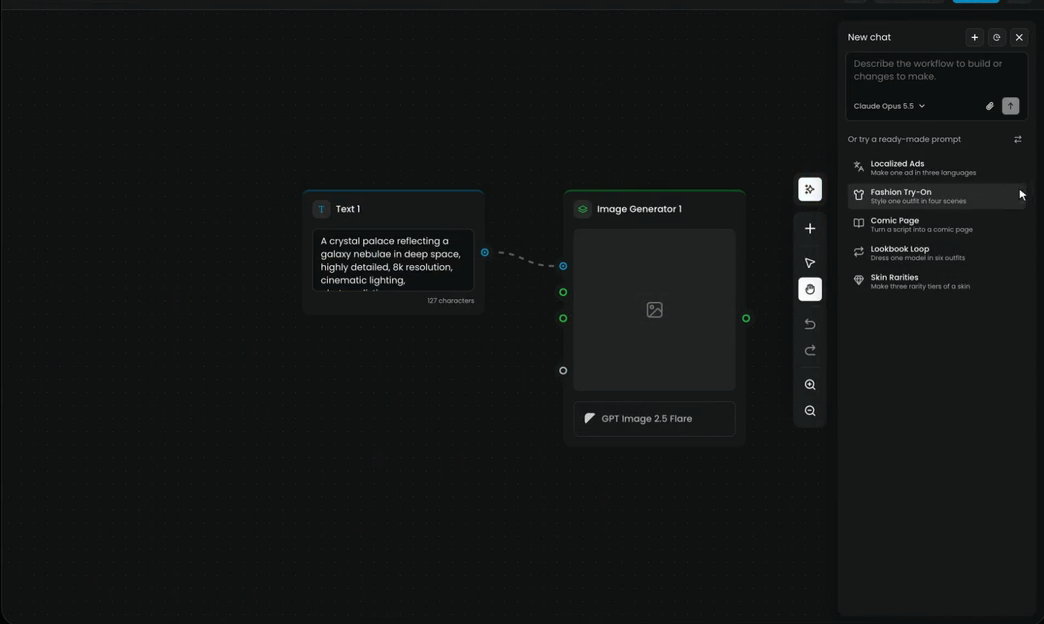
Describe the process:
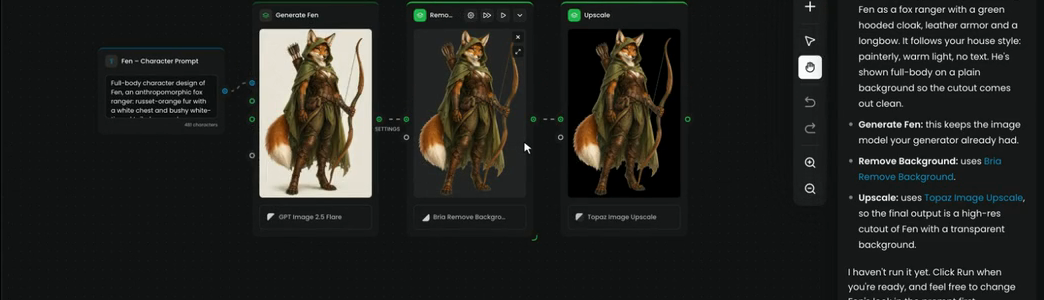
Make this a character pipeline for Fen, our fox ranger: generate the character, remove the background, then upscale it.
The agent rewrites the prompt node (Fen – Character Prompt), keeps the generator (Generate Fen, on GPT Image 2.5 Flare), adds Remove Background (Bria Remove Background) and Upscale (Topaz Image Upscale), and wires them. Then it writes a report, node by node, and says it hasn't run anything.
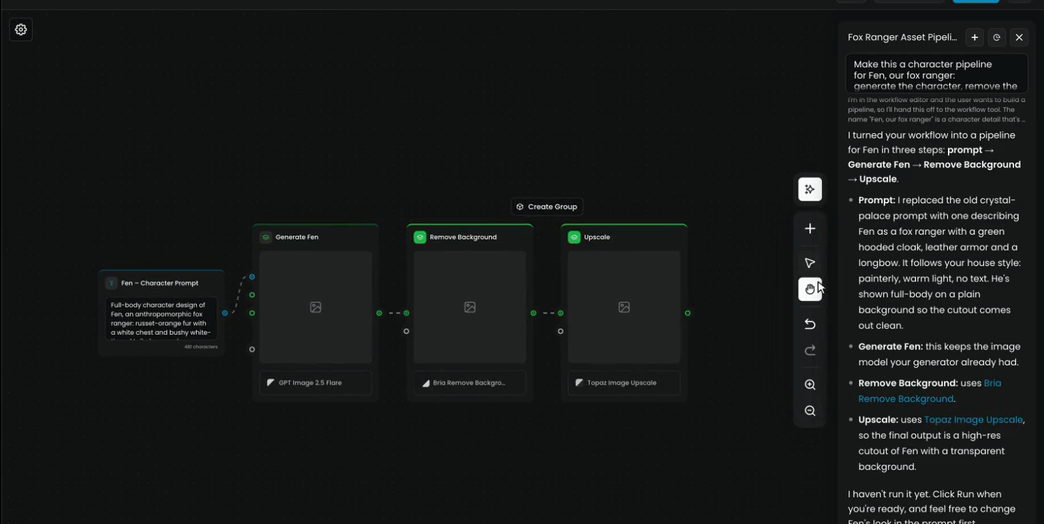
Read the report before you click Run: if a model or setting is wrong, one follow-up message fixes it. Nothing runs until you click Run, top right. Then each node shows its result.
For one result, ask Genie. For a process you'll repeat, ask the Node Agent. See Build with the Node Agent for briefs with inputs, branches and batches.
What Genie can do
On a creation page Genie drives the form; on any other page it answers questions, recommends models and workflows, and takes you to the right place. It switches by itself.
- Generate images (including your own trained models), video, audio, 3D and text, by choosing the right model on the Create page.
- Edit and enhance images: upscale, remove a background, vectorize, edit from a prompt, make seamless textures and skyboxes, expand, pixelate.
- Find and organize: search models and assets, browse Models, your Assets, Collections and Explore, upload an image from a URL, look at an asset to describe it or suggest edits, and track the jobs it started.
- Hand off: send you to Workflows for multi-step pipelines and to Models › Trainings for training.
It won't invent a value it isn't sure about, and it won't pretend a page can do something it can't: it asks, or takes you to the right tool. It also isn't the support chat (the chat widget at the bottom right answers questions from Scenario's documentation and generates nothing), and it isn't the Scenario MCP, which connects outside AI assistants to Scenario.
What the Node Agent can do
- Build a whole workflow from one message: it picks the models, places and wires the nodes and sets the parameters.
- Edit an existing workflow: add nodes, swap models, rewire, change parameters, add If/Else branches.
- Use reference images dropped on the canvas, wired as inputs, style references or conditioning.
- Explain what it built, node by node, before you run it.
The canvas stays fully editable: drag nodes, change settings, run part of the graph, or turn it into an App with Edit App. For the best first graph, structure the brief as Inputs, Steps, Output and Notes, and name each image's role.
What they share
Both agents read the same instructions (organization, project, yours) and the memory each keeps for you. Say "Remember that our product shots are always 3:2 with no text" and the agent saves it; "Forget that" removes it. The next lesson covers where each source lives and how to write it.
Genie names the model and why; its prompt covers every point of your brief, including constraints such as "no text"; the settings match your format; it waited for your go; an edit changed only what you asked; the Node Agent's report matches the steps you described.
something was generated before you asked; the model is one your brief rules out; the prompt dropped a constraint; an edit changed the character or the composition; a node in the graph isn't one you asked for; you kept going in a chat that drifted to another task.
Common problems
| What you see | What to do |
|---|---|
| The recommendation ignores your house style | Your instructions may be missing or vague. See Instructions, memory and team habits |
| It keeps applying an old preference | Say "Forget that", or delete the memory entry in Settings |
| Answers get slow or lose track | The chat is long. Start a new chat with + |
| A language model in the picker is locked | Your plan doesn't include it. Use another one, or ask Genie for the best option on your plan |
| An edit changed more than you asked | Say what must stay ("Keep Fen exactly as he is") and ask for one change per message |
| The Node Agent built the wrong step | Don't run it. Say what to change in a follow-up message, then read the new report |
| The same request gets a different plan | Normal: models and rankings change. Read the plan each time |
What's next
Both agents follow the same rules and keep the same kind of memory. Instructions, memory and team habits shows where to write those rules so every new chat starts with them.