

Your first edit
Change one thing in an image and keep the rest, check for collateral changes, then remove the background and upscale.
- Tutorial
Outcome: Queen Pip's royal blue dress turned emerald green with nothing else changed, then a transparent cutout and a 2x upscale. You also see what a vague edit prompt does. The edit uses GPT Image 2.5 Sunburst.
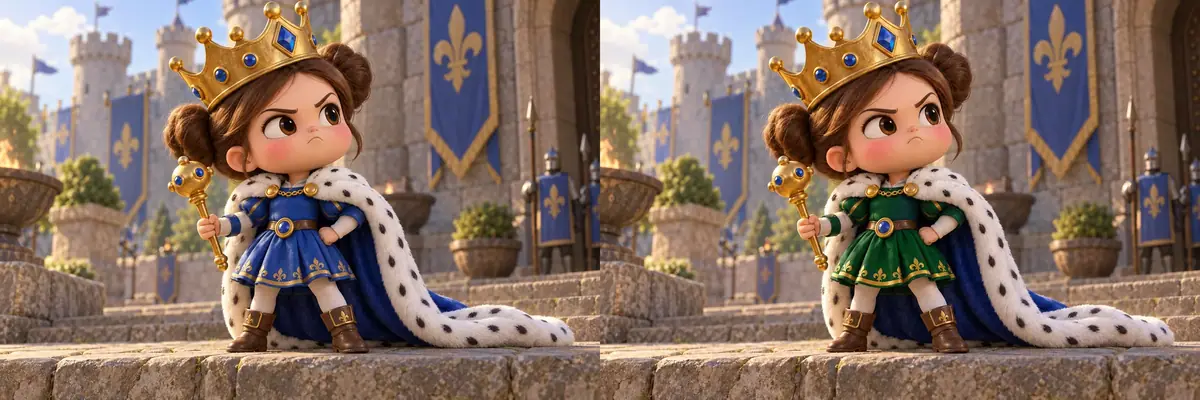
- 1EditChange the dress, keep the rest
- 2CheckFlip original and edit
- 3Cut outPhotoroom Background Removal
- 4UpscaleTopaz Image Upscale, CGI, 2x
What you need
- Any plan with credits, Free included. See Plans and pricing.
- An image: the one you kept in Your first image, or your own.
- Credits for three steps, plus one output for the vague-edit test. Each tool shows its price on its button.
1. Edit one thing
- Open Create > Images and choose GPT Image 2.5 Sunburst.
- Under Reference Images, click Select from Library and pick the image you kept (or open it and click Use as Reference).
- Set Image Count to 2 and the preset 3:2 (1536x1024), as on the original.
- Paste the prompt below and click Generate.
Change only her dress: make it a deep emerald green dress with the same shape, length,
gold trim and gold fleur-de-lis embroidery. Keep everything else exactly as it is: her
face, expression, hair buns, the gold crown and its blue gems and its tilt, the ermine
cloak with its royal blue lining, the gold mace scepter, her hands, belt, white sleeves,
tights and brown boots, her pose, the stone steps, the castle, banners, guards and sky,
the light and the framing.
The prompt names the one change, how much changes (color only, same shape) and what must stay. Models keep what you name more reliably than what you leave out.
Both outputs came back in about 45 seconds, clean: the gems on the crown and the belt stayed blue, and the cloak lining stayed royal blue. The first was kept.
2. See what a vague edit does
The same image with a short prompt:
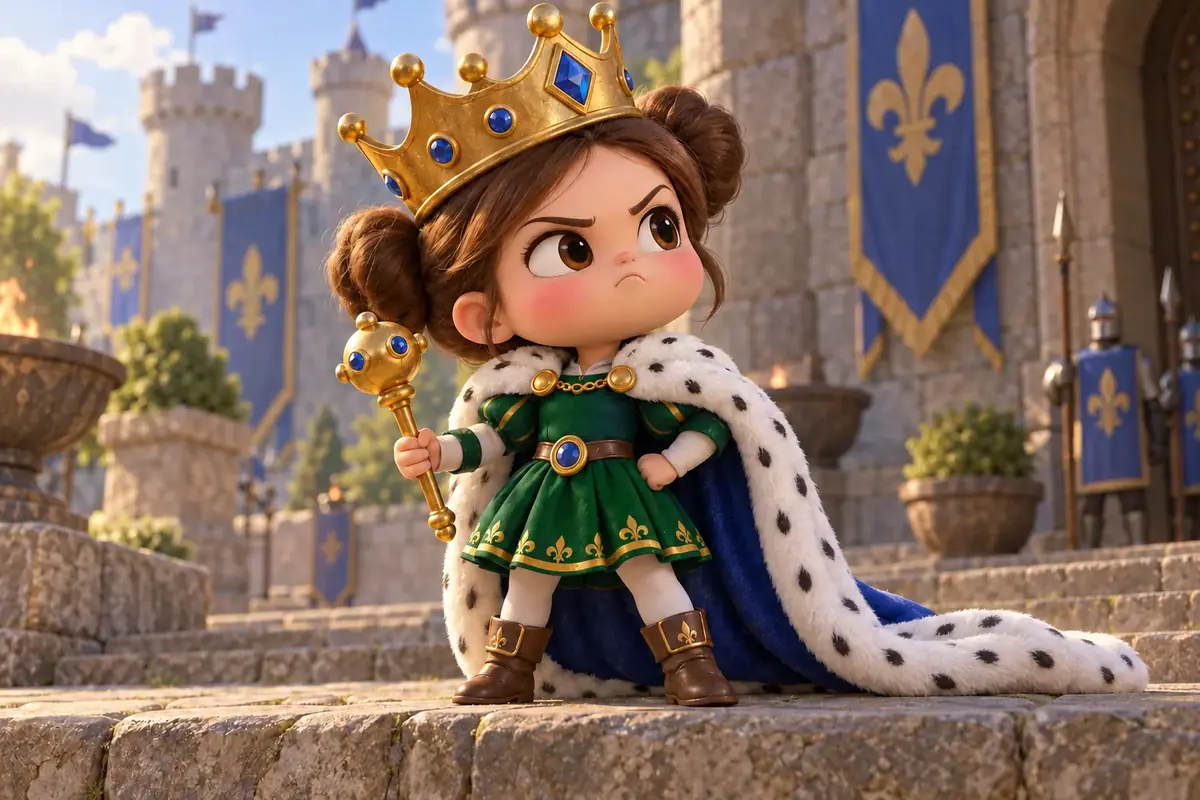
Make the dress green and make the picture look nicer.
One output. The dress turned green, but "look nicer" let the model restyle the scene: the banners, the guards' tabards, the crown's gems and the cloak lining all turned green, and climbing ivy, white flowers and green pennants appeared on the walls.
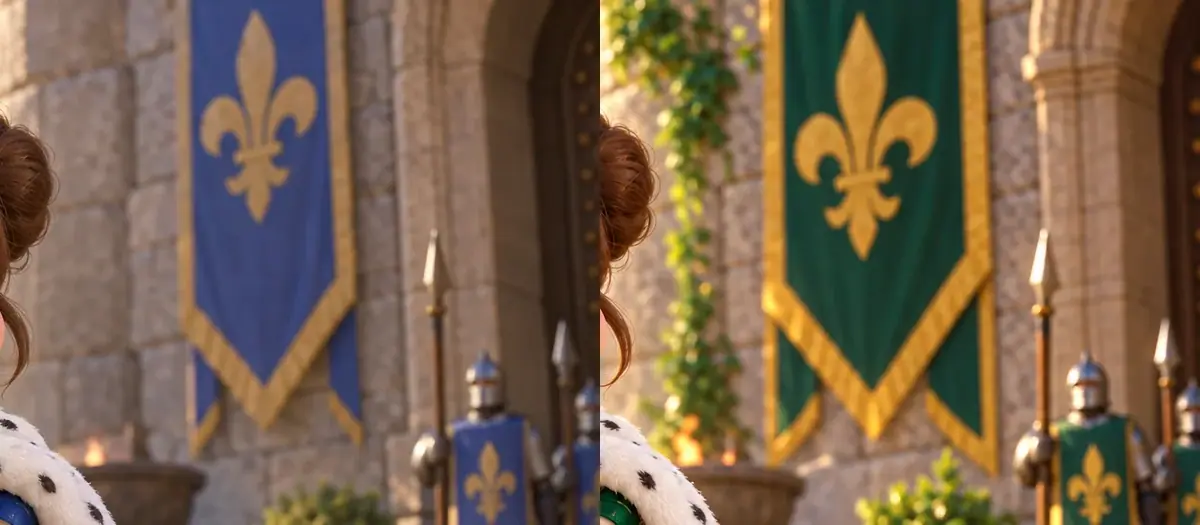
Over the whole image, the vague edit visibly changed 62.6% of the pixels (by more than 24 of 255 levels), against 4.5% for the precise edit, which is roughly the area of the dress.
the dress is the new color with the same shape, trim and embroidery; flipping between original and edit, nothing else moves: face, crown and gems, cloak and lining, scepter, hands, boots, banners, light and framing match.
other parts picked up the new color (gems, lining, banners); plants, flags or people appeared or moved; the light or color grade changed; the framing shifted; her face or pose differs, even slightly.
Flip to check. Open the original and the edit at the same size and switch between them: unasked changes jump out. See Edit one thing.
3. Remove the background
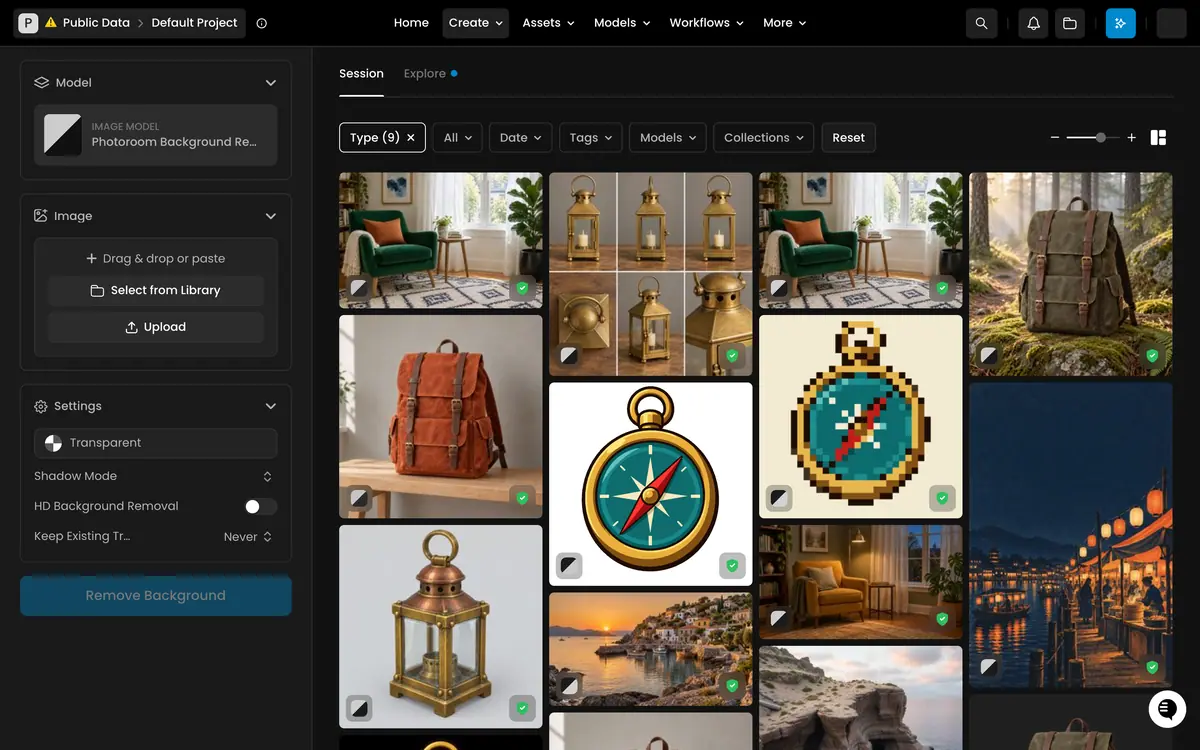
- Open Create > Remove Background. The default model is Photoroom Background Removal.
- Under Image, click Select from Library and pick the green-dress edit.
- Keep the default settings, with a transparent background.
- Click Remove Background.
The result is a PNG with transparency at 1536 x 1024, in about 4 seconds.
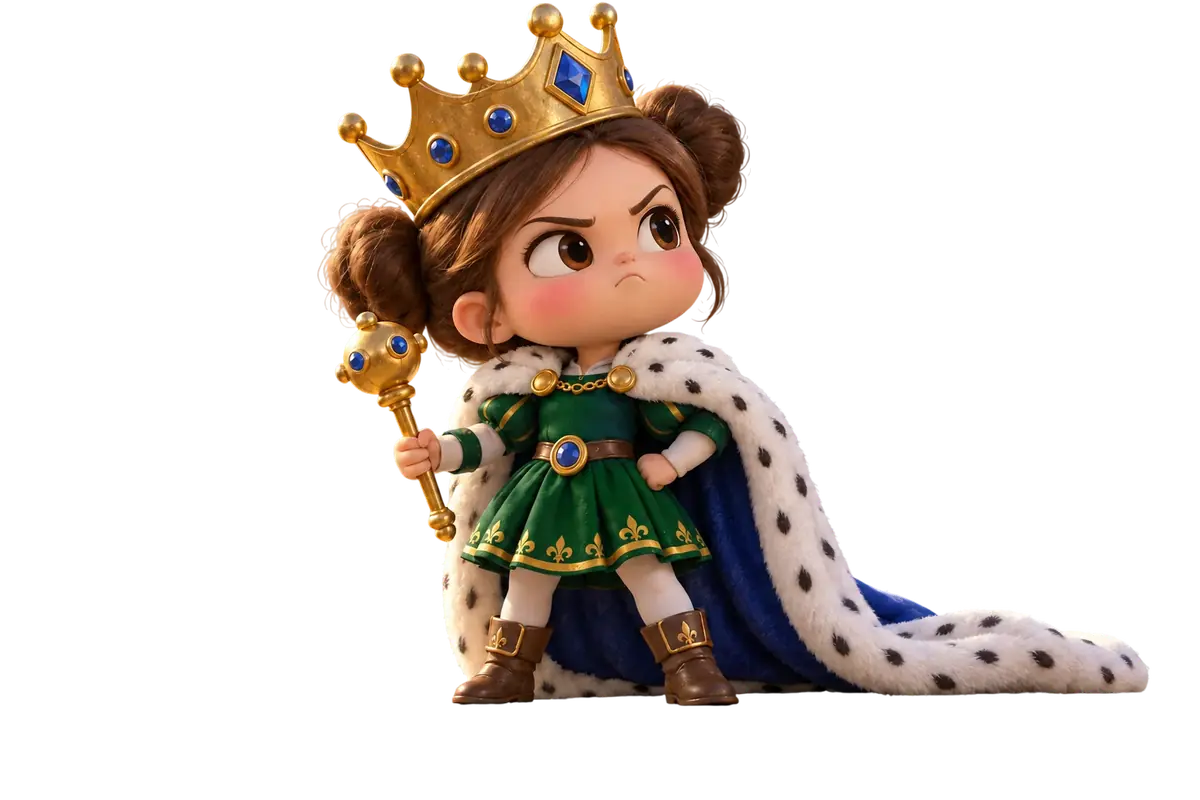
Check the edges at full size: stray hair strands, the fur trim of the cloak, the gap between the scepter and her arm. Here they were clean, on a dark test background too. The boots and the cloak hem end flat where they stood on the step: fine for a character cutout, and a cue to add a ground shadow when you place her on a new scene.
4. Upscale
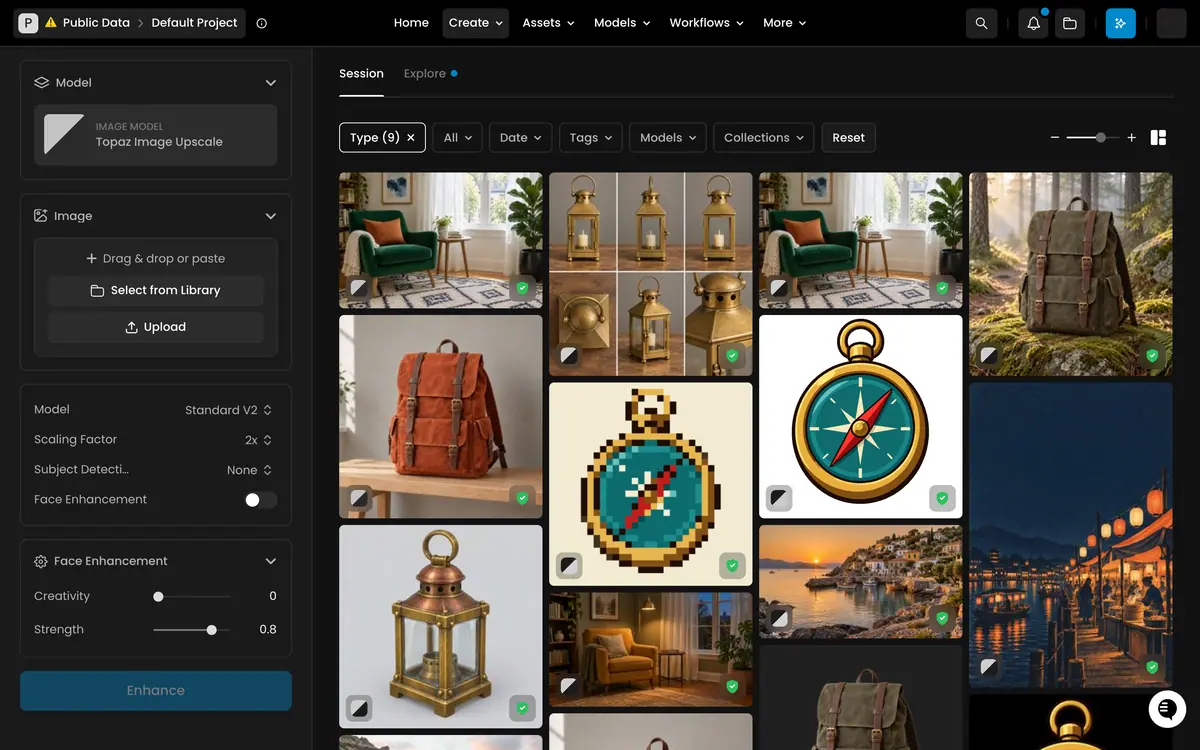
- Open Create > Enhance. The model is Topaz Image Upscale.
- Under Image, select the cutout from your library.
- Set Model to CGI, which suits rendered images, and Scaling Factor to 2x. Leave Face Enhancement off.
- Click Enhance.
The result is 3072 x 2048, with transparency kept, in about 10 seconds.
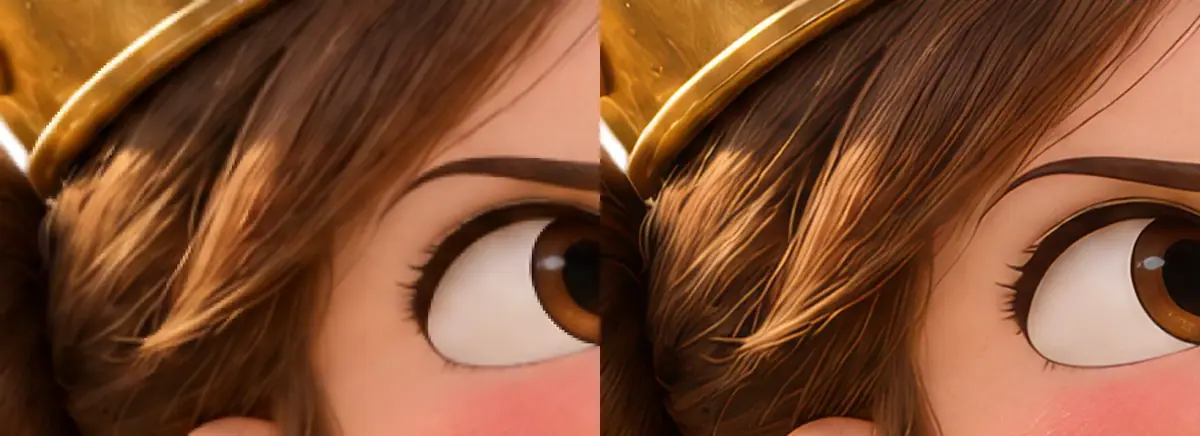
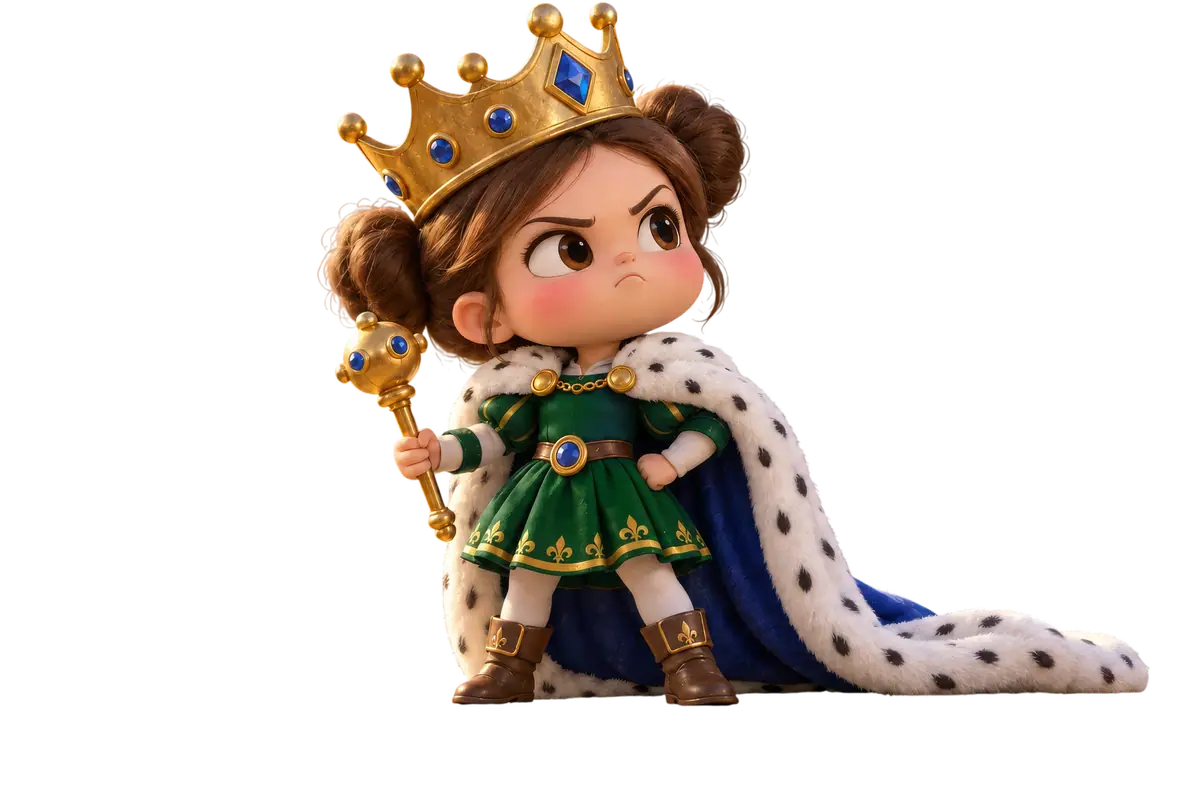
edges are sharper and the shapes are unchanged; eyes, crown gems and the fur trim look like the original at a larger size; transparency is intact.
the upscale invents features (new gems, seams, letters), smears the fur into noise, or adds a halo around the cutout.
The CGI setting split the hair into fine strands and added a light texture to the skin; at this size it reads as detail and was kept. If it looks like grain on your image, try another Model setting.
If it breaks
- The edit changed more than you asked. Add the parts that changed to the "keep" list, by name, and run again. Leave out "make it nicer" or "improve".
- The edit ignored your image. It is not in Reference Images: check that it shows there before you click Generate.
- The aspect ratio changed. Set the same preset as the original.
- The cutout lost a thin part (a strap, a hair strand, a scepter shaft). Try another background removal model in the Model box, or fix the mask with Retouch.
- The upscale looks over-sharpened. Use a lower scaling factor or another Model setting, and compare crops at 100%.
- Normal variance. Two outputs from the same edit prompt can differ in small details: generate two and keep the closer one.
- The model is missing from Choose a Model. Check the spelling in the model search; if it is still missing, an admin may have turned it off for your organization or project. See Control model access.
Next
Animate the green-dress image: Your first video. Then run Queen Pip through a ready-made App in Your first workflow.