About this lesson
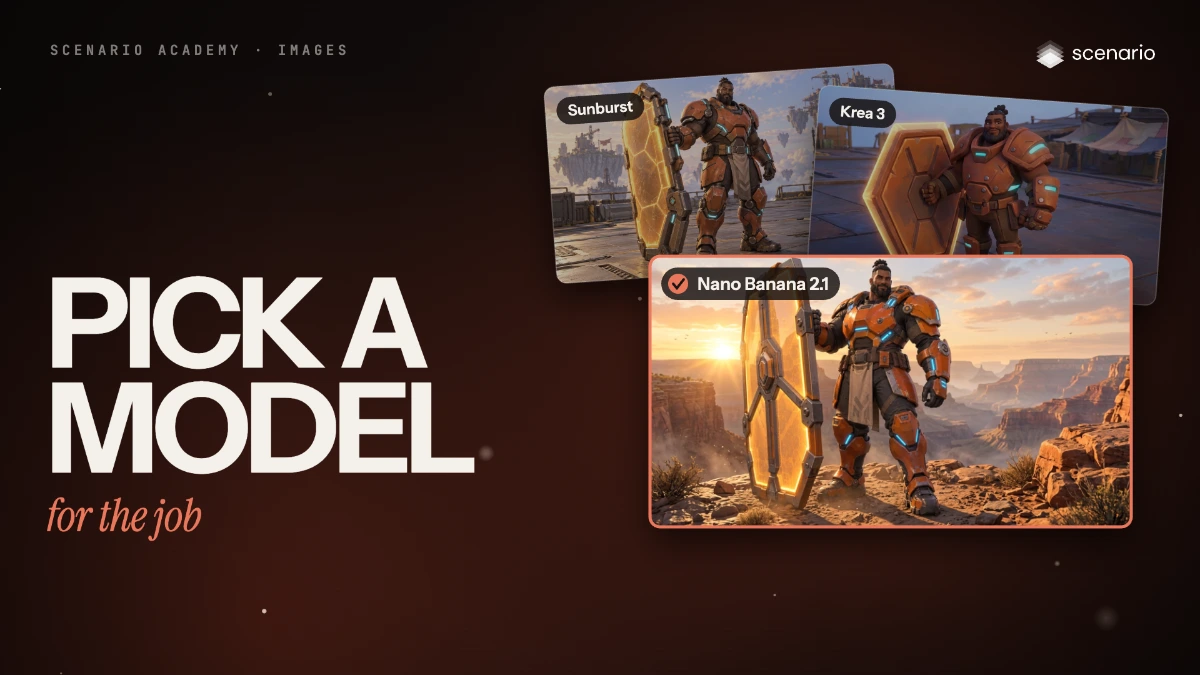
Scenario has more than 750 models, and the right one depends on the job. This lesson narrows them down with the filters of the model library, tests a new model against the one you used before with Compare Images, then finds a different model for a second job: the same character, in a new scene, made from his image. The models and prices in this lesson are as of November 2026.
See moreSee less
- Narrow more than 750 models to two or three candidates, run them on your brief, and keep the winner.
- Answer three questions first: the job, what you start from and your budget. The model library's filters answer each one.
- Generate the same prompt with each candidate and compare the results with Compare Images; the price shows on Generate.
Step by step with an agent, through the Scenario MCP (6 steps)Hide the steps
Connect the Scenario MCP
Connect your agent and sign in once at mcp.scenario.com. Then tell it which Scenario team and project to use, so every file lands there.
Give the agent the files
The tank hero made in Generate images with GPT Image 2.5 Sunburst: give the agent its asset ID. It's the image to compare against and the reference for the second job.
Shortlist with recommend
recommend ranks models for a task by measured quality, speed and cost, and is free. Krea 3 is too new for some lists, so the agent looks it up by name.
PromptUse recommend to rank models for text to image, quality first, and give me the top three with what each is best at and its cost tier. Then find Krea 3 with search and give me its model ID. Don't run anything yet.Brief the agent: same prompt, new model
Only the model changes: the prompt is read from the first image, and the size matches it at 16:9.
PromptRead the prompt of the tank hero with asset_get. Run it word for word with Krea 3, one image, at 16:9 (1024 x 576), with its Berry (quality) engine and Reasoning Level low, no negative prompt and no seed. Read the parameter names with model_schema_get first. Quote the cost with a dry run first and wait for my go. Then show me the Krea 3 image next to the GPT Image 2.5 Sunburst one at the same size.The second job: same character, new scene
An edit from an image needs a model that reads references and keeps a character. Accept when the armor, shield and pose are kept in the new scene; reject a changed character.
PromptUse Nano Banana 2.1 (model_google-gemini-nano-banana-2-1), one image, with referenceImages set to an array holding only the tank hero's asset ID. Quote the cost with a dry run first and wait for my go. Prompt, word for word: The same character standing on a rocky canyon ridge at sunrise. Keep his armor, shield and pose.File the test and report
PromptCreate a collection called "Model tests: tank hero" and add the original, the Krea 3 image and the Nano Banana 2.1 image to it. Report each image's model, settings, asset ID and cost, and the total cost spent.
Step by step in the web app (7 steps)Hide the steps
Open the model library
Create › Images, click the model's name at the top of the panel, then View model library at the bottom of the list.
Answer the three questions
Tick the job under Capabilities (Text to Image), what you start from under Input kind (here only a prompt), and set Budget and Speed under Budget and speed.
Try a new model
Tick New · last 30 days under Shortlists, hover Krea 3 to read its rank, typical time, cost tier and samples, and click Use this model.
Generate with the same prompt and size
The prompt stays when you switch models. Krea 3: Model Berry (quality), Image Size 16:9 (1024x576) to match the first image, Reasoning Level Low, Negative Prompt and Seed empty. Click Generate.
Compare the two images
Select the Krea 3 image and the GPT Image 2.5 Sunburst one with the circle in each corner, click Compare Images, then Split and drag the line.
Find a model for another job
Clear the filters, tick Image under Input kind and Edit with Prompts under Capabilities, and use Nano Banana 2.1, which keeps a character as he is.
Add the reference and generate
Reference images › Select from Library: the character from the first lesson, Confirm. Replace the prompt with what changes and what must stay, then click Generate.
PromptThe same character standing on a rocky canyon ridge at sunrise. Keep his armor, shield and pose.