About this lesson
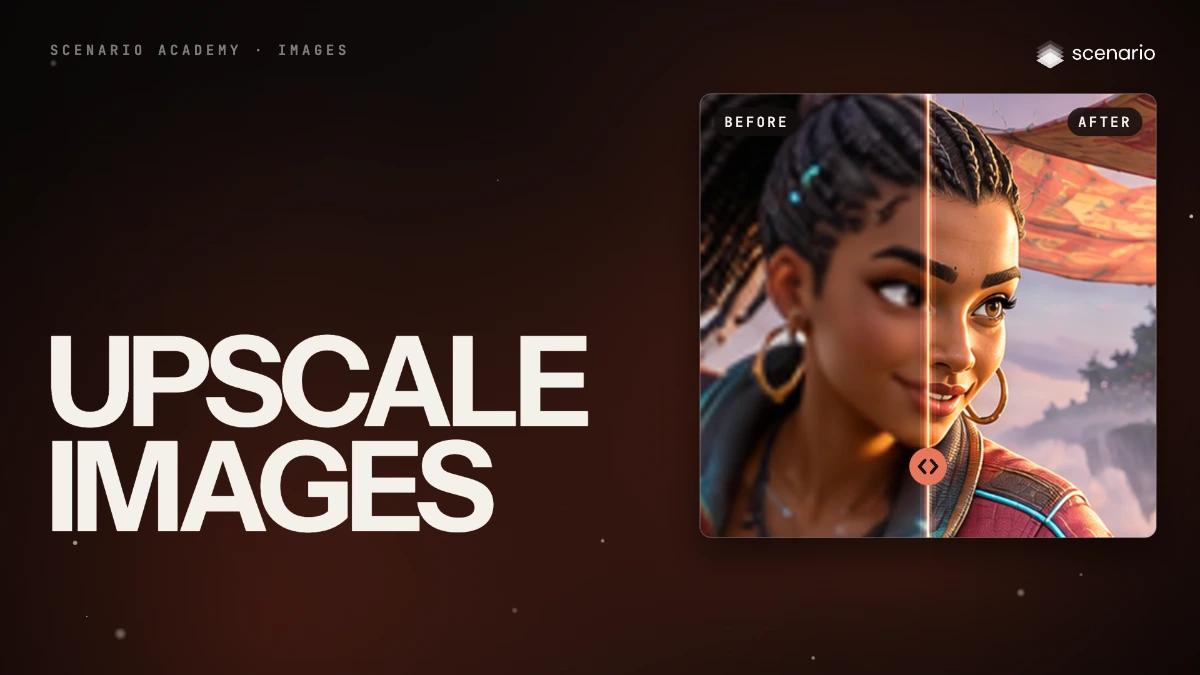
Upscaling makes an image bigger and sharper so it holds up in print, on a large screen or as a texture. In Scenario it's called Enhance. This lesson takes a small 800 × 448 image to 3200 × 1792 with Topaz Image Upscale, then shows how to choose between the other upscalers. The models and prices in this lesson are as of November 2026.
See moreSee less
- Upscale once, last, after the composition, edits and text are approved at the original size.
- Use a fidelity upscaler for approved work; a creative one only to rescue soft images, and check details.
- Enhance, in the bar above an image, picks an upscaler for you; its price shows on the button.
Step by step with an agent, through the Scenario MCP (5 steps)Hide the steps
Connect the Scenario MCP
Connect your agent and sign in once at mcp.scenario.com. Then tell it which Scenario team and project to use, so every file lands there.
Give the agent the files
The approved image, upscaled last, after every edit. Upload it with upload_asset or give its asset ID.
Brief the agent
PromptUpscale the approved image 4x with Topaz Image Upscale (model_topaz-image-upscale): model Standard V2, subject detection none, face enhancement on with creativity 0 and strength 0.8. Read model_schema_get first for the exact parameter names. Quote the cost with a dry run first and wait for my go. Then report the output size.Check and redo
Accept when the face is the same person, edges are clean, textures look like their material and any text reads as in the original. Reject plastic skin, changed eyes or teeth, changed letters, grid-like patterns or halos.
PromptCrop the face and one hard edge from the original and the upscale at the same scale and show them side by side. If the face or any lettering changed, run it again at 2x, or with Magnific Upscaler Precision (model_magnific-upscaler-precision) for work that must not change.File the results and report
PromptAdd the original and the kept upscale to one collection, so anyone can see what it came from. Report both asset IDs, the model, the output size and the total cost spent.
Step by step in the web app (5 steps)Hide the steps
Open Enhance
Open the approved image and click Enhance in the bar above it, or ... on a thumbnail › Enhance. It opens on Topaz Image Upscale with your image under Image. The example image was made with GPT Image 2.5 Sunburst; its prompt shows in the viewer's Info panel.
PromptKey art from VOLTARIS, an invented free-to-play hero shooter. A young woman hero with warm brown skin, long box braids tied high with glowing cyan tips, silver hoop earrings and a cropped magenta bomber jacket with cyan piping skates fast on inline roller blades with glowing cyan wheels down the middle aisle of a salvage bazaar on a floating island at sunrise. Stalls built from old hull plates under patched canvas awnings, crates of glowing batteries, hanging cables and wind chimes, a sea of clouds beyond the railing. She leans into the turn, grinning, one arm out for balance. Medium-wide shot, her full figure in the center third, camera at hip height, warm low sun from the right with a cool rim light. No text, no signs with letters. Style: stylized 3D at the standard of the best free-to-play hero shooters: bold readable silhouettes, appealing expressive faces, hand-tuned stylized PBR (painted metal, soft cloth, rubber), saturated but controlled palette, cinematic key light with a cool rim.Set the scaling factor
Scaling Factor 4x takes 800 x 448 to 3200 x 1792. Keep Model on Standard V2 (Text Refine for lettering) and Subject Detection on None.
Protect faces
Turn on Face Enhancement, keep Creativity at 0 and Strength at 0.8, then click Enhance.
Check the result
Drag the comparison line over the parts that matter at 100% zoom or closer: the face, edges, textures and any text.
Choose another upscaler when you need to
Model name › View model library › Capabilities › Show all › Image Upscale. Pick a fidelity upscaler to keep what's there, a creative one to add detail, or Scenario Texture Upscale and Scenario Skybox Upscale for tileables and panoramas.