

Approval and review steps
Pause a workflow for a person with the Approval node or Slice Items in Choose mode, so only checked results reach the expensive steps.
- Guide
- Step 2 Repeat
Add a review step wherever a wrong result would waste money or reach a client: before a still becomes a video, a concept becomes a 3D model, or a batch is delivered. A workflow has two ways to wait for a person:
| Node | Question it asks | What continues |
|---|---|---|
| Approval | "Is this good enough?" | Everything that arrived, if approved. Nothing, if rejected |
| Slice Items in Choose mode | "Which of these should continue?" | Only the items the person picks |
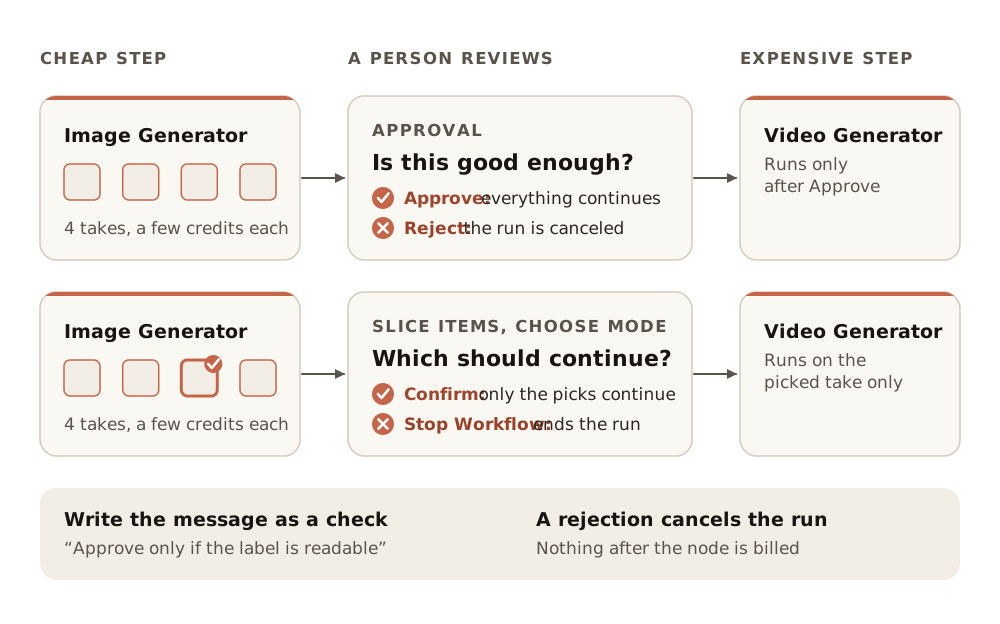
Approve or reject: the Approval node
Approval (palette: Utilities, "Wait for user approval") holds the run, shows the results with a review message you write, and waits.
- Add Approval after the step you want checked, for example after an Image Generator and before a Video Generator.
- Wire the generator's output into it, and its output into the next step.
- Write the review message as a check, not a question. For example:
Approve only if the product label is readable and the bottle has no warped edges. - Run. When the run reaches the node, review the items and click Approve to continue or Reject to stop.
- Reject cancels the run, so nothing after the node is billed.
- Inside a Loop, the API reference says a rejected iteration cascades to the surrounding loop.
- Generators and the LLM Node also show an Approval output port on the live nodes. Use the Approval node above for review steps.
Pick the best: Slice Items in Choose mode
When a generator returns four takes and only one should become a video, use Choose mode.
- Set the generator to return several outputs, for example four images.
- Add Slice Items and wire the generator output into it.
- At the top of the node, choose the Choose mode.
- Set Number of Items to how many should continue, for example 1.
- Optionally write a Message, such as
Pick the shot with the clearest silhouette.The default is "Select the items to continue". - Wire Slice Items into the next step.
When the run reaches the node, a picker opens with your message and the candidates.
- Confirm after selecting exactly the set number: only the nodes after Slice Items run.
- Stop Workflow ends the run.
- Select to Continue on the node reopens a picker you closed.
- Run From Here and Run This Node pause in the same way.
Choose mode works on lists of text too: let an LLM write five prompt options, pick one, and pay for one image instead of five.
Review loops
- Inside a Loop, each iteration asks for its own review. If several finish at once, the pickers queue and appear one after another.
- To keep several results and process each, set Number of Items to that count and wire Slice Items into a Loop.
- After a reject, the run stops. Fix the input, the prompt or the settings, then start a new run and review it again.
- Automatic retry on reject: Scenario's help center describes pairing Approval with If-Else and Loop to send rejected items back for another generation. Keep it bounded (a fixed list of attempts) so cost stays predictable.
In Apps and from code
- In a published App, the same picker opens during the run with Confirm or Stop Workflow. There is no list of paused runs yet, so make the selection in the run you started.
- From the API, a paused run waits until you answer it. See Run workflows from code and agents.
| Pause | Answer it with |
|---|---|
| Approval node | PUT /v1/workflows/{workflowId}/user-approval (approve or reject) |
| Choose node | PUT /v1/workflows/{workflowId}/user-selection (the indices to keep) |
| Approval node, through the Scenario MCP | The catalog tools workflow_approve and workflow_reject |
Where to put review steps
- Before the most expensive node. A video or a 3D model costs many times a still. Review the still.
- After any LLM step that writes for a client. Copy and on-image text are where silent errors hide.
- At the end of a batch that leaves the team. One person approves the set, not each item, unless items are high stakes.
- Not after every node. Each pause is a person's time. Two well-placed checks beat six.
Write review messages with the same accept and reject criteria you would use by eye. Inspect before you accept lists what to look for per modality.
the run pauses at the right node; the message tells the reviewer exactly what to check; after Approve or Confirm, only the intended items reach the next step; after Reject or Stop Workflow, nothing downstream is billed.
the review sits after the expensive step instead of before it; the message is a vague "Looks good?"; a Choose node lets through more items than the next step should pay for.
If it breaks
| Symptom | Fix |
|---|---|
| The run never pauses | The node is not on the path the run takes. Check the wires into it, and that an upstream If-Else did not route around it |
| The picker closed and the run seems stuck | Click Select to Continue on the Slice Items node |
| You cannot confirm | Choose mode needs exactly Number of Items selected |
| A teammate's run is waiting on you | Paused runs are answered from the run itself; ask the person who started it, or answer it through the API with the job and node IDs |