

Your first workflow
Run the ready-made Turnaround Studio App on your character to get front, side and back views, then open the workflow behind it.
- Tutorial
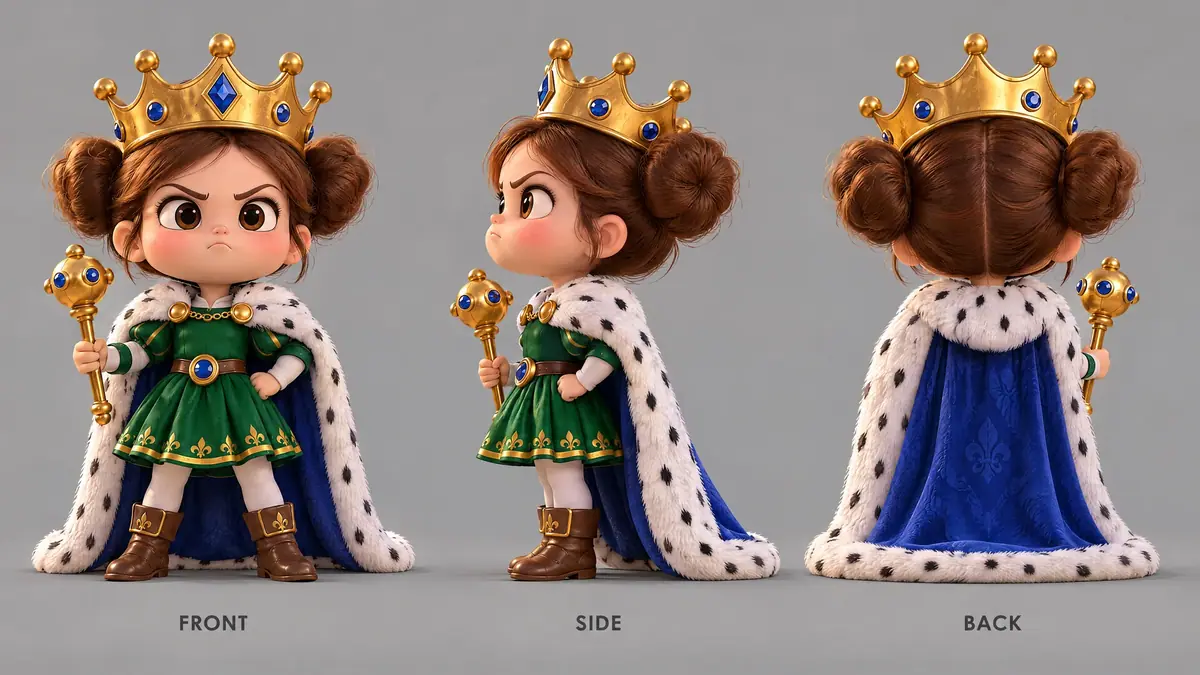
You will run the ready-made Turnaround Studio App on the Queen Pip cutout from Your first edit, then open the workflow behind it.
Outcome: a labeled front, side and back sheet of your character, and a first look inside a workflow. The App runs GPT Image 2.5 Sunburst.
- 1Find the AppWorkflows > Apps, Platform tab
- 2Run itOne image field, then Generate
- 3InspectView by view, against the source
- 4Open the graphEdit workflow, run-only mode
What you need
- One character image: the upscaled cutout from Your first edit, or any clear full-body image of one character on a plain or transparent background.
- Any plan with credits, Free included. See Plans and pricing.
- Credits for one run of an image model. The price shows on Generate.
1. Find the App
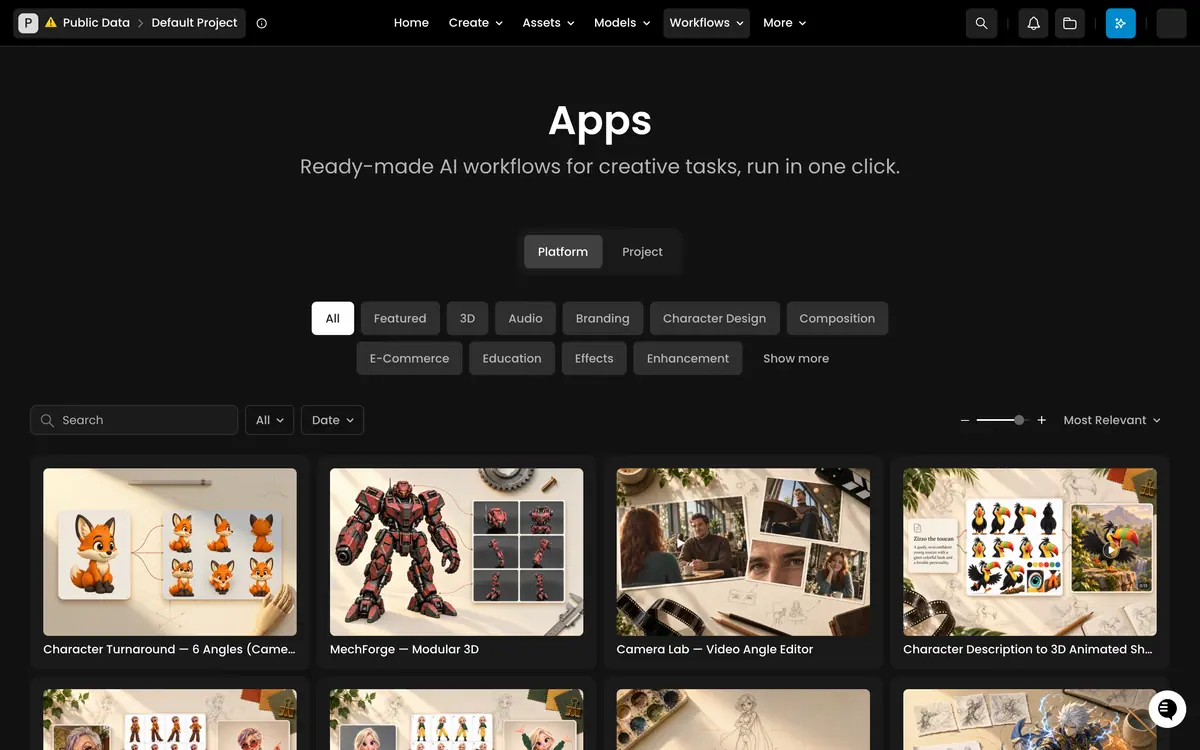
- In the top bar, open Workflows and choose Apps.
- Stay on the Platform tab: these are Apps published by Scenario.
- Click the Character Design chip, or scroll, and open Turnaround Studio.
2. Run it on your image
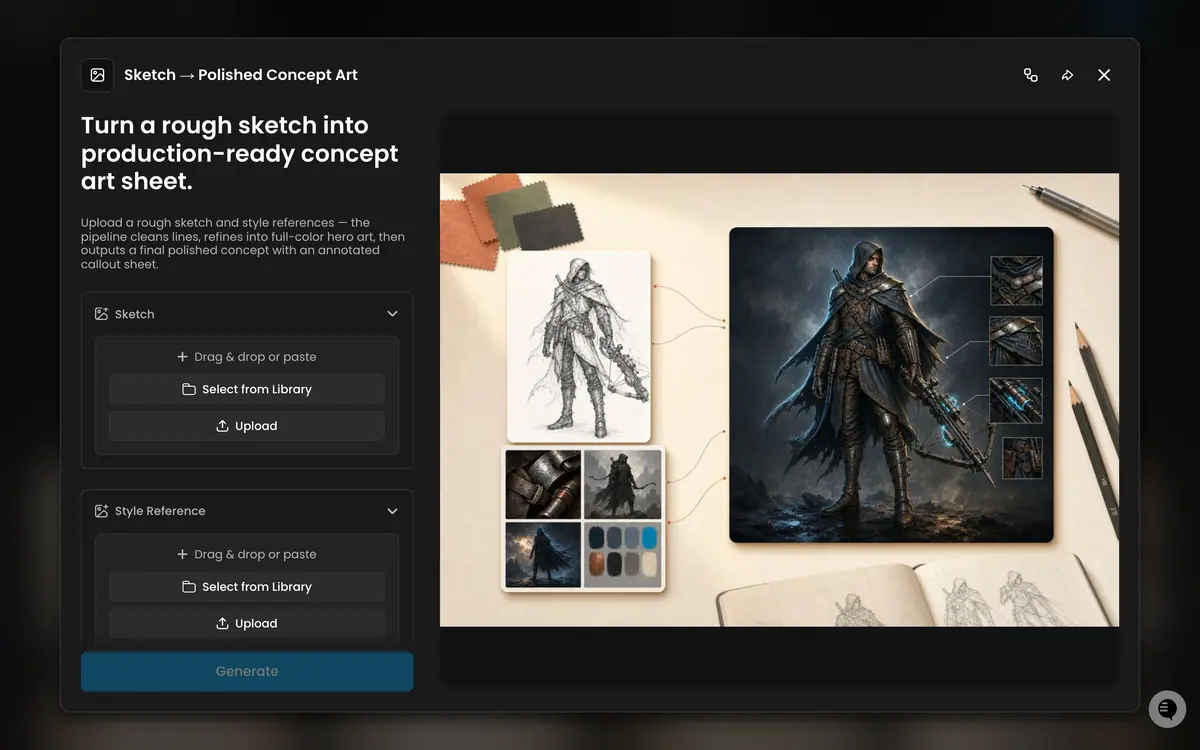
- The run page shows the App's description and one image field on the left.
- In the image field, click Select from Library and pick the upscaled cutout. You can also drag a file onto it or use Upload.
- Click Generate.
The run took about 65 seconds, and the bill matched the quote shown before the run. The sheet is saved as an asset in your current project, like any generation.
3. Inspect the sheet
A turnaround sheet is a reference for an animator, a 3D artist or an illustrator. Check it as they would use it: view by view, against the source image.
the three views show the same character: same proportions, colors, crown, dress, cloak and boots; the labels read FRONT, SIDE and BACK and are spelled correctly; the scepter stays in the same hand in every view; the background is plain.
a view changes the design (an extra part, a different hand, a new color); the labels are misspelled or wrong; the "side" view is really a front view; the character is cropped.
This run passed, with two notes for whoever uses the sheet:
- The crown sits level in all three views; in the source image it is tilted. The tilt is part of her design, so tell the 3D artist or redraw it.
- The BACK view shows the cloak's outside as blue velvet with a pattern, while the source shows white ermine wherever the outside is visible. The model had never seen her back and invented it.
Acceptable for a quick reference. For a 3D model built from the sheet, rerun, or use a platform workflow made for strict orthographic views such as True 4-Pose. See Character reference sheet.
4. Open the workflow behind the App
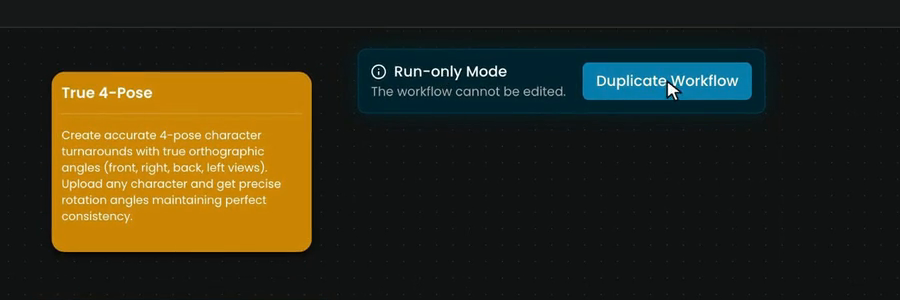
On the run page, click the Edit workflow icon at the top right. The editor opens in Run-only Mode, "The workflow cannot be edited": you can read and run every node, but not change it.
Turnaround Studio has three working nodes and a note:
| Node | What it holds |
|---|---|
| Image input | Your character image. This is the field the App shows. |
| Text 1 | The fixed instruction, reproduced below. |
| Image Generator 1 | GPT Image 2.5 Sunburst at 3840 x 2160, with your image as reference and the text as prompt. |
| Sticky Note | A short explanation for whoever edits the workflow. |
The instruction in Text 1:
Create a full character turnaround sheet featuring the front, side, and back views of this
character, standing, each labeled accordingly beneath the pose. Ensure the style,
proportions, and details remain consistent across all angles. Display the turnaround on a
clean, neutral grey background.
The price badge next to the title shows the cost before you click Run, like the Generate button on a generate page.
What changed compared with single generations
You could make the same sheet in Create > Images with GPT Image 2.5 Sunburst, your image as reference, that instruction and 3840 x 2160. The workflow adds three things:
- It stores the decisions. The model, the prompt and the size are fixed in the graph, so the tenth run is set up exactly like the first.
- It hides them from the person running it. The App asks for one image, so a teammate who has never written a prompt gets the same result.
- It chains. Larger workflows pass one node's output to the next: generate, then cut out, then upscale, in one run. The cost of a run is the sum of its nodes.
To change it, duplicate it: open ... in the editor and choose Duplicate Workflow. The copy lands on your project's Project tab, to edit the instruction, swap the model or add an upscale node. See Platform workflows and templates and Build your first workflow.
If it breaks
- Generate stays disabled. The image field is empty.
- The views do not match each other. Start from a cleaner image: one character, full body, plain background. A busy scene confuses the model about what to turn.
- Labels are missing or misspelled. Normal variance for text in images: run it again, or erase the labels with Retouch.
- The result is not where you expected. It is saved in the project selected in the context switcher when you clicked Generate.
- You want a different style or angle set. Duplicate the workflow and edit Text 1, or try another turnaround workflow on the Platform tab.
Next
Learn what each run costs and where to check it: Compute units basics.