About this lesson
Dubbing replaces the speech in a video with the same words in another language. This guide picks the right level (subtitles, a voice dub or a full video translation), runs a full translation in one go with HeyGen Video Translate, and builds the same result step by step when the script needs control. Every language ends with a check by someone who reads it. The models and settings in this lesson are as of November 2026.
See moreSee less
- Translate a video's speech in a voice close to the speaker's, with the lips re-synced if a face shows.
- Choose the lowest level the audience accepts: subtitles, a voice dub, or a full video translation.
- The one-run translation model defaults to Spanish, so set the language every time; the price grows with duration.
Step by step with an agent, through the Scenario MCP (6 steps)Hide the steps
Connect the Scenario MCP
Connect your agent and sign in once at mcp.scenario.com. Then tell it which Scenario team and project to use, so every file lands there.
Give the agent the video
The master video with no burned-in text, the spoken language, the target languages and the number of speakers. Upload it with upload_asset or give its asset ID. Clone only voices you have the rights to.
Brief the agent: full translation
PromptTrim my video to the spoken part with Video Cut (model_scenario-video-cut). Then translate it with HeyGen Video Translate Precision (model_heygen-v2-translate-precision), one run per target language: set the output language explicitly every time (it defaults to Spanish), set the number of speakers, and leave dynamic duration on (read model_schema_get for the parameter names and the exact language values). Quote the cost of every run with a dry run first and wait for my go.Or step by step, when the script needs control
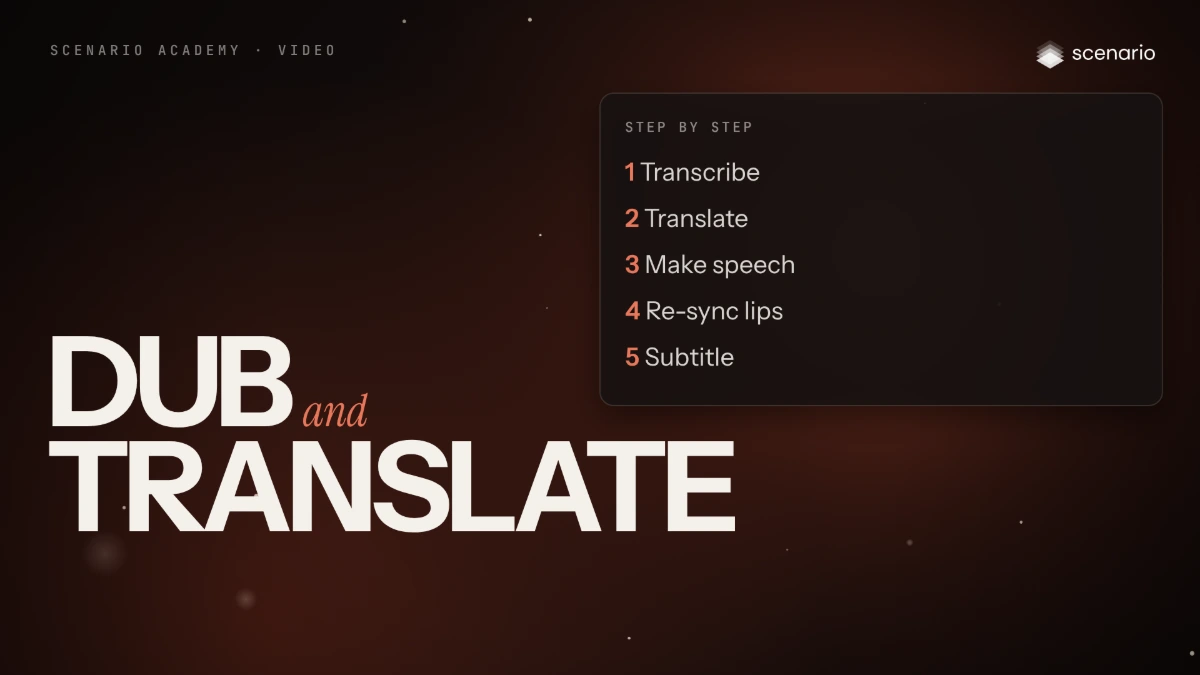
PromptRun Speech to Text (model_scenario-audio-to-text) on my video with the language set to the spoken language and the task on transcribe, and give me the transcript and the SRT. I will send you the translated script after a reader has reviewed it. Then make the speech in that language, re-sync the lips with Sync-3 Lipsync (model_sync-lipsync-v3) on the original video, with sync mode remap if the lengths differ, and if I ask for captions, burn in the translated SRT with Scenario Caption Studio (model_scenario-caption-studio). Read model_schema_get for each model first, and quote every run with a dry run and wait for my go.Check and redo
Accept only when a reader of the language confirms the meaning, names, numbers and tone, the voice stays the same speaker, the lips match the new speech on closing sounds, and the timing fits the cuts. Reject a mistranslated name or number, a voice that changes mid-video, lips that speak another language, speech over a cut, or damaged music and effects.
PromptWait for the jobs with jobs_wait. For each language, transcribe the result with Speech to Text and give me the transcript next to the approved script, so the reader can compare. Redo only the languages I reject.File and report
PromptCreate a collection with the master, the reviewed transcripts and one result per language, and report the models, the language settings and every asset ID by language.
Step by step in the web app (8 steps)Hide the steps
One run: trim and load the video
Trim the video to the spoken part with Video Cut, since translation is billed by length. Create › Videos, click the Model card › View all models, search "HeyGen", choose HeyGen Video Translate Precision (or Speed for a batch), click Use this model and load the video.
One run: set the language and the speakers
Set Output language every time, since it defaults to Spanish. Leave Enable dynamic duration on, set Speaker num for interviews and dialogues, and turn on Translate audio only when no face is on screen.
One run: generate and repeat per language
Check the price on the button and generate, once per language. Send each result to a reader of that language before you publish.
Step by step: transcribe
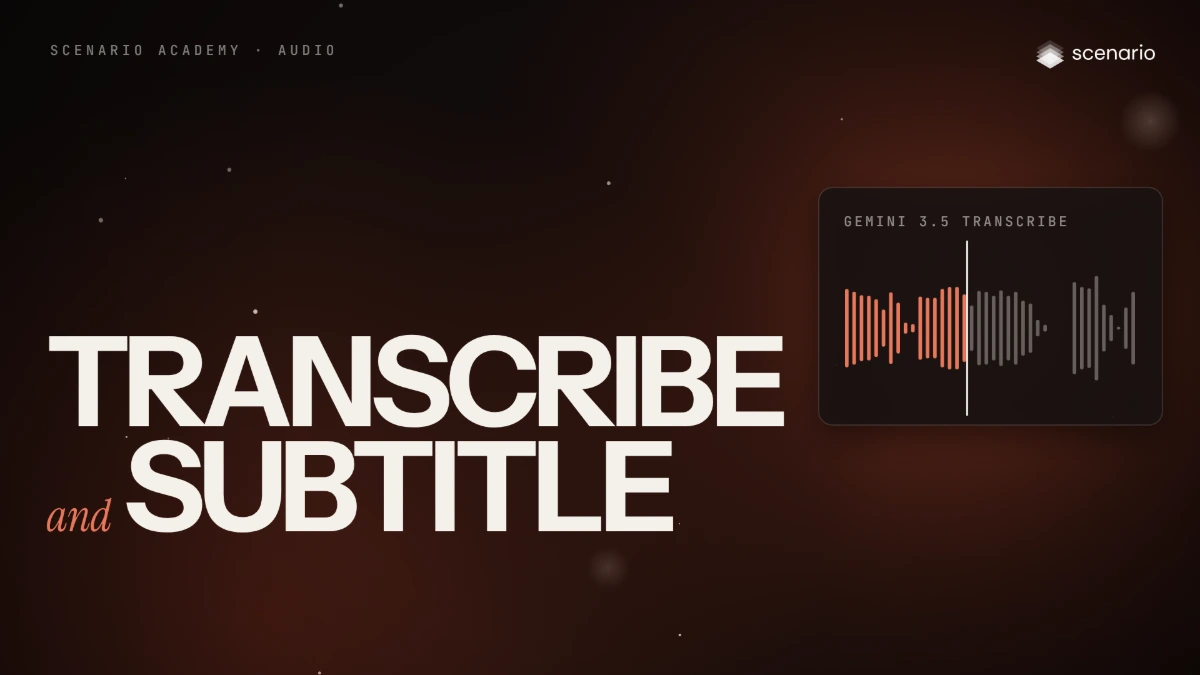
Run Speech to Text (Audio to Text (Subtitles) in the app) on the video for a transcript and an SRT: Language set to the spoken language, Model size Small or Medium, Task Transcribe, an Initial prompt with product names, VAD filter on.
Step by step: translate the script and have it reviewed
Translate the transcript and have a reader of the target language review it. Keep each line close to the original length, so the new speech fits the same shots.
Step by step: make the speech
Use a text-to-speech model, or a cloned voice you have the rights to. ElevenLabs Dubbing does a voice dub in one run (30 languages, up to 10 speakers), but the lips still move in the original language.
Step by step: re-sync the lips
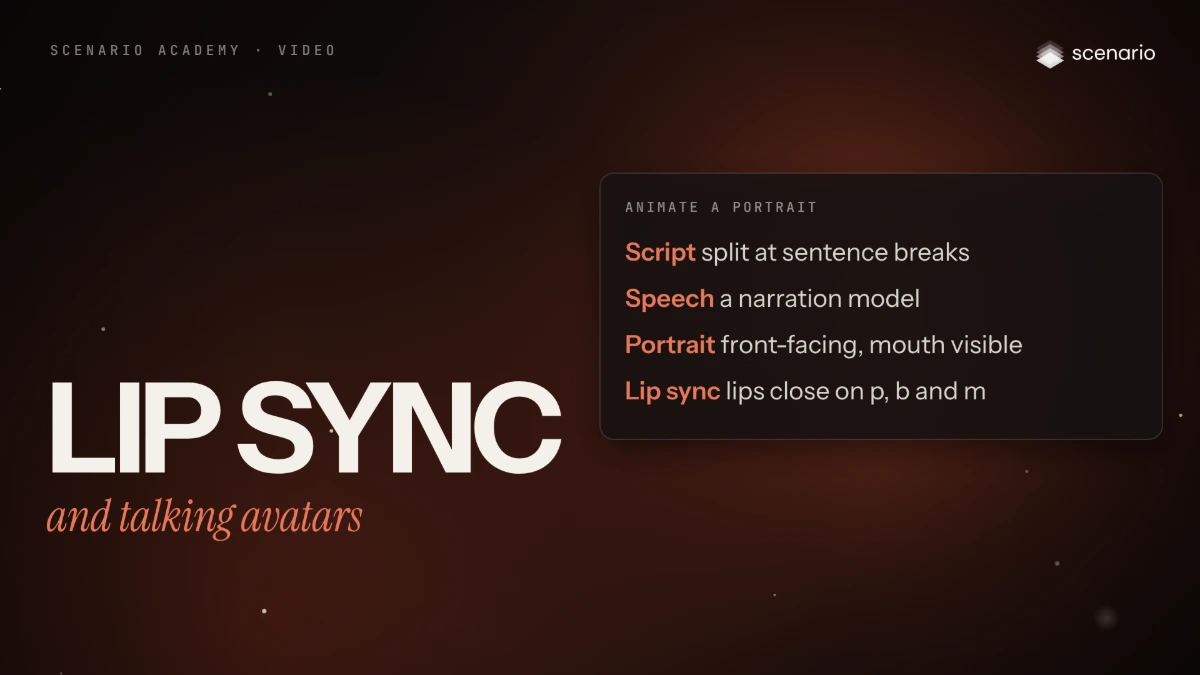
Run Sync-3 Lipsync with the original video and the new audio; if their lengths differ, choose the sync mode (remap keeps both whole).
Step by step: subtitle if needed
Run Scenario Caption Studio with the translated SRT under Subtitles (SRT) to burn in captions with your own timing, without transcribing the audio again.
Related