

Write video prompts
Write video prompts in six parts (start state, one action, end state, camera, pace, sound), then time the beats of a longer clip or cut it into shots.
- Guide
- Step 1 Learn
A video prompt is not an image prompt that moves. The first frame already sets the look, so the prompt's job is to say what changes, how the camera follows it and what it sounds like. This lesson animates one approved image, a girl and her chameleon in a sunny kitchen, with Seedance 2.5: first as one shot written in six parts, then as a 15-second shot with four timed beats, then as three shots joined by cuts.
Quick version
- Load an approved image as the First Frame, and let it carry the look.
- Write the shot in six parts: start state, one main action, end state, camera, pace and sound.
- In Settings, set a Duration that fits the action, then click Generate.
- For a longer shot, give each beat its time, one action per beat, with one camera move for the whole shot.
- For several shots in one clip, write each on its own line and start the next one with "Cut to".
Before you start
- An approved first frame. Make and approve the image before you animate it. The video keeps its characters, setting, light and style, so fix any problem in the image, not in the video prompt.
- A model that takes a first frame. The film uses Seedance 2.5 in Create › Videos. Seedance 2.5 picks its mode from what you attach: a prompt alone, a first frame, a first and last frame, or references. A first frame and reference images can't be used together, so choose one anchor per shot.
- Draft runs. With Draft on in Settings, Seedance 2.5 renders a 480p preview. When a preview is the one you want, you finalize it in 1080p without generating it again.
- What a video prompt holds. Seedance's own format has slots for subject and action, scene, visual style, camera movement and audio. With a first frame, the scene and style are already in the image, which is why the prompt here spends its words on the action, the camera and the sound.
Step 1: Start from the first frame
Start from an image you've already approved, and use it as the First Frame. It already shows the girl, her chameleon, the kitchen and the light. So the prompt doesn't describe the look again: it describes what changes.
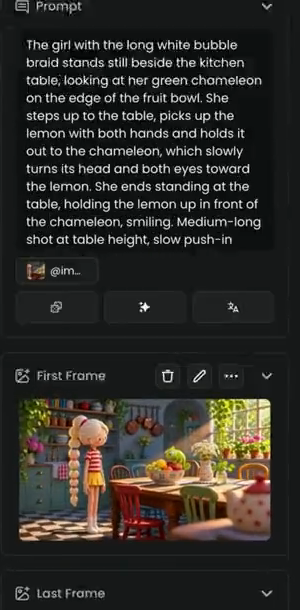
Describing the look a second time does not help. At best it repeats what the frame shows; at worst it asks for something slightly different, and the model drifts away from the frame to match the words.
Step 2: Write the shot in six parts
Write the shot in six parts, in this order:
- Start state: where she is when the clip begins. She stands still, looking at the chameleon.
- One main action: she picks up the lemon and holds it out.
- End state: where the action lands. She ends holding the lemon up, smiling. Without it, the model may repeat the action, or add a new one.
- Camera: the shot size, and one move. Here a medium-long shot at table height, with a slow push-in.
- Pace: gentle, real-time.
- Sound: what you hear in the room. Write "no music" if you'll add your own later.
The prompt the film uses:
The girl with the long white bubble braid stands still beside the kitchen table, looking at her green chameleon on the edge of the fruit bowl. She steps up to the table, picks up the lemon with both hands and holds it out to the chameleon, which slowly turns its head and both eyes toward the lemon. She ends standing at the table, holding the lemon up in front of the chameleon, smiling. Medium-long shot at table height, slow push-in toward the girl and the chameleon. Gentle, real-time pace. Sound: soft kitchen room tone, birds outside the window, light footsteps on the tiles. No music, no dialogue.
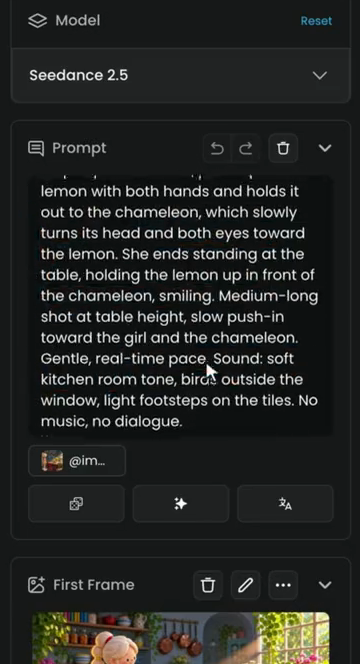
Name the camera move exactly ("slow push-in", "slow arc to the right") rather than with a vague word like "cinematic". Describe motion over time, not a frozen picture.
Step 3: Set the duration and generate
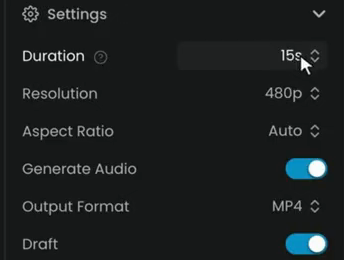
Open Settings and choose a Duration that fits the action. If it's too long, the model fills the time with extra moves. One action with a clear end state needs only a few seconds; the film uses 8s.
The other settings in the film:
- Resolution: 480p. While Draft is on, the output is always 480p, whatever this says.
- Aspect Ratio: Auto. With a first frame, the clip keeps the shape of the image.
- Generate Audio: on, so the model makes the sound the prompt describes.
- Output Format: MP4. MOV keeps more color for grading, in larger files.
- Draft: on, for a quick 480p preview.
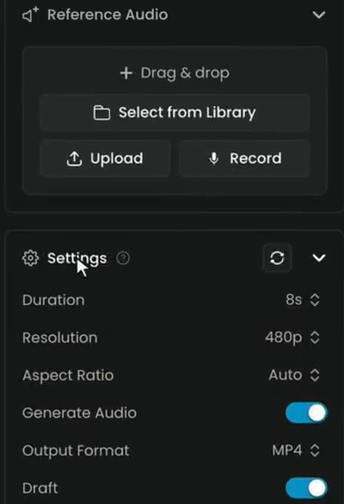
The price shows on the Generate button. Click Generate.
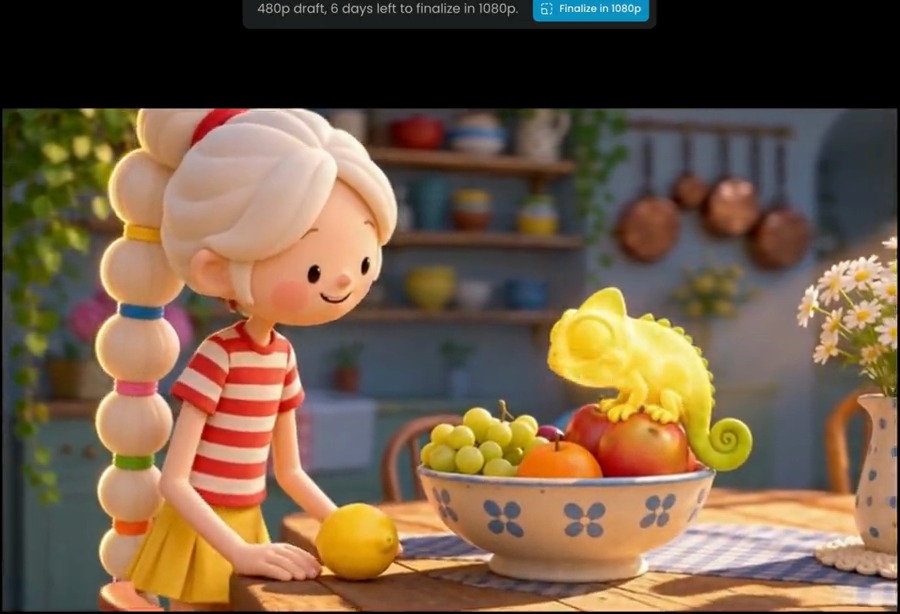
She walks to the table, picks up the lemon, and stops on the end state, while the camera pushes in.
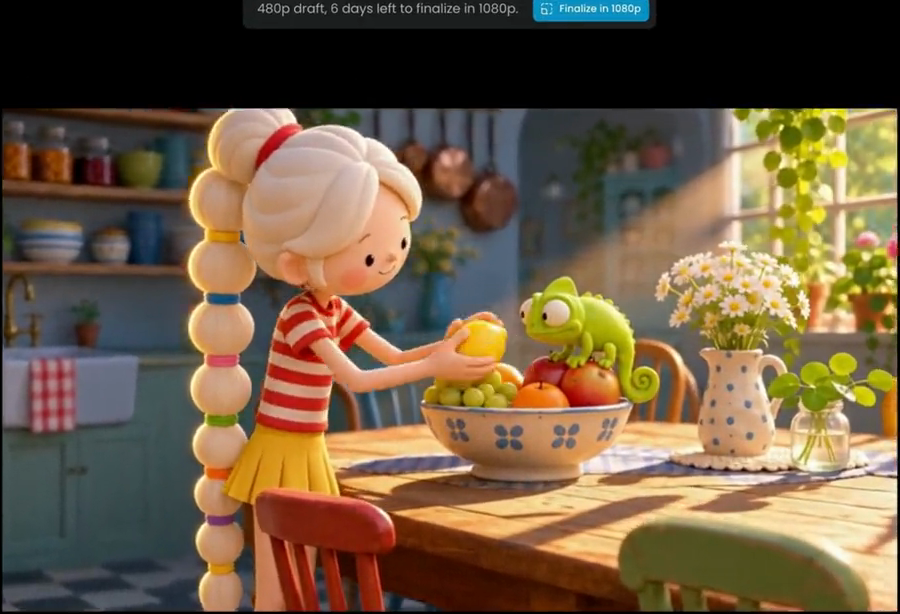
The banner above a draft shows how long you have left to finalize it. Click Finalize in 1080p to open Seedance 2.5 Draft Complete with the draft already loaded, then click Generate for the 1080p version. A draft can be finalized for 7 days.
Step 4: Time the beats of a longer shot
For a longer shot, split the action into beats, and give each beat its time. One action per beat: the lemon, the tongue, the color change, and the smile. Start each beat on its own line with its time in brackets, for example [0-4s].
Keep one camera move for the whole shot. Here, a slow arc around the table.
The prompt in the film, as far as its sound line (the end of the prompt is not shown in the film):
One continuous shot, no cuts. The girl with the long white bubble braid stands beside the kitchen table, looking at her green chameleon on the edge of the fruit bowl.
[0-4s] She steps up to the table, picks up the lemon with both hands and holds it out to the chameleon.
[4-8s] The chameleon shoots out its long sticky tongue, grabs a green grape from the bowl and pulls it into its mouth. She laughs, surprised.
[8-12s] She sets the lemon down right next to the chameleon. The chameleon's skin slowly changes color from green to the same bright lemon yellow, starting at its head.
[12-15s] She leans in with her chin on her hands, smiling at the yellow chameleon, and it blinks at her.
Camera: medium-long shot at table height. The camera slowly arcs to the right around the table and moves a little closer during the whole shot, ending on a medium shot of the girl and the chameleon.
Pace: gentle, real-time.
Sound: soft kitchen room tone, birds outside the window, a tiny wet snap when the tongue catches the grape.
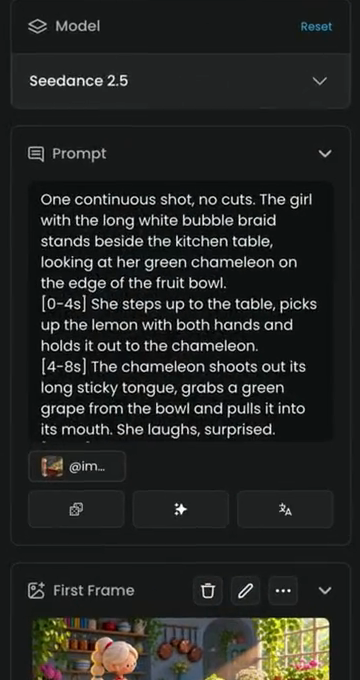
Set the duration to the end of the last beat: here 15s. Click Generate.
Watch the result beat by beat: each action should land in its own window while the camera keeps arcing.
Step 5: Ask for cuts
You can also ask for cuts, so one clip holds several shots:
- Write each shot on its own line, with its time, its framing and its camera.
- Start each new shot with "Cut to".
- Say that the girl, the chameleon and the kitchen stay the same in every shot. Otherwise the model may treat each shot as a new scene.
The film's clip has three shots in 12 seconds: a medium-long static shot (0 to 4 s, she picks up the lemon), an extreme close-up (4 to 8 s, the chameleon turns yellow) and a close-up with a slow push-in (8 to 12 s, her smile). Its prompt opens like this:
Three shots with hard cuts. The same girl, the same chameleon, the same kitchen and the same sunlight in every shot.
Shot 1 [0-4s]: medium-long shot at table height, static camera. The girl with the long white bubble braid stands beside the table, then steps up and picks up the lemon from the fruit bowl.
Cut to shot 2 [4-8s]: extreme close-up of the green chameleon on the edge
The film shows only this part of the prompt. Shot 3 follows the same pattern, starting with "Cut to shot 3".
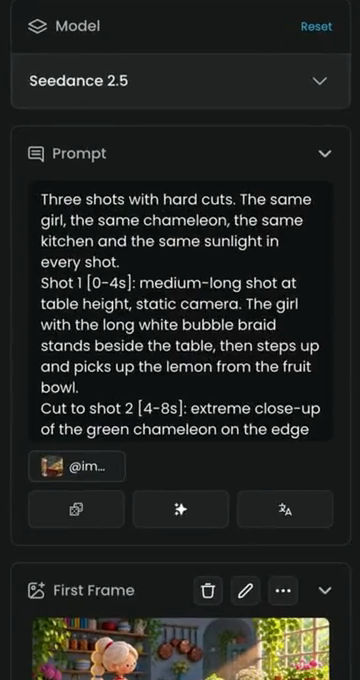
Set the duration to the end of the last shot, and click Generate.
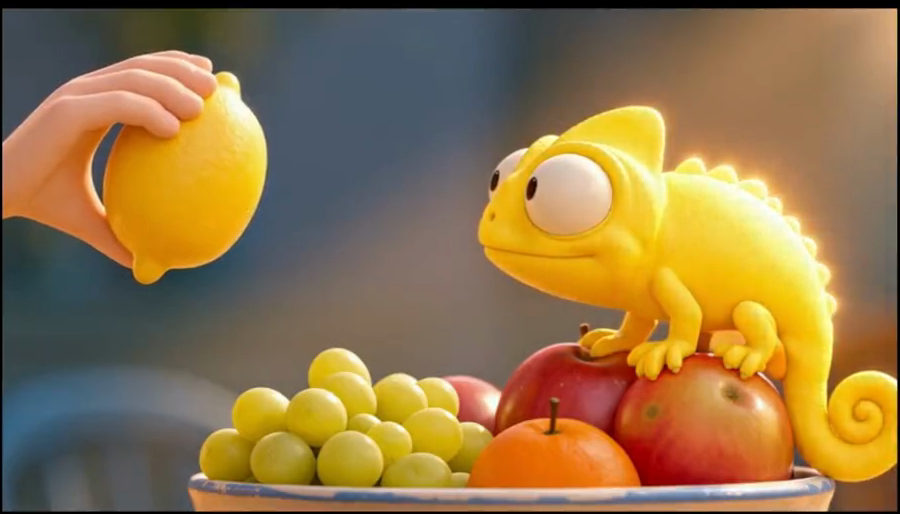
the clip starts on the first frame, every action you wrote happens once and in order, it ends on the end state you described, the camera makes the one move you asked for, and the girl, the chameleon and the kitchen stay the same from start to end (and across cuts).
an action repeats or a new one appears, the clip ends mid-action, the camera does something else, a beat is skipped, or a cut brings in a different character or room. Fix the prompt, or the duration, and run another draft.
What to avoid
- A prompt that only describes the scene gives a clip where almost nothing happens. Use active verbs, and say what moves.
- Several camera moves in one clip blend into one. For several moves, make several shots.
- Writing what should not happen. Write what should happen, not what shouldn't: "doesn't turn around" can make her turn. Write "She keeps facing the table." instead.
Sound in the prompt
With Generate Audio on, the model makes the sound from your words. Describe the room tone, the small sounds tied to the action, and say plainly what you don't want: "No music, no dialogue."
Seedance 2.5 also reads the developer's bracket channels for sound: ( ) for music and ambience, < > for sound effects, { } for spoken dialogue, and 【 】 for on-screen subtitles. For dialogue, name the language first. The Knowledge Center recommends keeping Generate Audio off and adding your own cleared track when the sound matters: the generated soundtrack is checked by moderation after the video is made, so a flagged track can block a finished clip.
The shape of each prompt
| Shot | What to write | Duration |
|---|---|---|
| One shot | Start state, one action, end state, camera, pace, sound | Just long enough for the action |
| Timed beats | One opening line, then [0-4s], [4-8s]... one action each, then one camera line, pace and sound | The end of the last beat |
| Cuts | "Shots with hard cuts", what stays the same, then one line per shot with its time, framing and camera, each new one starting "Cut to" | The end of the last shot |
Common problems
| What you see | What to do |
|---|---|
| Almost nothing happens | Add one clear action with an active verb, and an end state |
| The action repeats or a new one appears | Add an end state, or shorten Duration |
| The clip ends before the action is done | Lengthen Duration, or split the action into timed beats |
| Beats run into each other | Give each beat one action only, and set the duration to the end of the last beat |
| The camera wanders or mixes moves | Keep one camera move per shot; for more moves, ask for cuts |
| The look drifts from the first frame | Stop describing the look; describe only what changes |
| A cut brings in a new character or room | Say that the characters, the place and the light stay the same in every shot |
| The model does what you told it not to | Rewrite as what should happen: "She keeps facing the table" |
| A finished clip is blocked | Turn Generate Audio off and add your own sound later |
What's next
To move the camera with more control, read Direct the camera and motion. To fix both the start and the end of a shot, use a first and a last frame in Generate video, and to keep a character the same across clips, see Reference to video.