

Dub and translate a video into other languages
Translate speech with the speaker's voice and lip movement, or build the dub step by step, then check each language with a native reader.
- Guide
- Step 1 Learn
Dubbing replaces the speech in a video with the same words in another language. This guide picks the right level (subtitles, a voice dub or a full video translation), runs a full translation in one go with HeyGen Video Translate, and builds the same result step by step when the script needs control. Every language ends with a check by someone who reads it.
Quick version
- Choose the lowest level the audience accepts: subtitles, a voice dub, or a full translation with re-synced lips.
- Trim the video to the spoken part with Video Cut.
- In Create › Videos, pick HeyGen Video Translate Precision (or Speed for a batch) and load the video.
- Set the output language every time (it defaults to Spanish) and the number of speakers.
- Check the price on the button, generate, and repeat for each language.
- Send each result to a reader of that language before you publish.
Before you start
| Level | What the viewer gets | Tools |
|---|---|---|
| Subtitles | Original voice, translated captions | Scenario Caption Studio (18 languages), Speech to Text for an SRT |
| Voice dub | Translated speech in a similar voice; lips still move in the original language | ElevenLabs Dubbing v2, or HeyGen with Translate audio only |
| Full video translation | Translated speech in a similar voice, with the mouth re-synced | HeyGen Video Translate Precision or Speed, or a step-by-step pipeline ending with Sync-3 Lipsync |
- Choose the lowest level the audience accepts. Each level up costs more and has more to check.
- Subtitles first for social clips watched without sound.
- Full translation for a presenter speaking to camera, where a mismatch between lips and voice shows.
- You need a reader for each language. A model can't tell you if a name, a number or the tone is wrong.
- Price grows with duration, and it shows on the button. Trim before you run, and check the real length before a whole campaign.
- Clone only voices you have the rights to.
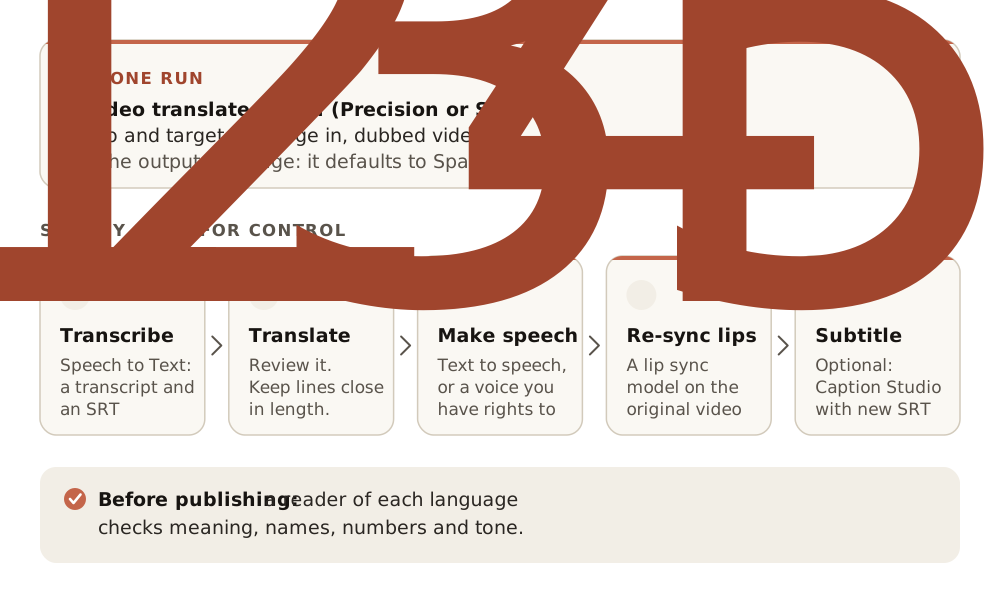
Way 1: Full translation in one run
HeyGen Video Translate returns translated speech in a voice close to the speaker's, with the lips re-synced. Precision is made for the most demanding work, where lip sync accuracy matters. Speed is faster and costs less, for batches.
Step 1: Trim and load the video
Trim the video to the spoken part with Video Cut (see Video tools): translation is billed by length. Then open Create › Videos, click the Model card, then View all models, search for "HeyGen", choose HeyGen Video Translate Precision (or Speed) and click Use this model. Load the video.
Step 2: Set the language and the speakers
- Output language. Well over 100 options, including regional variants such as French (Canada), Spanish (Mexico) and English (UK), and several variants of Arabic and Urdu. The default is Spanish: set it every time.
- Translate audio only. Translates the voice and leaves the faces untouched. Use it when no face is on screen, or for a voice-over.
- Enable dynamic duration. On by default. Lets the translated speech run longer or shorter than the original, since languages differ in length, and adjusts the video to fit.
- Speaker num. Set the number of speakers for interviews and dialogues, so each voice is separated and translated correctly.
Step 3: Generate and repeat per language
Check the price on the button and generate. Run it once per language, and send each result to a reader of that language before you publish.
Way 2: Step by step, when you need control
Run the steps yourself when the script needs editing (brand names, legal lines, local wording), when you want a specific voice, or when one model fails a language.
Step 1: Transcribe
Run Speech to Text on the video. It returns a plain transcript and a timed SRT file. In the app it can show as Audio to Text (Subtitles).
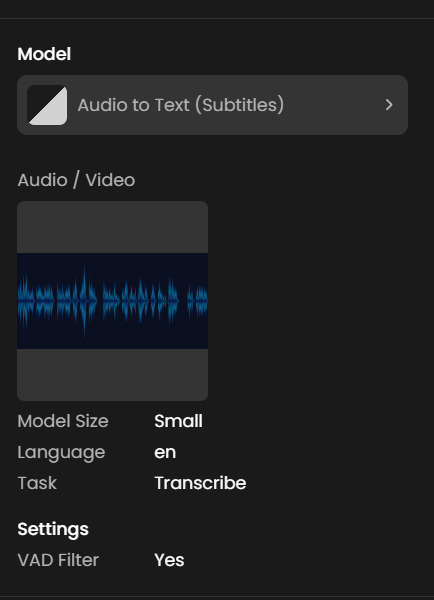
- Language: set the spoken language (for example
enorfr) instead of leaving it on auto-detect. It's more accurate and faster. - Model size: Tiny is fastest, Large-v3 most accurate. Small or Medium suits most work; use Large-v3 for long or noisy recordings.
- Task: Transcribe keeps the source language. Translate returns English only, so don't use it for other target languages.
- Initial prompt: add product names and unusual words so they're spelled right.
- VAD filter (voice activity detection) skips silence. Leave it on.
Step 2: Translate the script and have it reviewed
Translate the transcript, then have a reader of the target language review it. Keep each line close to the original length, so the new speech fits the same shots.
Step 3: Make the speech
Use a text-to-speech model, or a cloned voice where you have the rights. See Narration and speech. For a dub that keeps the speaker's own voice in one run, ElevenLabs Dubbing translates the speech in a video or audio file into 30 languages with voice cloning, and can detect up to 10 speakers. It gives a voice dub: the lips still move in the original language.
Step 4: Re-sync the lips
Run Sync-3 Lipsync with the original video and the new audio. If the new speech is longer or shorter than the video, choose the sync mode (remap keeps both whole). See Lip sync and talking avatars.
Step 5: Subtitle if needed
Run Scenario Caption Studio with the translated SRT under Subtitles (SRT) to burn in captions with your own timing. It uses the file as it is and doesn't transcribe the audio again.
Keep text out of the picture
Dubbing changes the audio and the mouth, not a sign, a label or a title in the frame. Plan for it when you generate: keep on-screen text out of generated shots, and add it in the edit, one layer per language.
a reader of the language confirms the meaning, names, numbers and tone; the voice sounds like the same speaker across the video; lips match the new speech on closing sounds; and the timing still fits the cuts and on-screen action.
a name or number is mistranslated or mispronounced, the voice changes character mid-video, the lips visibly speak another language, the speech runs over a cut, or background music and effects were lost or garbled.
Make it repeatable
- One master, no burned-in text, and a workflow that takes the master and a language as inputs. Each market is one run.
- Store the reviewed transcripts with the outputs, so the next update reuses the approved wording. See Presenter video with avatar.
Common problems
| What you see | What to do |
|---|---|
| The translation used the wrong language | The output language defaulted to Spanish. Set it every time |
| Two speakers share one voice | Set the number of speakers, or split the video by speaker and translate each part |
| The lips look off in the new language | Try Precision instead of Speed, or run the step-by-step pipeline with Sync-3 Lipsync |
| The dub overruns the scene | Shorten the translated script, or allow dynamic duration and re-edit the cut around it |
| The dubbed voice sounds sped up | Longer languages are stretched to fit. Shorten the script, or allow dynamic duration |
| Music under the voice is damaged | Separate the voice and the music first, dub the voice, then remix. See Sound effects and foley |
| Speech to Text returned English | The task was set to translate, which gives English only. Set it to transcribe |
| A brand name is misspelled in the transcript | Add it to the initial prompt and run Speech to Text again |
What's next
For subtitles only, see Transcribe and subtitle. To build a presenter who speaks every language from one portrait, see Presenter video with avatar.