About this lesson
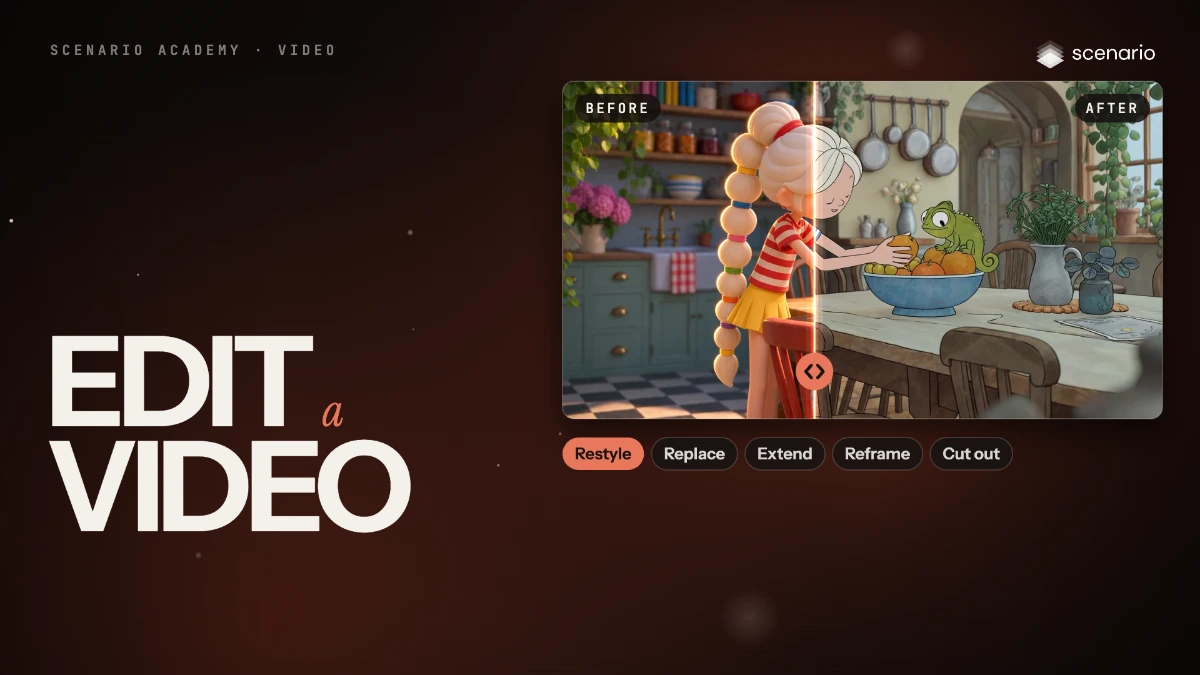
The film trims a clip with Video Cut, then searches the model library and picks a model for each edit: a watercolor restyle of the kitchen clip with Luma Ray 3.2 Edit, a new jacket on a skateboard ride with Seedance 2.5, five more seconds of the kitchen with Minimax H3 Max Extend Video, then a vertical reframe and a cut-out of the skater. The models and prices in this lesson are as of November 2026.
See moreSee less
- Video edit models keep the motion, timing and framing of a clip and change only what you describe.
- Pick the edit by what you want to change, then pick a model for it in the model library: restyle, replace, extend, reframe or remove the background.
- Trim the clip first with Video Cut: most edit models charge by the length of the video.
Step by step with an agent, through the Scenario MCP (6 steps)Hide the steps
Connect the Scenario MCP
Connect your agent and sign in once at mcp.scenario.com. Then tell it which Scenario team and project to use, so every file lands there.
Give the agent the files
The 15-second kitchen clip, the 9-second skater clip and the image of the cobalt-blue bomber jacket. Upload them with upload_asset or give their asset IDs, and say which is which. Keep the sources as masters: every edit is a new asset.
Brief the agent: trim and restyle
Read model_schema_get for each model's parameter names before the runs.
PromptFirst trim the kitchen clip with Video Cut (model_scenario-video-cut): start 0, end 8 seconds, audio kept, MP4. Then restyle the trimmed clip with Luma Ray 3.2 Edit (model_luma-ray-3-2-edit): the trimmed clip as the source video, edit strength Flex 2, 720p, HDR off, Auto Controls off, Pose Control and Trajectory Control on. Quote the cost of each run with a dry run first and wait for my go. Restyle prompt, word for word: Restyle the whole video as a hand-painted 2D watercolor storybook animation: soft watercolor washes, visible paper texture, delicate ink outlines, flat painted shading and a warm pastel palette. Keep the girl, her long white bubble braid, her striped shirt and yellow skirt, the chameleon, the kitchen layout, every movement, the timing and the camera move exactly the same.Brief the agent: replace and extend
PromptReplace the jacket with Seedance 2.5 (model_bytedance-seedance-2-5): the skater clip as reference video 1, the jacket as reference image 1, duration following the source, 720p, aspect ratio auto, audio off, draft off. Prompt, word for word: Edit @video1: replace only the black leather jacket the woman wears with the cobalt-blue satin bomber jacket from @image1. Keep her face, her hair, her white tank top, her jeans, her sneakers, the skateboard, every movement, the timing, the place and the camera exactly the same. Extend the full 15-second kitchen clip with Minimax H3 Max Extend Video (model_minimax-h3-max-extend-video): 5 seconds added, the source plus the extension in the output, 1080P, aspect ratio auto, prompt expansion off. Prompt, word for word: The green chameleon steps off the fruit bowl onto the girl's open hand and climbs up her arm to sit on her shoulder. She giggles and turns her head to look at it. The camera keeps the same slow, steady movement. Read model_schema_get for the parameter names. Quote both with a dry run first and wait for my go.Brief the agent: reframe and cut out
PromptReframe the skater clip to 9:16 with Luma Ray 3.2 Reframe (model_luma-ray-3-2-reframe) at 720p. Cut the skater out of the source clip with Pixelcut Video Background Removal (model_pixelcut-video-background-removal), as WebM VP9 or MOV ProRes 4444 to keep the transparency. Read model_schema_get for the parameter names, quote both first and wait for my go.Check, redo, file and report
Accept when matching frames of source and edit show the same motion, timing, framing and positions, the change is in every frame, and nothing else changed. Reject an edit that flickers between the old and new look, changes something not mentioned, slows, speeds up or trims the motion, or an extension that drifts in style or identity.
PromptWait for the jobs with jobs_wait. Pull matching frames from each source and its edit and tell me which edits fail and why; redo only those, quoting first. Then create a collection with the sources and the approved edits, and report the models, the settings and every asset ID.
Step by step in the web app (7 steps)Hide the steps
Trim the clip with Video Cut
Create › Videos › Video Cut, the clip under Video. Settings: Start Time 0 and End Time 8, Preserve Audio on, Output Format MP4, then Generate: most edit models bill by the input's length.
Find an edit model in the library
Model card › View all models, then search "edit", "extend" or "reframe" (or a model's name). Click one to read it on the right, then Use this model.
Restyle the whole look
Luma Ray 3.2 Edit, the trimmed clip as Source Video. Settings: Edit Strength Flex 2, 720p, HDR and Auto Controls off (Auto Controls can't run with an Edit Strength); Advanced Controls: Pose Control and Trajectory Control on.
PromptRestyle the whole video as a hand-painted 2D watercolor storybook animation: soft watercolor washes, visible paper texture, delicate ink outlines, flat painted shading and a warm pastel palette. Keep the girl, her long white bubble braid, her striped shirt and yellow skirt, the chameleon, the kitchen layout, every movement, the timing and the camera move exactly the same.Replace one element
Seedance 2.5 with the skater clip under Reference Videos and the bomber jacket under Reference Images, called @video1 and @image1 in the prompt. Settings: Duration Auto, Resolution 720p, Aspect Ratio Auto, Generate Audio off, Draft off.
PromptEdit @video1: replace only the black leather jacket the woman wears with the cobalt-blue satin bomber jacket from @image1. Keep her face, her hair, her white tank top, her jeans, her sneakers, the skateboard, every movement, the timing, the place and the camera exactly the same.Extend the clip
Minimax H3 Max Extend Video, the full 15-second clip as Input Video, a prompt for the next action only. Settings: Extension Duration 5, Output Source + Extension, 1080P, Aspect Ratio Auto, Prompt Expansion off.
PromptThe green chameleon steps off the fruit bowl onto the girl's open hand and climbs up her arm to sit on her shoulder. She giggles and turns her head to look at it. The camera keeps the same slow, steady movement.Reframe to another format
Luma Ray 3.2 Reframe: load the clip, choose the new Aspect Ratio (here 9:16, at 720p since 1080p is for landscape and square only) and Generate. Check faces, small details and the edges of the new areas.
Remove the background
Pixelcut Video Background Removal keeps only the subject. Choose WebM VP9 or MOV ProRes 4444 to keep the transparency, since MP4 can't carry it. Then compare matching frames of the source and every edit before you keep one.
Related