

Audio on Scenario, models and prompts
The audio jobs you can run on Scenario, where each one lives in the app, how to choose a model, and how to write a prompt for music, speech and sound effects.
- Concept
- Step 1 Learn
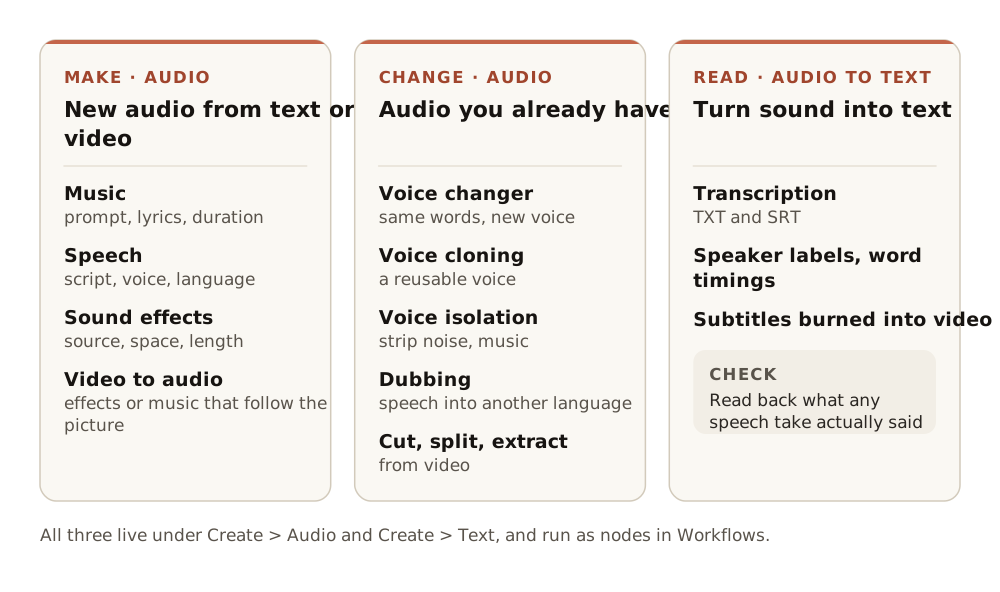
Audio on Scenario isn't one tool. It's a set of jobs, each with its own models: make music, speech and sound effects, change a voice you already have, and read audio back as text. This lesson shows where each job lives in the app, how to find a model by job, how to write the prompt each kind of model expects, and how to check a take. The example is one short narration line made with ElevenLabs v4 and checked with Gemini 3.5 Transcribe.
Quick version
- Open Create › Audio. The panel opens on a speech model.
- To find a model by job, open the model menu, then View all models, tick Audio, then a capability: Speech, Music, Sound Effects or Tools.
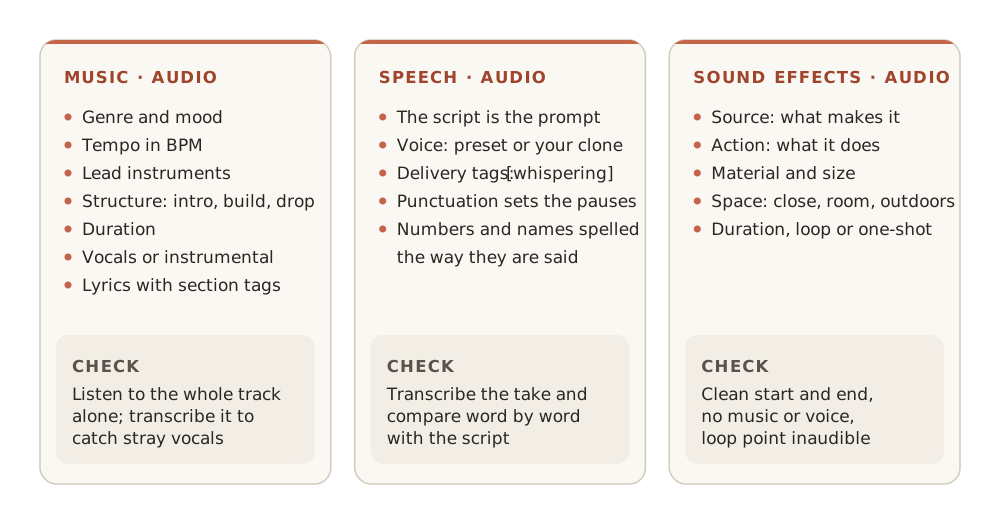
- Write the prompt the model reads: a description of the track for music, a description of the sound for effects, the words themselves for speech.
- For speech, pick the voice in the voice setting, never in the text.
- Check every take: its length first, then a transcript from Create › Text with Gemini 3.5 Transcribe.
Before you start
- You need a project you can generate in. Everything in this lesson runs in the normal Create panels; there's nothing to install.
- Pick the job first, then the model. Music, speech, voice changes, effects and transcripts are separate jobs, and a model built for one rarely does another well.
- One field, three readings. The audio panel has one main text field, but each kind of model reads it differently. Its name changes with the model to show you which: Music Description, Sound Description or Text.
- Takes are cheap compared with video or 3D. Plan on several takes and keep the best. The cost of each one shows on the Generate button before you run it.
Step 1: Open the audio panel
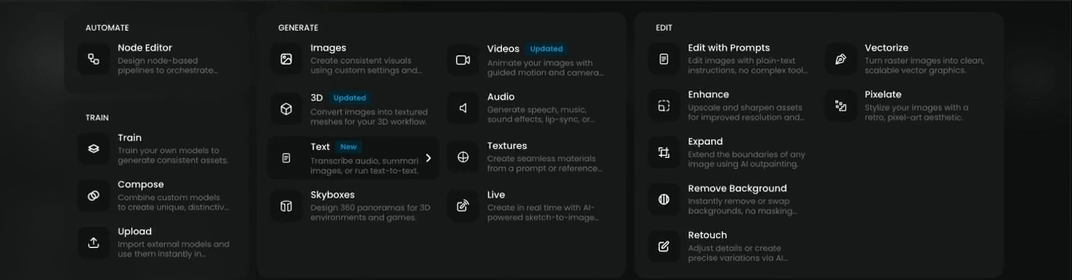
Open the Create menu at the top of the app. Under Generate, two entries matter for sound:
- Audio: "Generate speech, music, sound effects, lip-sync, or voice cloning." Everything that makes or changes sound starts here.
- Text: "Transcribe audio, summarize images, or run text-to-text models." Transcription lives here, not under Audio. You'll use it in Step 6.
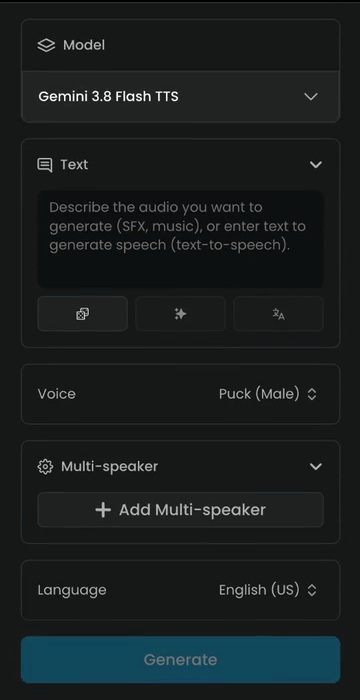
Click Audio. The panel opens on a speech model, here Gemini 3.8 Flash TTS, with four settings:
- Text: the words to speak. The placeholder reminds you that the same field takes a description for music and effects on other models.
- Voice: the preset voice, here Puck (Male).
- Multi-speaker: Add Multi-speaker gives a second voice, for a dialogue in one take.
- Language: here English (US).
Step 2: Find a model by job
Click the model name at the top of the panel, then View all models. Choose a model opens with every model on Scenario.
- Under Output, tick Audio. The list narrows to the audio models.
- Under Capabilities, tick one job at a time and watch the list change:
- Speech: text to speech, narration and dialogue.
- Music: instrumentals, cues and songs.
- Sound Effects: effects from a description, and effects or music for a video.
- Tools: changing a voice or cleaning up a track.
- Click a model to read its description on the right, then Use this model.
Untick one capability before you tick the next, or you'll see the models that match both.
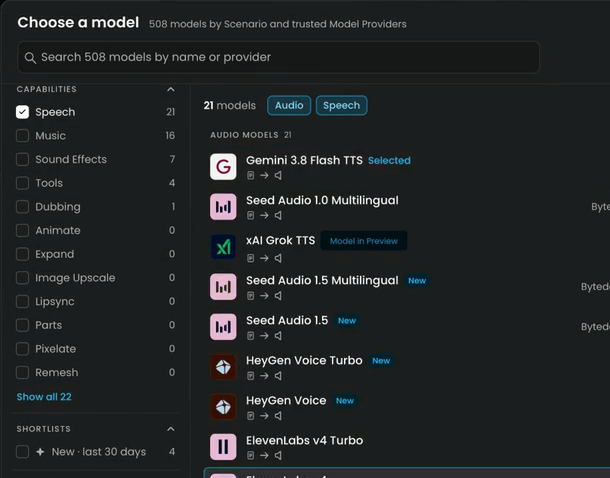
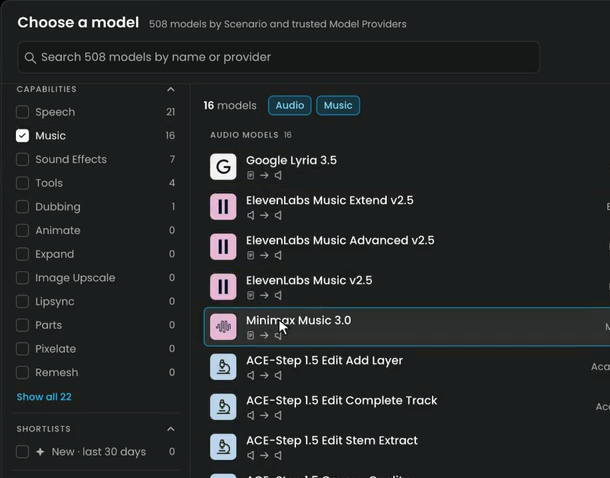
New models arrive often. Tick New · last 30 days under Shortlists to see what's new for the job you picked.
Good starting points
| Job | Start with | Why |
|---|---|---|
| Expressive narration | ElevenLabs v4 | Audio tags such as [whispering], 21 preset voices or a cloned voice, 100+ languages |
| Multilingual speech, two speakers | Gemini 3.8 Flash TTS | 30 voices, 24 languages, two speakers in one take |
| Instrumental cue with an exact length | ElevenLabs Music v2.5 | Duration from 3 to 600 seconds, instrumental switch |
| Song with lyrics | Minimax Music 3.0 or Google Lyria 3.5 | A lyrics field with section tags, or lyrics and sections in the prompt |
| Sound effect | ElevenLabs Sound Effects | Sound Effects 2 has a duration up to 30 seconds and a loop switch; v3 is the newest in the list |
| Effects for a video | Sonilo V1.1 Video to SFX | Reads the clip and returns an effects track timed to it |
| Re-voice a take | ElevenLabs Voice Changer | Keeps the words, timing and emotion |
| Transcript and subtitles | Gemini 3.5 Transcribe | Word timestamps and speaker labels |
Test two candidates on your own script or brief before you commit a series to one.
The jobs and what each one reads
| Job | What you give it | What you get | Lesson |
|---|---|---|---|
| Music | A description of the track, sometimes lyrics, a duration | A cue or a song | Generate music |
| Speech | The script itself, a voice, a language | Narration or dialogue | Narration and speech |
| Voice cloning | Clean recordings of one speaker | A voice you can use in speech models | Narration and speech |
| Voice changer | A spoken take and a target voice | The same words, timing and emotion in another voice | Narration and speech |
| Sound effects | A description of a source, an action and a space | A short effect, sometimes looping | Sound for video |
| Video to audio | A silent or rough clip, an optional prompt | Effects or music timed to the picture | Sound for video |
| Transcription | Audio or video | Text, subtitles, or a subtitled video | Transcribe and subtitle |
| Cleanup | Audio or video | An isolated voice, a cut, a split, extracted audio | Sound for video |
Every audio model is also a node in Workflows and runs from the Scenario MCP.
Step 3: Read the field's name
Switch models in the panel and watch the main field's name change:
| Model | The field is called | It reads |
|---|---|---|
| ElevenLabs Music v2.5 | Music Description | A description of the track |
| ElevenLabs Sound Effects v3 | Sound Description | A description of a sound: source, action, space |
| ElevenLabs v4 | Text | The words, performed one by one |
That's the rule that saves the most takes. The most common mistake is describing the voice in the Text field. A speech model doesn't follow a line like this one, it reads it aloud:
A calm, deep male narrator, slow and warm.
Choose the voice in the voice setting instead, and write only the words in Text.
Step 4: Write a speech take
Pick ElevenLabs v4 in the model menu. The panel changes: Text now says "Enter any text for the model to generate speech from it (text-to-speech)", and below it are Voice and the voice settings.
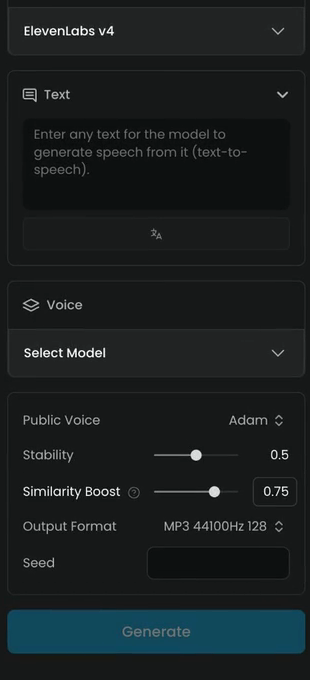
- In Public Voice, pick Alice. Leave Voice on Select Model unless you use a cloned voice.
- Leave Stability at 0.5. Lower values give a more varied, emotional reading; higher values a steadier one.
- Leave Similarity Boost at 0.75 and Output Format at MP3 44100Hz 128. Set a Seed only if you want to repeat a take exactly.
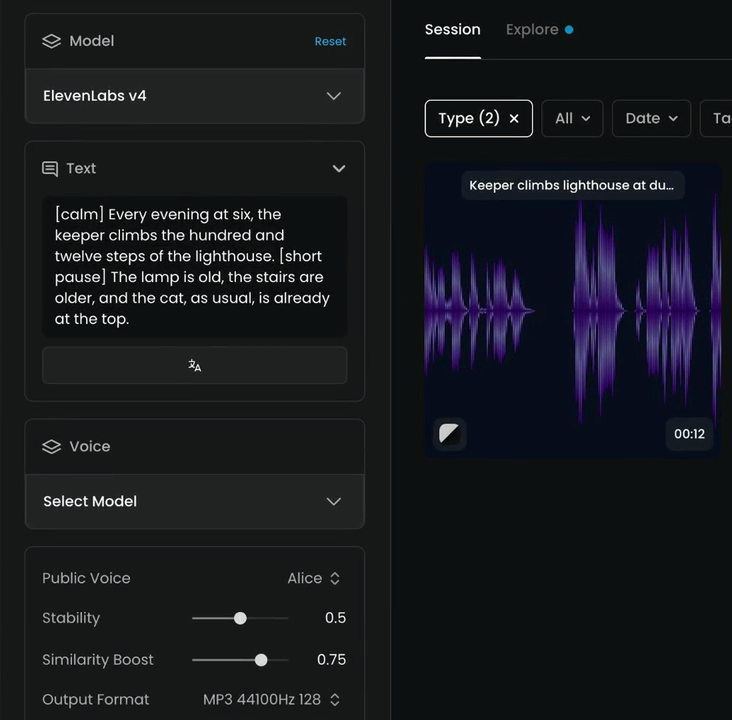
- Type the script in Text:
[calm] Every evening at six, the keeper climbs the hundred and twelve steps of the lighthouse. [short pause] The lamp is old, the stairs are older, and the cat, as usual, is already at the top.
- Click Generate.
Audio: lighthouse-narration-elevenlabs-v4-alice.mp3
Tags in square brackets set the delivery and are not read aloud: here [calm] and [short pause]. They work on models that support them, such as ElevenLabs v4. Punctuation sets the timing: a comma is a short breath, a period a full stop, a new paragraph a longer pause. Spell numbers and names the way they're said, as the script does with "hundred and twelve".
Step 5: Prompts for music and effects
The same habit works for the other two jobs. For music, lead with genre, mood and tempo, then the instruments, then the structure and the ending. This is the title cue from Generate music:
Short warm orchestral title cue for an animated short about a lighthouse and its cat. 90 BPM, D major. Pizzicato strings and glockenspiel, then a gentle clarinet melody. Clean final chord, no fade-out. Instrumental only, no vocals.
For an effect, name what makes the sound, what it does, and where it happens. This is the door from Sound for video:
A heavy wooden door with iron hinges creaks open slowly, then closes with a solid thud, inside a stone hallway with a short echo. No music, no voices.
Both end by saying what to leave out. Music models tend to add vocals, and effect models tend to add music, unless you tell them not to.
Step 6: Check the take
Audio fails quietly: a dropped word or a stray voice under a cue is easy to miss by ear. Check every take in two ways.
First, its length. The duration shows in the corner of the take's card in your session. This narration runs 00:12. Compare it with what you asked for, especially for music and effects with a set duration.
Then, transcribe it.
- Open Create › Text and pick Gemini 3.5 Transcribe as the model.
- Under Audio, click Select from Library and choose the take.
- Leave Language hints, Custom vocabulary, Word timestamps and Speaker diarization as they are for a quick check.
- Click Generate, then compare the transcript with your script.
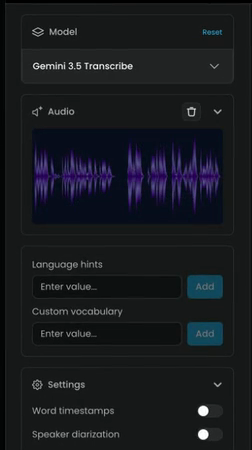
Speech should match the script word for word. In this take every word matches; the transcript writes "112" as digits, which is expected. An instrumental should transcribe to nothing. Transcribe and subtitle covers the settings in full.
speech matches the script word for word with the delivery you asked for; music has the tempo, instruments and structure you asked for and no stray vocals; an effect starts and ends cleanly with no music or voice under it; the length is what you set.
words are missing, swapped or mispronounced; the tags were read aloud; an instrumental contains singing or speech; the track cuts off early or fades when you asked for a clean end; a loop clicks.
Common problems
| What you see | What to do |
|---|---|
| The model reads your voice description aloud | Move the description to the voice setting and keep only the script in Text |
A tag like [calm] is spoken | Use a model that supports tags, such as ElevenLabs v4, and keep the tag in square brackets |
| The voice is right but the reading is flat | Add a delivery tag, use shorter sentences, or lower Stability |
| A word is mispronounced | Spell it the way it's said and re-take that line only |
| The music ignores the tempo or structure | Put the BPM and sections earlier in the prompt, or use a model with lyrics or structure fields |
| The music has singing in it | End the prompt with "Instrumental only, no vocals", or use the model's instrumental switch |
| The effect has music under it | Add "No music, no voices", and describe a single source |
| You can't find a model | In Choose a model, untick the other capabilities, or search by name |
Rights and consent
Clone or change a voice only with the speaker's permission. See Usage restrictions and content policy.
What's next
Next, Generate music turns the title cue above into a finished track with an exact length and a clean ending. Narration and speech reuses the narration take from this lesson, and Transcribe and subtitle goes further with transcripts and subtitles.