

Transcribe and subtitle
Turn speech into text and SRT subtitles, burn styled captions into a video, translate them, and fix the transcript before it ships.
- Guide
- Step 1 Learn
On this page10 sections
This lesson gets the words out of a recording: a transcript, a subtitle file, or subtitles burned into the video. You'll transcribe the lighthouse narration with Gemini 3.5 Transcribe, fix the SRT file by hand, and burn subtitles into a video with Scenario Caption Studio. It's also the fastest way to check any speech you generate.
Quick version
- Open Create › Text and pick Gemini 3.5 Transcribe. Add your audio or video under Audio.
- Add a Language hints entry if you know the language, and Custom vocabulary for names and invented words.
- Turn on Speaker diarization for dialogue and Word timestamps for subtitles, then click Generate: you get a text file and an SRT.
- Fix the SRT in any text editor: words in place, long subtitles split, numbers written one way.
- To burn subtitles in, use Auto Subtitles or Scenario Caption Studio, then watch the result on the target device.
Before you start
Pick the output first, then the model:
| You need | Model | What you get |
|---|---|---|
| A transcript and an SRT, with speaker labels or word timings | Gemini 3.5 Transcribe | A text asset and an SRT asset. Up to 60 minutes of audio, or 30 minutes with speaker labels or word timestamps on |
| A quick transcript or SRT, or an English translation | Speech to Text | Text or SRT; detects the language and can translate to English |
| Subtitles burned into a video, with simple styling | Auto Subtitles | The video with subtitles: font, colors, border, line length, language |
| Styled captions, translated, burned in or as a file | Scenario Caption Studio | Captions in one of 7 style presets or your own style, translation into 18 languages, burned in or as an SRT |
Transcription lives under Create › Text ("Transcribe audio, summarize images, or run text-to-text models"), not under Audio.
- 1TranscribeGemini 3.5 Transcribe, text and SRT
- 2Fixnames, numbers, long lines
- 3DeliverSRT file, or burn in
- 4Checkon the target device
Step 1: Open the transcription model
- Open Create › Text.
- Pick Gemini 3.5 Transcribe in the model menu.
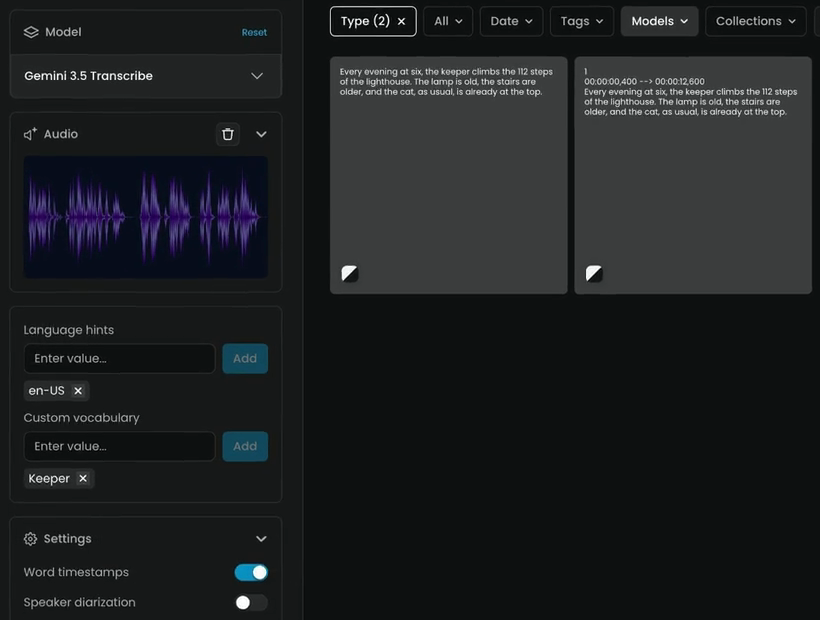
- Under Audio, add your recording: drag and drop it, click Select from Library, or Upload. Here, the ElevenLabs v4 narration from Narration and speech.
Audio: lighthouse-narration-elevenlabs-v4-alice.mp3
Step 2: Help it with names and language
- Language hints: type a language code and click Add, here
en-US. Leave it empty and the model detects the language among more than 85, even when a speaker switches mid-sentence. A hint helps most on short clips, accents and close dialects. - Custom vocabulary: add names, product terms and invented words, one at a time with Add, so they're spelled your way. Here,
Keeper. Keep the list to distinctive terms; everyday words weaken it.
Step 3: Choose the settings and generate
Under Settings:
- Speaker diarization labels who speaks (speaker_0, speaker_1 and so on). Turn it on for interviews and dialogue.
- Word timestamps splits the transcript into timed, numbered segments. Turn it on if you'll fine-tune subtitles. Here it's on.
Either setting lowers the longest file the model accepts from 60 minutes to 30.
Click Generate. You get two files in your session: the text, and an SRT subtitle file.
Step 4: Fix the SRT by hand
An SRT is plain text: a number, a time range, and the words, then a blank line, repeated. Open it in any text editor. The narration came back as one subtitle:
1
00:00:00,300 --> 00:00:12,500
Every evening at six, the keeper climbs the 112 steps of the lighthouse. The lamp is old, the stairs are older, and the cat, as usual, is already at the top.
Every word matches the script, but the subtitle is far too long to read. To fix it:
- Fix words in place and keep the time lines.
- Split long subtitles at a comma or a breath: one or two short lines each, on screen for no more than about seven seconds. Give each part its own number and time range.
- Keep the numbering in order after a split.
The same narration, split at a breath:
1
00:00:00,300 --> 00:00:05,900
Every evening at six, the keeper climbs
the 112 steps of the lighthouse.

2
00:00:06,300 --> 00:00:12,500
The lamp is old, the stairs are older,
and the cat, as usual, is already at the top.
Decide how numbers are written. The narration said "a hundred and twelve"; the transcript wrote the digits. Either is fine, as long as it's the same everywhere.
Step 5: Burn subtitles into the video
When a platform can't take a subtitle file, burn the subtitles into the video with Auto Subtitles or Scenario Caption Studio. Find them by name in the model menu, and add the video under Input Video.
In Scenario Caption Studio:
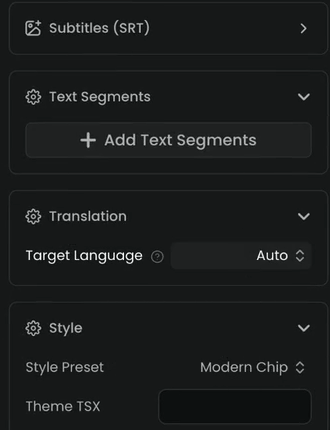
- Style Preset: the look of the captions. The film uses Modern Chip, a rounded background behind the text. The others include TikTok Bouncy, Karaoke Fill, Karaoke Underline and Word Pop.
- Translation › Target Language: Auto keeps the spoken language; pick another to translate.
- Text Segments: Add Text Segments puts your own timed lines on screen instead of transcribing, for a title or a hook.
- Subtitles (SRT): use a fixed SRT for the text and timing, or get the SRT file out with the video.
- Segment limits: shorter segments, with fewer words on screen at once, are easier to read on a phone.
Auto Subtitles is the simpler choice: a fixed style you adjust with font, size, colors and border, the original language or a translation to English, and limits on how long a line stays on screen.
Generate, then watch the result on the device it's made for: a phone for vertical video, a TV or laptop for a trailer.
Step 6: Prefer a file where you can
If the platform takes an SRT, deliver the SRT. You can fix it any time, and players and platforms load it. Burned-in subtitles can't be turned off or corrected without generating the video again.
Use transcription as a quality check
Transcribe every generated speech take and every instrumental:
- Speech: compare the transcript with the script word by word. A changed word, such as "night house" for "lighthouse" after a voice change, is easy to read and hard to hear.
- Music: an instrumental should return no speech. Any text means the model sang or spoke something.
every word matches what was said, names and terms are spelled the way your project writes them, speakers are labeled correctly, numbers are written one way throughout, and each subtitle is short enough to read in the time it's on screen.
a word is wrong or missing, a name is spelled differently between subtitles, speaker labels swap, a subtitle stays on screen for more than about seven seconds, or burned-in text covers an important part of the picture.
Common problems
| What you see | What to do |
|---|---|
| Names come out wrong | Add them to Custom vocabulary and run again |
| The wrong language is detected | Add a Language hints entry; short clips are the most likely to be misdetected |
| Speaker labels are mixed up | Overlapping speech confuses labeling; clean the audio with ElevenLabs Voice Isolator first, or fix labels by hand |
| A long file is rejected | Split it, or turn off Speaker diarization and Word timestamps, which halve the limit |
| One subtitle runs for the whole clip | Turn on Word timestamps, or split the SRT by hand at commas and breaths |
| Subtitles drift after an edit | The video was trimmed after transcription; transcribe the final cut |
| A typo is burned into the video | Fix the SRT, then generate again from it with Subtitles (SRT) |
| The job failed or is stuck | See Failed or stuck jobs |
What's next
That's the course: music, voice and sound on Scenario, and every take checked before it ships. To go back over model choice and prompts, see Audio on Scenario; to automate transcripts for a series, put Gemini 3.5 Transcribe in a workflow.