See it made
About this use case
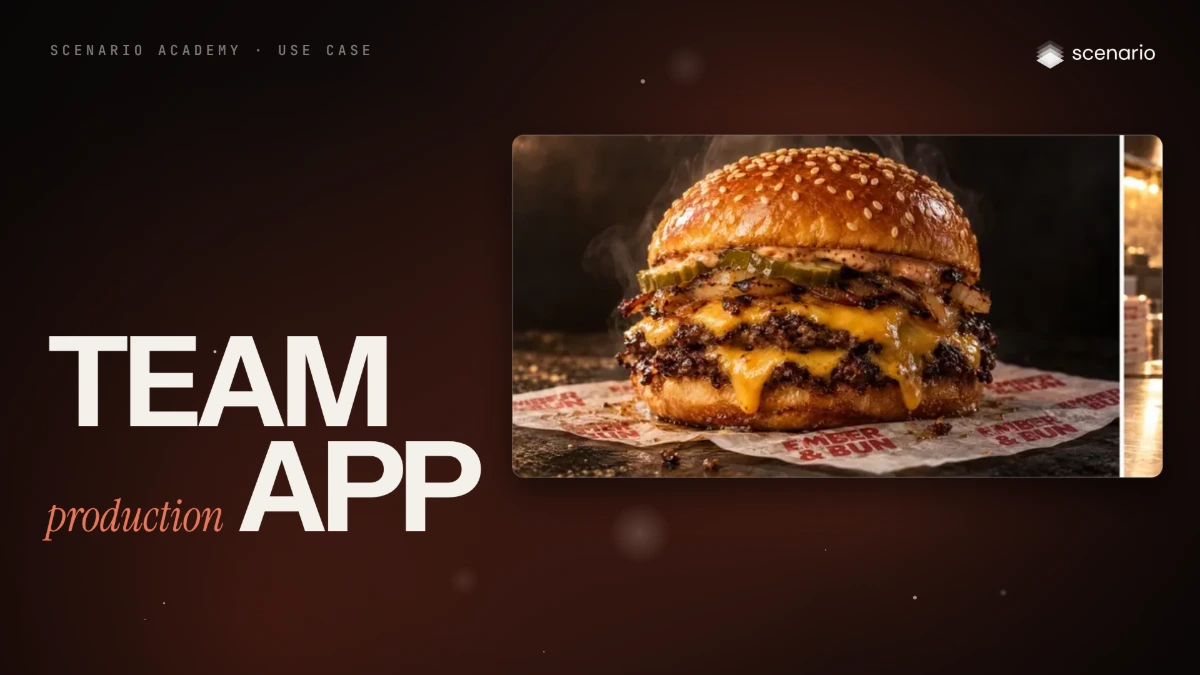
A team App for one production step: two fields (a product photo and a setting), the brand's fixed rules inside, a review step before delivery, and a locked workflow. For team leads who see the same step done ten different ways by ten people. The models and settings in this use case are as of October 2026.
See moreSee less
- One repeated production step packaged as a team App: two form fields, fixed brand rules and a review step.
- Start from a platform App, write the rules into the graph, add an Approval node, then lock the workflow.
- Each run costs one generation; building the App costs nothing until it runs, and its description states the price.
Step by step with an agent, through the Scenario MCP (6 steps)Hide the steps
Connect the Scenario MCP
Connect your agent and sign in once at mcp.scenario.com. Then tell it which Scenario team and project to use, so every file lands there.
Give the agent the files
The product photo (here the burger on its EMBER & BUN wax paper) and one setting line per market. Upload the photo with upload_asset or give its asset ID.
Brief the agent: test the rules first
Before anyone builds the App, test the prompt that will go in its Custom Prompt Builder on its own, in two markets. The platform App alone held the burger but added a menu board with prices, a bottle label and logo shirts.
PromptTest this prompt with GPT Image 2.5 Sunburst (model_openai-gpt-image-2-5-sunburst), with the product photo in referenceImages as an array. Run it twice, replacing [setting] with one market line each time; the first line is below. Quote the cost with a dry run first and wait for my go. Prompt, word for word: The exact burger from the reference image, with its bun, patties, cheese, pickles and onions unchanged, on the same EMBER & BUN wax paper with its red print unchanged, placed [setting]. The wax paper print faces the camera and is sharp. Warm key light from behind, glistening texture, soft contact shadow under the paper. Natural food photography. No other text and no other logos anywhere: menu boards, signs, packaging, clothing and bottles stay blank or out of focus. First setting line, word for word: on the steel counter of a busy burger restaurant in Mexico City at lunchtime, the illuminated menu board on the wall behind Show me both results and tell me, for each, whether the wax paper reads EMBER & BUN letter for letter, whether the burger matches the photo, and whether any other text or logo appears.Build the App in the web app
The Scenario MCP runs workflows; you build this one on the canvas. Duplicate Product Studio, put the tested prompt in Custom Prompt Builder, add an Approval node with the message "Approve only if the wax paper reads EMBER & BUN letter for letter, the item matches the photo, and no other text appears.", pin the two fields and the output after review, then lock it. The web app steps above show each click.
Run the App from the agent
PromptFind the "Ember & Bun market scene" App with workflows_list. Run it with workflow_run once per market, with the product photo as image1 and the market's setting line as text1. Quote one run first and wait for my go. When a run reaches the Approval step, show me the result and wait: approve it with workflow_approve only if I say yes, otherwise reject it with workflow_reject.Review, file and report
Accept when the wrapper print reads letter for letter, the burger matches the photo, and no other text or logo appears anywhere. Reject invented menus, prices, taglines or labels, or a result that reached the library without review.
PromptCreate a collection called "Ember & Bun market scenes" and add the approved results. Report every workflow run, its market, whether it was approved or rejected and why, every asset ID and the total cost spent.
Step by step in the web app (6 steps)Hide the steps
Start from a platform App
Workflows › Apps › Platform › E-Commerce › Product Studio. Upload the product photo, type the market's setting and run it once per market; it held the burger and wrapper but added a menu board with prices, a bottle label and logo shirts.
Prompton the steel counter of a busy burger restaurant in Mexico City at lunchtime, the illuminated menu board on the wall behindRead its graph
From the run page, the Edit workflow icon opens the graph in run-only mode: two inputs, a router, Custom Prompt Builder and one generator. Its prompt has no keep-list, no rule against added text and no review step.
The rules go in the prompt builder
More › Duplicate Workflow, rename the copy Ember & Bun market scene, Switch to Edit Mode, then write the rules around the setting variable in Custom Prompt Builder. Tested on its own in two markets, it kept only the wrapper print readable.
PromptThe exact burger from the reference image, with its bun, patties, cheese, pickles and onions unchanged, on the same EMBER & BUN wax paper with its red print unchanged, placed [setting]. The wax paper print faces the camera and is sharp. Warm key light from behind, glistening texture, soft contact shadow under the paper. Natural food photography. No other text and no other logos anywhere: menu boards, signs, packaging, clothing and bottles stay blank or out of focus.An Approval node
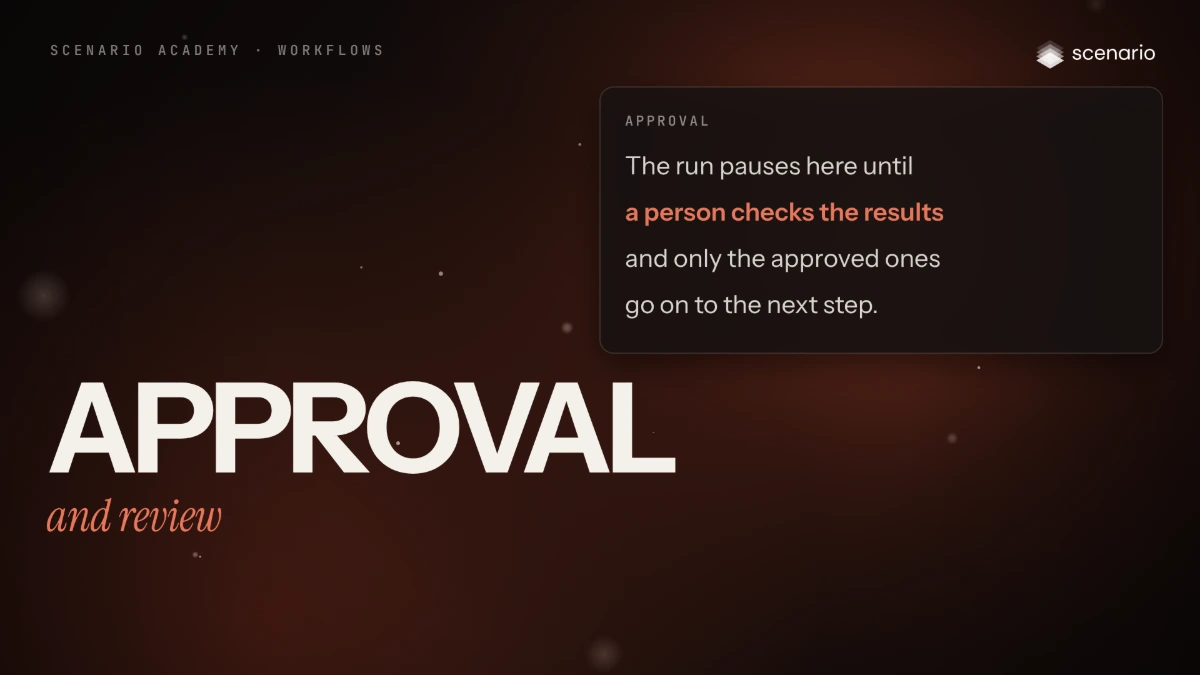
Add node › Utilities › Approval, wired from Product Scene Generator, with a message that states the check: "Approve only if the wax paper reads EMBER & BUN letter for letter, the item matches the photo, and no other text appears."
Two fields, the output after review
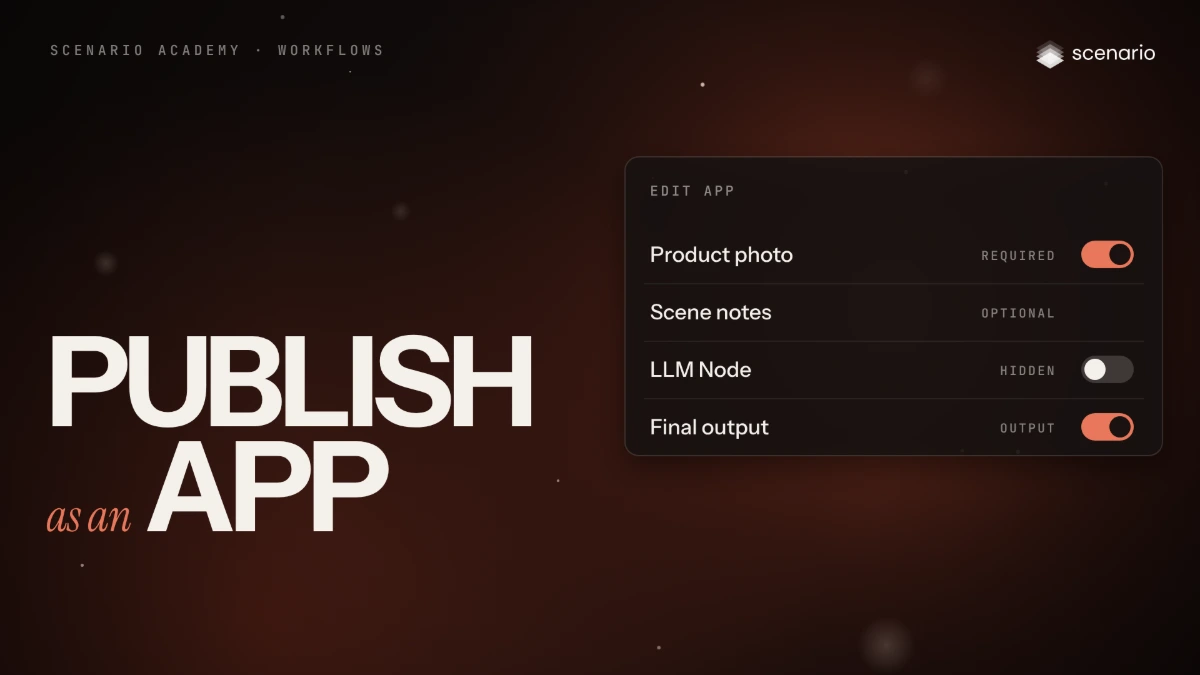
Edit App: pin Product Photo (required) and User Prompt (Optional), and pin the output after review so results don't reach the library unchecked. Short Description: "Your menu item in a market scene, wrapper print exact, no other text".
Lock it and share
More › Lock Workflow; the App then shows under Workflows › Apps › Project. Test it on one item before the team relies on it, and name the App in Settings › Project › Agent › Project Instructions so the Agent uses it too.