About this lesson
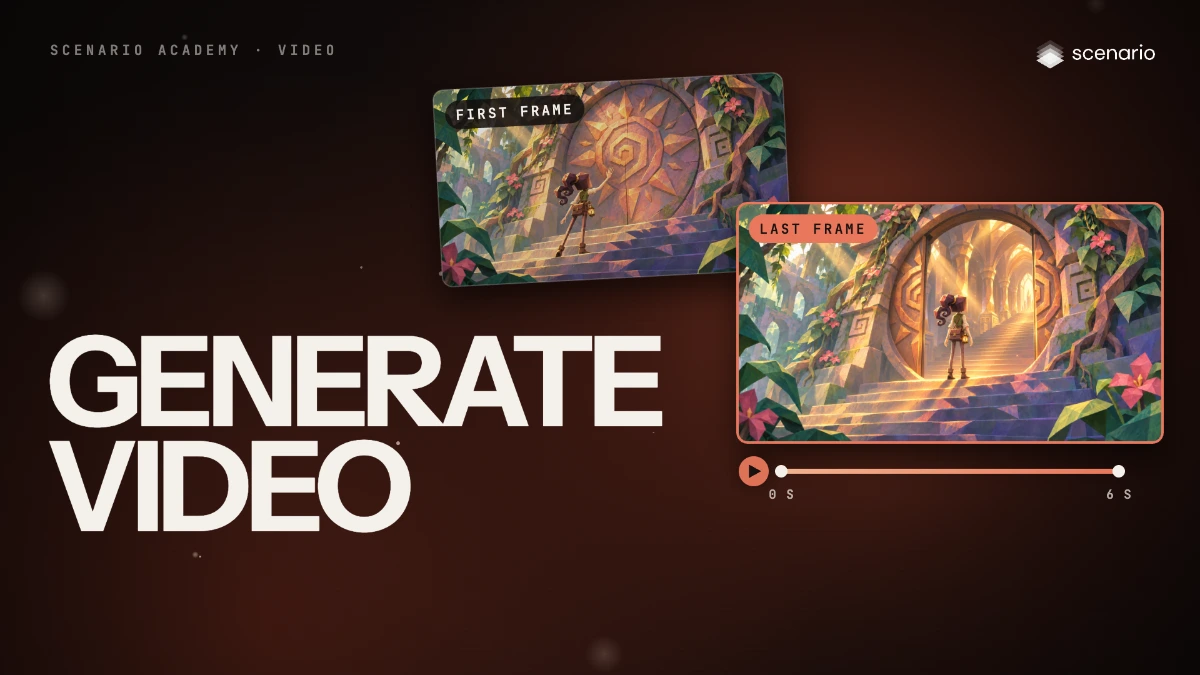
This lesson makes a 6-second clip of a temple door opening, from a first frame and a last frame, with Minimax H3 in Create › Videos. You'll pick the model in the model library, write a one-shot prompt, load the two frames, set the duration and resolution, and check the clip. The models and prices in this lesson are as of November 2026.
See moreSee less
- Open Create > Videos from the top menu, and choose the model in the model library: search "last frame" for models that take a first and a last frame.
- Write one shot: what happens, what the camera does, and the sound. First Frame is where the clip starts, Last Frame where it must end.
- Set Duration and Resolution yourself: a lower resolution for test runs, then check the price on Generate.
Step by step with an agent, through the Scenario MCP (5 steps)Hide the steps
Connect the Scenario MCP
Connect your agent and sign in once at mcp.scenario.com. Then tell it which Scenario team and project to use, so every file lands there.
Give the agent the files
The approved first frame (her hand on the closed door) and the approved last frame (the door open, her on the top stair). Upload them with upload_asset or give their asset IDs, and say which is which.
Brief the agent
PromptMake a 6-second clip with Minimax H3 (model_minimax-h3): firstFrameImage set to the first frame, the last frame in the model's last-frame input (read model_schema_get for its parameter name), duration 6, resolution "768P" for this test take, aspect ratio left to follow the first frame. No reference images, videos or audio in the same run. Quote the cost with a dry run first and wait for my go. Prompt, word for word: Stylized faceted low-poly 3D game cinematic. Her open hand touches the carved stone sun. A thin seam of warm light appears down the centre of the round door, and the two stone halves slowly slide apart into the wall, in full view, revealing a staircase rising into a golden hall of pillars. Soft warm light spills onto the steps, with drifting dust motes, no bright flash. She lowers her arm and walks up the last steps with small, calm, natural steps, her arms swinging gently, then stops on the top stair at the threshold and stands still with both arms down at her sides, looking into the hall. Static camera: the camera does not move. Same faceted hand-painted style, same character and temple from start to end. Real-time pace. Sound: deep stone rumble and grinding as the door slides, a soft shimmer as the light spills out, jungle birds in the background. No music, no speech.Check and redo
Accept when the first and last moments match the two frames, the character and place stay the same, the motion follows the prompt's order, the camera stays still and the sound fits. Reject a jump or cross-fade to reach the last frame, a changed face or clothes, odd hands or feet, a moving camera, or music or speech.
PromptWait for the job with jobs_wait and show me the clip. Check it against the two frames and the prompt and tell me what fails. If it passes, quote the same run at 2K and wait for my go before the final take.File and report
PromptCreate a collection for this clip with the two frames and the takes, and report the model, the settings and every asset ID.
Step by step in the web app (7 steps)Hide the steps
Open Videos
From the top menu, choose Create › Videos. The panel opens on the left with Model, Prompt, First Frame, Last Frame, the references and Settings; takes appear on the right under Session.
Choose a model in the library
Click the Model card › View all models, type "last frame" in the search to see only the models that take a first and a last frame, pick Minimax H3 and click Use this model.
Write the prompt
One shot: the look, the action in order, a static camera said plainly, a continuity line, real-time pace and the sound, with what you don't want.
PromptStylized faceted low-poly 3D game cinematic. Her open hand touches the carved stone sun. A thin seam of warm light appears down the centre of the round door, and the two stone halves slowly slide apart into the wall, in full view, revealing a staircase rising into a golden hall of pillars. Soft warm light spills onto the steps, with drifting dust motes, no bright flash. She lowers her arm and walks up the last steps with small, calm, natural steps, her arms swinging gently, then stops on the top stair at the threshold and stands still with both arms down at her sides, looking into the hall. Static camera: the camera does not move. Same faceted hand-painted style, same character and temple from start to end. Real-time pace. Sound: deep stone rumble and grinding as the door slides, a soft shimmer as the light spills out, jungle birds in the background. No music, no speech.Load the first and last frame
Drag the approved first frame onto First Frame and the last frame onto Last Frame. Aspect Ratio follows the first frame; don't mix frames with Reference Images, Videos or Audio in the same run.
Know the reference inputs
Reference Images (subjects and style, up to 9), Reference Videos (motion, up to 3 clips) and Reference Audio are the other way in. This lesson doesn't use them, since it uses frames.
Set duration, resolution and aspect ratio
Settings: Duration 6, Resolution 768P for test runs (up to 2K for the final take), Aspect Ratio on Auto. Check the price on the Generate button, then click it.
Check the clip
Open the take in the viewer and watch it at full size with sound, more than once. Accept when the first and last moments match the frames, the character and place stay the same and the camera stays still; reject cross-fades, a changed face or unwanted music.