

Lip sync video and make talking avatars
Sync new speech to an existing clip, or animate a portrait into a presenter from an audio track, and check mouth shapes and identity.
- Guide
- Step 1 Learn
Lip sync covers two jobs. Re-sync takes a clip of someone speaking and rewrites the mouth to new audio: a corrected line, another language, another voice. Talking avatar takes one still portrait and an audio track and returns a clip of that face speaking, with expressions, blinks and head movement. This guide prepares the speech and the face, runs each job with its main model, and shows how to check the mouth frame by frame.
Quick version
- Make clean speech at a natural pace, with no music under it, and listen to it first.
- Choose the face: a front-facing portrait, or a source clip with the mouth visible and little camera movement.
- Open Create › Videos, click the Model card, then View all models, and pick a lip sync model.
- To re-sync a clip, use Sync-3 Lipsync with the video, the audio and a sync mode. For a portrait, use Minimax H3 Max Lip Sync with the image and the audio.
- Check the price on the button, generate, and check the lips on "p", "b" and "m".
Before you start
| You have | You get | Model to start with |
|---|---|---|
| A clip of someone speaking, plus new audio | The same clip with the mouth rewritten to the new audio | Sync-3 Lipsync |
| One image of a face, plus audio | A talking-head clip: mouth, expressions, head movement, blinks | Minimax H3 Max Lip Sync |
- Rule of thumb from the Knowledge Center: if you already have a video of the character, re-sync it, so the original motion and camera stay. If you only have a still, animate the portrait; the clip runs as long as the audio.
- The audio decides most of the result. The face decides the rest. Fix the inputs before you try another model.
- Lip sync is for speech, not singing. Sync-3 gives generic mouth shapes on music.
- Runs are billed by length. Trim the source to the spoken part first, and check the price on the button.
- Use invented faces, or a real person's only with their consent.
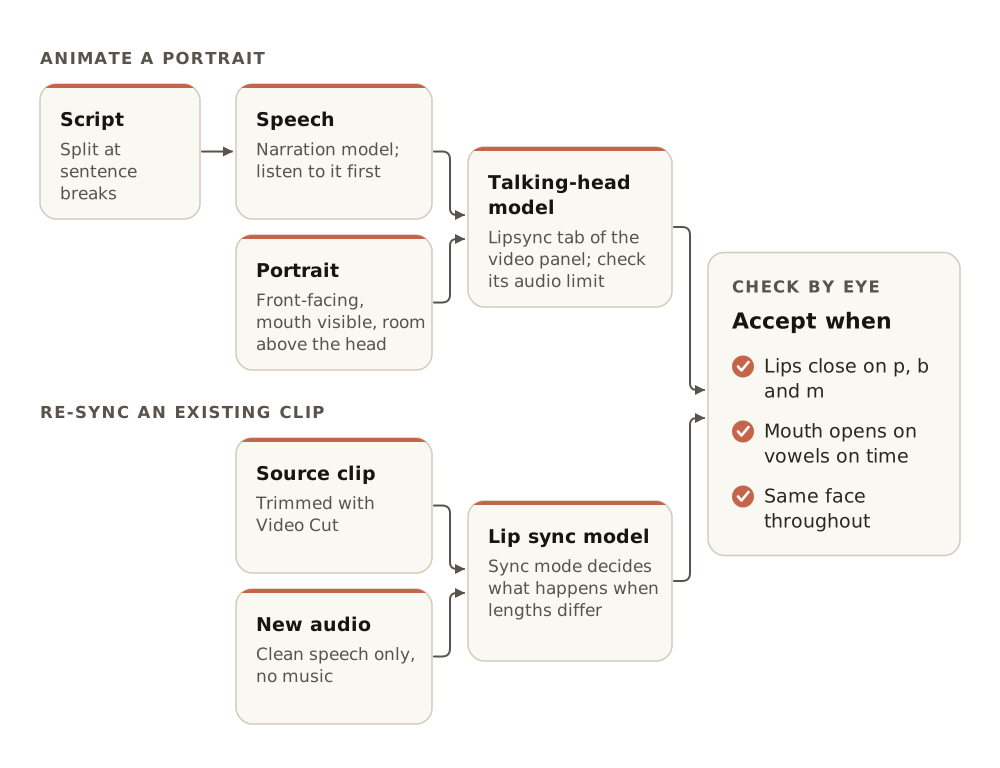
- 1Speechnarration model, clean, natural pace
- 2Faceapproved portrait or source clip
- 3Synclip sync model
- 4Checkclosing sounds, identity
Step 1: Prepare the speech
- Clean speech. No music or effects under the voice. If the track has a bed, separate the voice first, sync, then remix.
- Natural pace. Clipped or rushed text-to-speech gives choppy mouth movement. Generate speech with a narration model and listen to it first. See Narration and speech.
- More expression. With text-to-speech, exclamation marks and capital letters in the script give stronger delivery, and the mouth follows it.
- No silence at the start. A pause before the first word can push the sync off. Trim it.
- Know the length. Compare the audio with the video or the model's limit, and decide what happens when they differ (Step 4).
Step 2: Prepare the face
- Mouth fully visible: front-facing or three-quarter, no hand or microphone over it. Sync-3 detects hands and microphones near the mouth, but a clear mouth still gives the sharpest result.
- Even light on the face. Deep shadows around the mouth make teeth and lips smear.
- Room around the head for a portrait, above the head and below the chin: the model adds head movement. Head and shoulders at eye level, on a plain background, gives the model the most to work with.
- Little camera movement in a source clip. Fast moves and cuts make the sync drift.
- Generate the portrait first with an image model, at the framing you want, and approve it like any first frame. The output keeps the image's framing and aspect ratio.
Step 3: Open the video panel and pick the model
From the top menu, choose Create, then Videos. Click the Model card, then View all models to open the library, and search for the model by name, or for "lip sync" to see them all. Click one to read its inputs in the panel on the right, then click Use this model. For a walkthrough of the library, see Generate video.
Step 4: Re-sync an existing clip with Sync-3 Lipsync
Sync-3 Lipsync re-syncs the mouth in any existing video to a new audio track, for dubbing, voice-over and fixing a line. It processes the whole frame (no face crop needed), outputs up to 4K, and can open the lips of a character who wasn't speaking in the source.
- Trim the source video to the spoken section with Video Cut. See Video tools.
- Choose Sync-3 Lipsync in the library.
- Load the video and the audio.
- Pick the sync mode. Keep
cut_offwhen the two are the same length. - Check the price on the button and generate.
The sync mode decides what happens when the video and the audio aren't the same length:
| Sync mode | What happens when lengths differ | Use it for |
|---|---|---|
cut_off (default) | The audio is trimmed to the video's length | A fixed video length, when the end of the audio doesn't matter |
loop | The video repeats from the start to cover the audio | Short ambient clips, looping background characters |
bounce | The video plays forward, then backward | Idle animations, walk cycles |
silence | Silence is added to the audio to cover a longer video | The subject stops speaking partway through |
remap | The video's playback speed changes to fit the audio | Both the full video and the full audio must stay |
Other models that re-sync a clip: Sync Lipsync v2 (keeps the speaker's style, handles several speakers), Sync Lipsync React-1 (fast), Veed Lipsync v2 and Kling LipSync (short, quick clips; also takes text-to-speech). The Knowledge Center notes that the Sync models work best on realistic faces.
Step 5: Animate a portrait
Minimax H3 Max Lip Sync takes one portrait and 5 to 15 seconds of audio, and no text prompt: the image and the audio drive everything. It outputs at 480P, 768P, 1080P or 2K, the aspect ratio always follows the image, and it works on photos, illustrated characters and stylized 3D or mascot art, in any spoken language.
- Choose Minimax H3 Max Lip Sync in the library.
- Load the approved portrait and the audio (5 to 15 seconds).
- Choose the resolution: lower for a test, higher for the final take.
- Check the price on the button and generate.
Other portrait models:
| Model | Audio length | Notes |
|---|---|---|
| Minimax H3 Max Lip Sync | 5 to 15 s per clip | No text prompt; 480P to 2K; aspect ratio follows the image |
| Omni Human 1.5 | Under 30 s | Natural gestures and emotion; photoreal and stylized faces |
| Kling AI Avatar 2 (Pro) | See model page | Image or video plus audio; real or stylized portraits |
| Sync-3 Avatar Image to Video | Output length equals the audio | No prompt or settings; photos, illustrations, anime, 3D renders |
| Veed Fabric Lipsync 1.0 | See model page | Quick talking heads that keep the image's style |
Split long scripts at sentence breaks when they're longer than the model's limit. Make one clip per part with the same portrait, then join them. See Presenter video with avatar.
Step 6: Check the mouth
Watch the clip at full speed with the sound on, then step through the frames on the hard sounds. Lips must close on "p", "b" and "m". Watch it twice more: once for the face, once for the teeth.
the lips close on "p", "b" and "m", the mouth opens on vowels at the moment you hear them, teeth and tongue look stable, the face stays the same person throughout, and the head movement looks natural for the voice.
the mouth lags or leads the audio, lips stay open on closing sounds, teeth flicker or merge, the face changes shape or age, or the mouth area looks blurred against the rest of the face.
Make it repeatable
- One portrait and one voice per presenter: keep the approved portrait (or source clip) and the voice setting in a collection.
- A workflow per series: it takes a script, makes the speech and passes both to the lip sync model, so each new video is one run with the same face and voice.
Common problems
| What you see | What to do |
|---|---|
| The sync is off by a fraction of a second | Check for silence at the start of the audio. Trim it and run again |
| The mouth smears or flickers | Improve the source: a sharper face, even light, less camera motion. Then try another model from the same table |
| The clip stops before the audio ends | The mode is cut_off, or the model's limit was reached. Choose loop or remap, or split the audio |
| The mouth moves vaguely on a song | Lip sync models are made for speech. Use a spoken track |
| Stylized faces lose their style | Some models are tuned for photoreal faces. Try Omni Human 1.5, Minimax H3 Max Lip Sync or Sync-3 Avatar Image to Video |
| The wrong face speaks in a group shot | Use a model with active speaker detection, such as Sync Lipsync v2, or crop to one face first |
| The job is refused by moderation | Use invented faces, or a real person's only with their consent |
What's next
To say the same thing in other languages, go to Dub and translate video. To make the speech, see Narration and speech.