

Run and share Apps
Run a platform or project App, find its results, run it on several inputs, and make your team's Apps available to the right people.
- Guide
- Step 2 Repeat
On this page6 sections
An App is a job turned into a form: upload, maybe type a note, click Generate. You need not understand the workflow behind it, but you do need to check what comes out.
Find the App
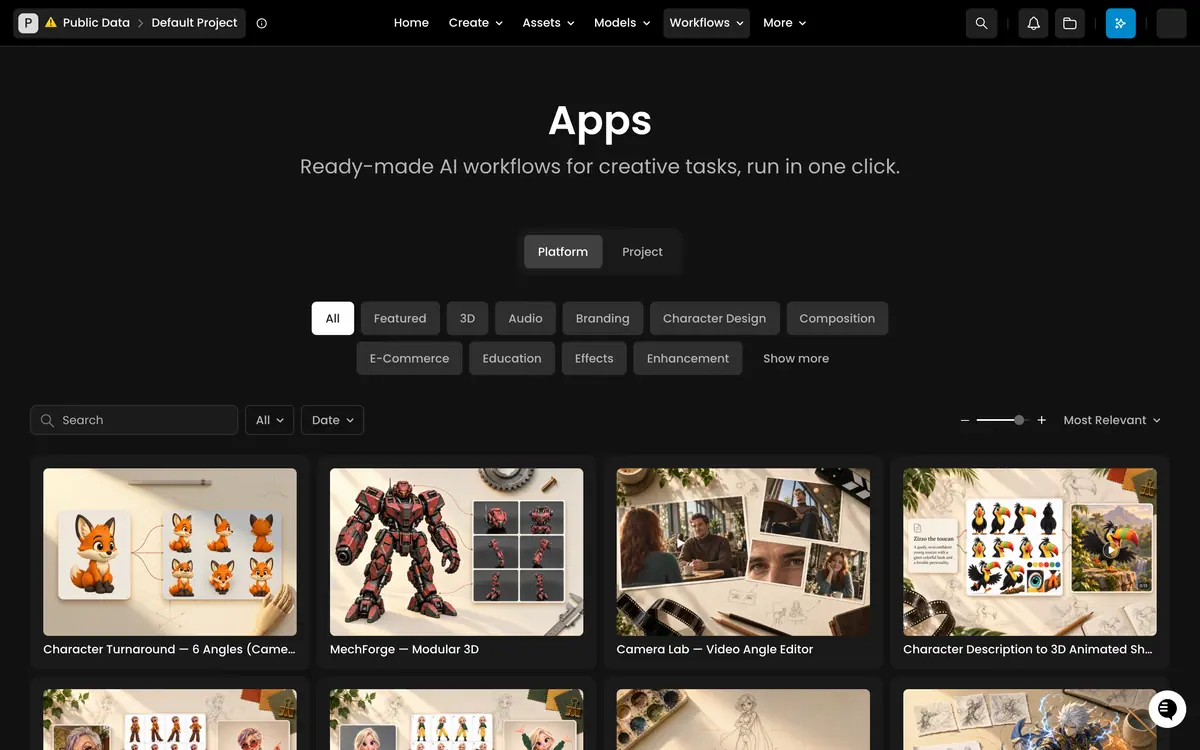
Open Workflows in the top bar and choose Apps ("Ready-made AI workflows for creative tasks, run in one click.").
| Tab | Lists |
|---|---|
| Platform | Apps built by Scenario, filtered by category chips: All, Featured, 3D, Audio, Branding, Character Design, Composition, E-Commerce, Education, Effects, Enhancement, Show more |
| Project | Apps published by members of the project you are in |
Featured Apps also appear in the Create menu.
Run it
- Click the App's card. The run page shows the description and inputs on the left, a preview on the right.
- Fill each input. Image fields accept drag and drop, paste, Select from Library or Upload. Required fields are marked.
- Fill optional text fields only when you have something specific to say.
- Click Generate.
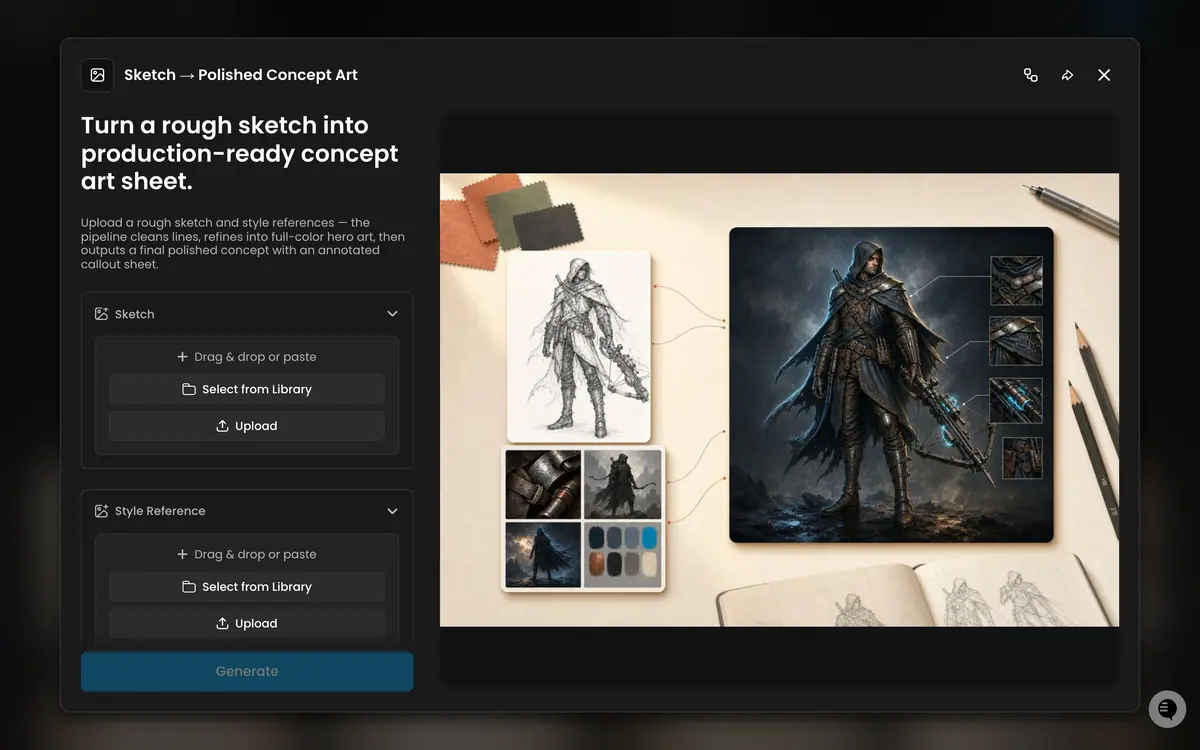
The result appears in the preview.
- Compare and history: the help center describes a before and after view and an Output History of the App's results.
- Saved as assets: outputs land in your current project's assets, like any generation.
An App with a review step pauses until you approve or pick results. See Approval and review steps.
What it costs
Each run costs what the workflow's nodes cost, in credits. An image App such as Angle Multiplier is one image generation; video, 3D and loops cost many times more.
- See the estimate first: open the workflow (the edit icon at top right of the run page) and read the badge next to its title.
Run it on several inputs
- One run per input, each independent, all in the same project.
- Several images in one field work if the field accepts them; check the description.
- Dozens of inputs: run it from code or from an AI agent through the Scenario MCP, one call per input. See Run workflows from code and agents.
- Test on two inputs first, and check both against the same criteria.
Share with your team
- Within a project: Apps published in a project are on its Project tab for its members; add people to the project to give them the App. See Organizations, teams and projects.
- A link: the Share workflow icon at the top right of a run page copies the App's link ("Copied to clipboard"), for people who already belong to its project.
- To another project: export the underlying workflow as JSON (... > Export Workflow), import it in the other project with Import on the Workflows page, and publish it again there.
- Keep it stable: the App's owner should lock the workflow so edits do not change it under people's feet.
Before sharing an App beyond your team, run it on three typical inputs and write a description a new person can follow alone. See Publish a workflow as an App.
the result matches the App description; your subject (product, character, scene) is unchanged where it should be; the output is in your project's assets; a teammate can find the App on the Project tab.
the App changed your subject's shape, colors or text; the result is cropped or at the wrong size for your use; you ran a batch before checking the first result.
If it breaks
| Symptom | Cause and fix |
|---|---|
| Generate stays disabled | A required field is empty |
| The result ignores your input | The file went into the wrong field, or it is too small or too busy. Use a clean image of the subject on a plain background |
| Results vary between runs | Normal for generative steps. Keep the better of two runs, or ask the App's owner to add a review step |
| A teammate cannot see your App | They are not in the project where it was published, or are on the Platform tab |
| The run stopped partway | It may be waiting for a review. Open the run and look for the prompt |
| Out of credits | Check your balance in the top bar and your plan in settings |