

About this lesson
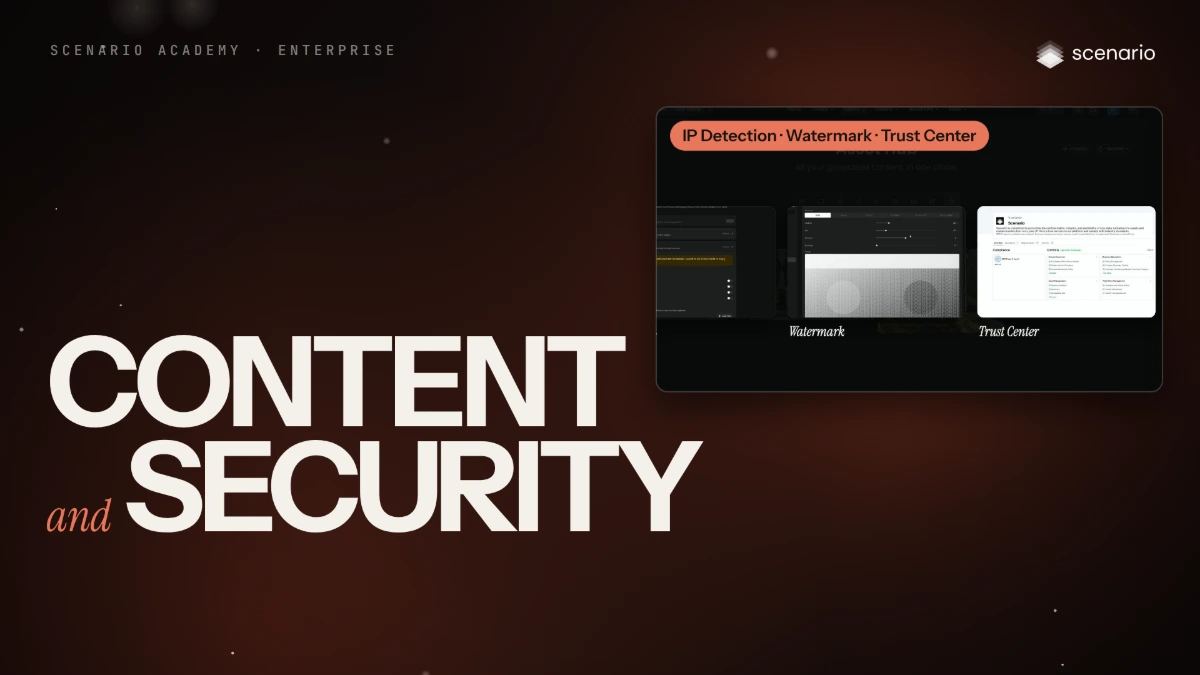
Control what gets made and answer your security team: IP Detection blocks a job before it runs, Quality Gate scores each image, Watermark marks what your team generates, and the Trust Center lists the SOC 2 report, controls and subprocessors. Deleted assets stay in the trash for 30 days. The models and settings in this lesson are as of November 2026.
See moreSee less
- Turn on IP Detection, Quality Gate and Watermark for the organization, and see what a project can change.
- Read a Quality Gate score: out of 100, with Pass, Review or Fail, reasons and fixes.
- Send your security team to the Trust Center, and restore deleted assets from the trash.
Step by step in the web app (9 steps)Hide the steps
Choose what IP Detection looks for
Organization › IP Detection › Filters: turn on the Built-in filters you need (Fictional characters, Brands & trademarks, Celebrity likeness, Artist styles). Under Custom filters, Add filter for up to six of your own, each with a name and a plain-language description.
Turn on enforcement
Expand Enforcement and switch it on: until then, the filters don't run. From then on a match blocks the job before it runs, in the web app and through the API.
Turn the check off for one project
For licensed work, Project › IP Detection › Run in this project, which shows Inherited until you change it. A project can only turn the check off, never pick its own filters.
Write a brand brief for Quality Gate
Organization › Quality Gate › Brand brief › Create Brief: a description of an on-brand image (palette, lighting, rendering style, subject rules, what must never appear) and up to 10 reference images. A project can add its own brief.
Score every new image
Expand Run automatically and turn on Auto-detect on generation. Quality Gate never blocks: each image gets Pass, Review or Fail.
Read a score
A scored image shows its result in the Info panel under Quality Gate, out of 100, with Brief compliance, AI quality, Reasons and Suggestions. Sensitivity, set per brief, moves the Pass, Review and Fail lines (Medium: Fail below 50, Pass from 70).
Set a watermark
Organization › Watermark › Organization watermark: Text or Upload Logo, Placement (Tiled or a corner or Center), Opacity, Size, Rotation and Spacing, checked in the Preview. Turn on Apply to every generation and save.
Send your security team to the Trust Center
trust.scenario.com has the Overview, the Controls, the Subprocessors and, under Documents, the SOC 2 Type 2 report to request from a business email address.
Restore what was deleted by mistake
Open Assets and click the trash icon, the last of the type filters under the title. Each item shows the days it has left; after 30 days it's gone for good.