

Your first video
Animate your edited image into a 5-second clip with sound, using the image as the first frame. One rejected take, one kept.
- Tutorial
You will turn the green-dress image of Queen Pip into a 5-second video where she taps her scepter on the step and lifts her chin. The image is the first frame, so she starts exactly as approved. The model used is MiniMax H3, the default on Create > Videos.
Outcome: one accepted 5-second clip at 768P with sound.
Watch the video: https://ufgc0c9mhl4ueq76.public.blob.vercel-storage.com/academy/64588707d79416de3bfb72e112eb6b8b758140492839f7613352a412c762d86d.mp4
- 1Set upMiniMax H3, first frame, 5 s
- 2PromptOne shot: action, camera, sound
- 3InspectSubject, edges, first and last frame, sound
- 4Fix one thingChange only the failing sentence
What you need
- Any plan with credits, Free included. See Plans and pricing.
- An approved image: the green-dress image from Your first edit, or your own.
- Credits for one or two takes. One video take costs many times an image; the price shows on Generate.
1. Set up the video panel
- Open Create > Videos. Model shows Minimax H3, marked Model in Preview. Keep it.
- Open First Frame and click Select from Library. Pick the green-dress image.
- Under Settings, set Duration to 5 and Resolution to 768P. The clip takes the shape of the first frame, here 3:2.
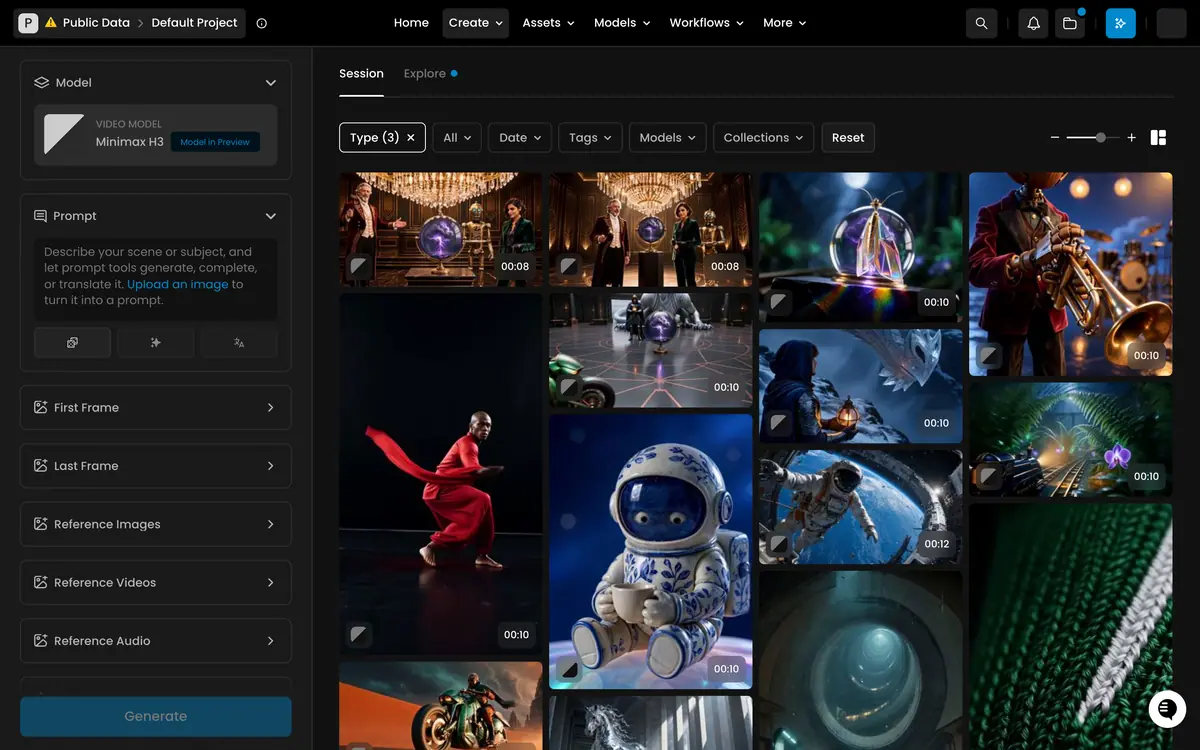
MiniMax H3 ranked first for image to video on quality in October 2026, and it generates sound with the picture. "Preview" means the model is new: check every take, which you do anyway. On the same prompt, Seedance 2.5 also kept her whole in frame but barely moved the scepter, at about three times the price. See Video models guide.
2. Write the motion prompt
A video prompt describes one shot: what the subject does, how the camera moves, what stays still, and what you hear. The first frame already shows Queen Pip, so do not describe her again.
The little queen taps the base of her scepter twice on the stone step, then lifts her
chin with a proud, grumpy pout, her other hand staying on her hip. Her ermine cloak
sways a little as she moves. The camera pushes in slowly toward her. Everything else in
the courtyard stays still. Soft sound of the scepter tapping on stone and a light
breeze, no music, no speech.
Read the price on Generate and click it. The quote matched the bill; the clip took about 2.5 minutes.
3. Inspect take 1
Watch the clip twice at full size, once for the subject and once for the frame edges. Then compare the first and last frame.
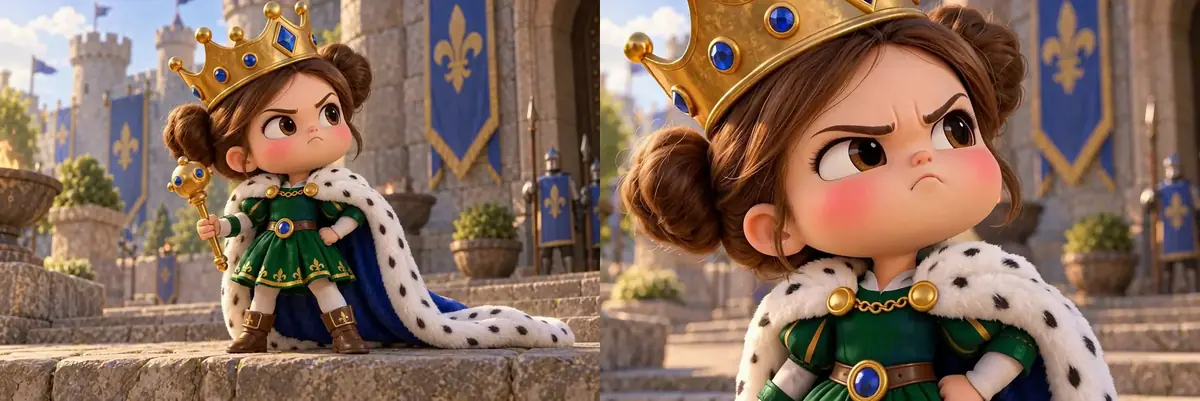
Identity was right: same face, crown, dress and cloak. But "pushes in slowly" was read as a large move: by the end, the top of the crown, the scepter and the boots are out of frame. The brief needs the whole queen visible, so take 1 is rejected. She also turned the scepter upside down to tap it with the gem end.
4. Fix the one thing that failed
Change only the camera sentence, so you know what caused any difference.
The camera moves in gently and only a little, keeping the whole queen in frame from the
top of her crown to her boots.
That line replaces "The camera pushes in slowly toward her." Generate again, at the same price.
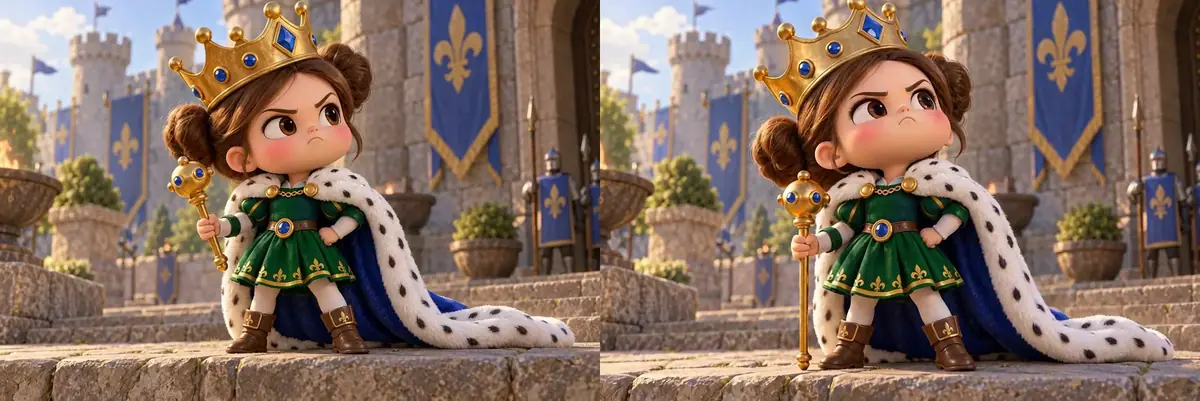

In take 2 she lowers the scepter, taps its base on the step, holds it upright and lifts her chin. The camera moves in a little and stops with the crown just under the top edge, which is acceptable.
Listen as well as watch. The prompt asked for two taps; she taps five times, and each tap sounds exactly when the scepter hits the stone. Video models treat counts loosely. Here the count did not matter to the brief, so the take was kept.

Queen Pip in every frame matches the first frame (face, crown, dress color, cloak, scepter); the whole queen stays in frame; the action you asked for happens and ends cleanly; the background stays still; the sound matches the action, with no voice or music.
the subject drifts (the dress changes color, the crown changes shape, a hand grows fingers); the camera crops part of the subject you need; objects appear, melt or flicker in the background; the motion loops or stutters; the sound includes speech or music you did not ask for, or lands out of step with the picture.
Check the frame edges and the hands in every second: drift usually starts late. See Inspect before you accept.
What it cost
Two takes at 768P, the first rejected for one sentence: the largest spend in this section. The same take at 2K would have cost about two thirds more. See Compute units basics.
If it breaks
- The character changes during the clip. Use the approved image as First Frame, not as a reference, and avoid prompting large turns or fast moves.
- The camera does too much. Describe the move in size words ("only a little", "stays wide") and say what must stay in frame.
- Things move that should be still. Add "Everything else stays still" and name the objects.
- There is speech or music. Say "no music, no speech" in the prompt. If it is still there, replace the sound later with a sound model. See Video problems.
- An exact count matters (two taps, three jumps). Ask for one action, or cut the clip to length afterwards.
- The job takes a few minutes. Normal for video. If it runs much longer, see Failed or stuck jobs.
- Normal variance. The same prompt gives a different take each time. Change one sentence between takes so you know what fixed it. More fixes in Video problems.
- Minimax H3 is missing from Model. Search for it by name; if it is still missing, an admin may have turned it off for your organization or project. See Control model access.
Next
Run a ready-made workflow on your character: Your first workflow.