

Your first image
Write a short brief, turn it into a prompt, generate four takes with a strong current model, keep the right one and file it.
- Tutorial
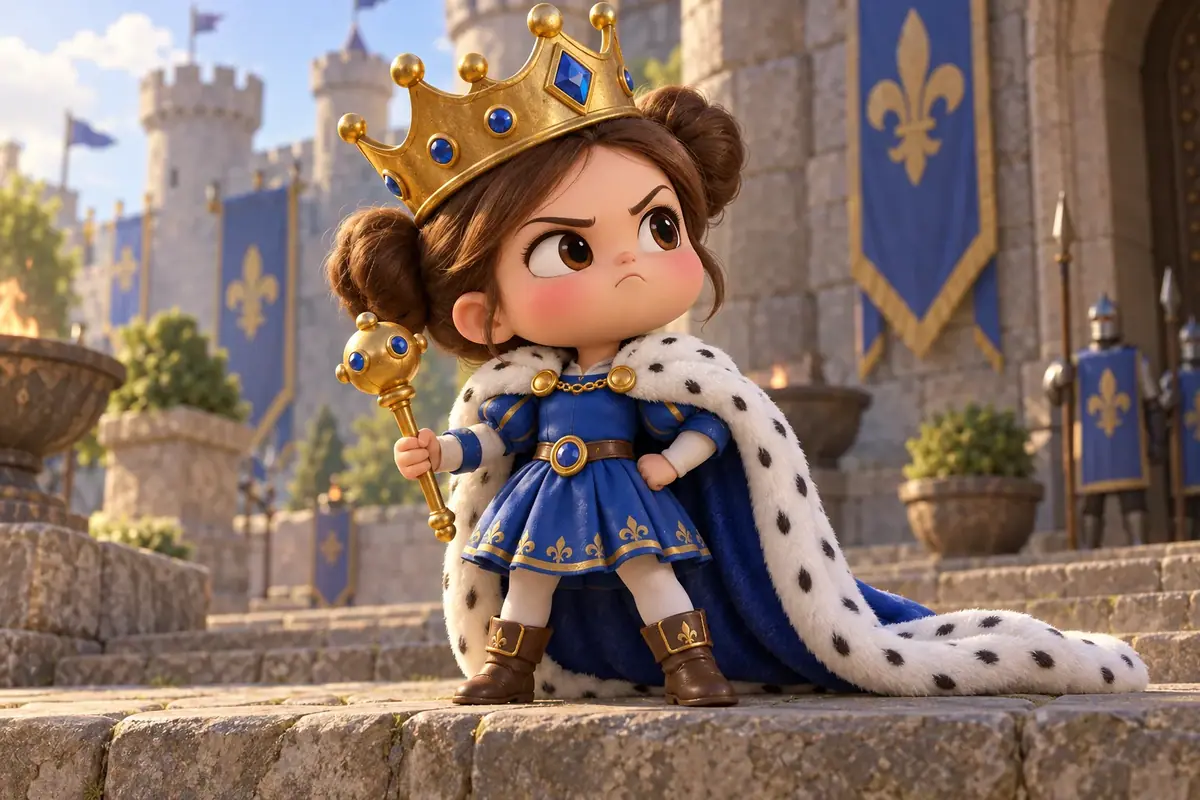
You will generate Queen Pip, the tiny queen of an invented mobile strategy game, reject the take that misses the brief and keep one. The next tutorials start from her: you edit her in Your first edit and turn her into a turnaround sheet in Your first workflow. The model used is GPT Image 2.5 Sunburst.
Outcome: one accepted image that matches a written brief, saved in a collection.
Quick version
- Write a three-line brief: subject, format, what must hold.
- In Create > Images, choose GPT Image 2.5 Sunburst.
- Paste the prompt; set Image Count to 4, the preset 3:2 (1536x1024) and Quality to
high. - Read the price on Generate, then generate.
- Keep the take that meets the brief and add it to a collection.
If you start from art you already have
Same panel, one more step: under Reference Images, click Upload (or Select from Library), then say in the prompt what the reference is for, such as "keep this character's face and outfit". See Give every reference image a role. To change one part of an image, see Your first edit.
What you need
- Any plan with credits, Free included: every plan runs GPT Image 2.5 Sunburst and the default model, GPT Image 2.5 Flare. See Plans and pricing.
- Credits for four takes. The price shows on Generate. Flare costs less per image than Sunburst.
- The right project: the image is saved in the project shown in the context switcher, top left.
1. Write the brief first
Write what the image is for and what would make you reject it.
- Subject: Queen Pip, a tiny fierce cartoon queen for a mobile strategy game: big head, brown hair in two buns, an oversized gold crown, a royal blue dress, a white ermine cloak, a gold scepter shaped like a toy mace.
- Format: landscape 3:2, full body in frame, chunky stylized 3D, warm light, no text.
- Must hold: the crown tilted and fully in frame; the scepter in her right hand, the left hand on her hip; the cloak trailing on the ground; the whole queen visible.
The "must hold" line becomes your check in step 5. See Write a brief.
2. Open the generate panel and pick the model
- In the top bar, open Create and choose Images.
- Click the Model box, then See all models to open Choose a Model.
- On the Image tab, keep the sort on Quality: Highest First and choose GPT Image 2.5 Sunburst.
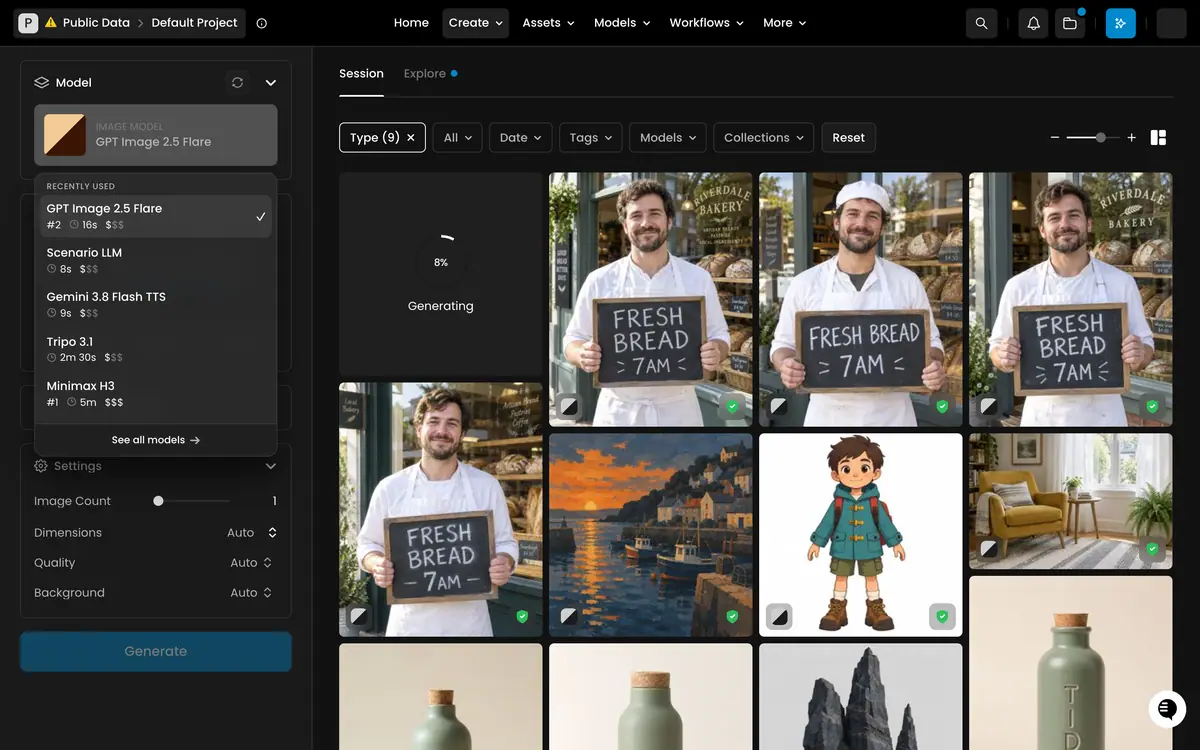
As of October 2026, Sunburst was the top recommendation for a stylized character with exact details: it follows long prompts closely. See Choose a model.
3. Write the prompt
Paste this into Prompt:
A tiny fierce cartoon queen standing on a worn stone step in a castle courtyard,
three-quarter view, full body in frame. She is about three heads tall, with a big
round head, rosy cheeks, a determined little frown and brown hair in two buns. An
oversized gold crown with blue gems sits tilted on her head. She wears a royal blue
dress and a too-big ermine cloak, white with black spots and a royal blue lining,
that trails on the ground behind her. Her right hand holds a short gold scepter
shaped like a toy mace; her left hand rests on her hip. Chunky stylized 3D, like
the best mobile strategy games: thick readable silhouette, big head and hands, soft
global illumination, tactile materials (painted wood, brushed gold, felt cloth),
warm saturated palette. Warm afternoon sun from the left, softly blurred blue
banners and stone walls behind. No text, no logos.
The order follows the brief: subject and framing, must-hold details, pose, style, light, background, then exclusions. See Prompt images.
4. Set the format and generate
- Under Settings, set Image Count to 4.
- Open the aspect ratio presets and choose 3:2 (1536x1024).
- Set Quality to
high. Leave Background on its default. - Read the price on Generate, then click it, or press Cmd+Enter (Ctrl+Enter on Windows).
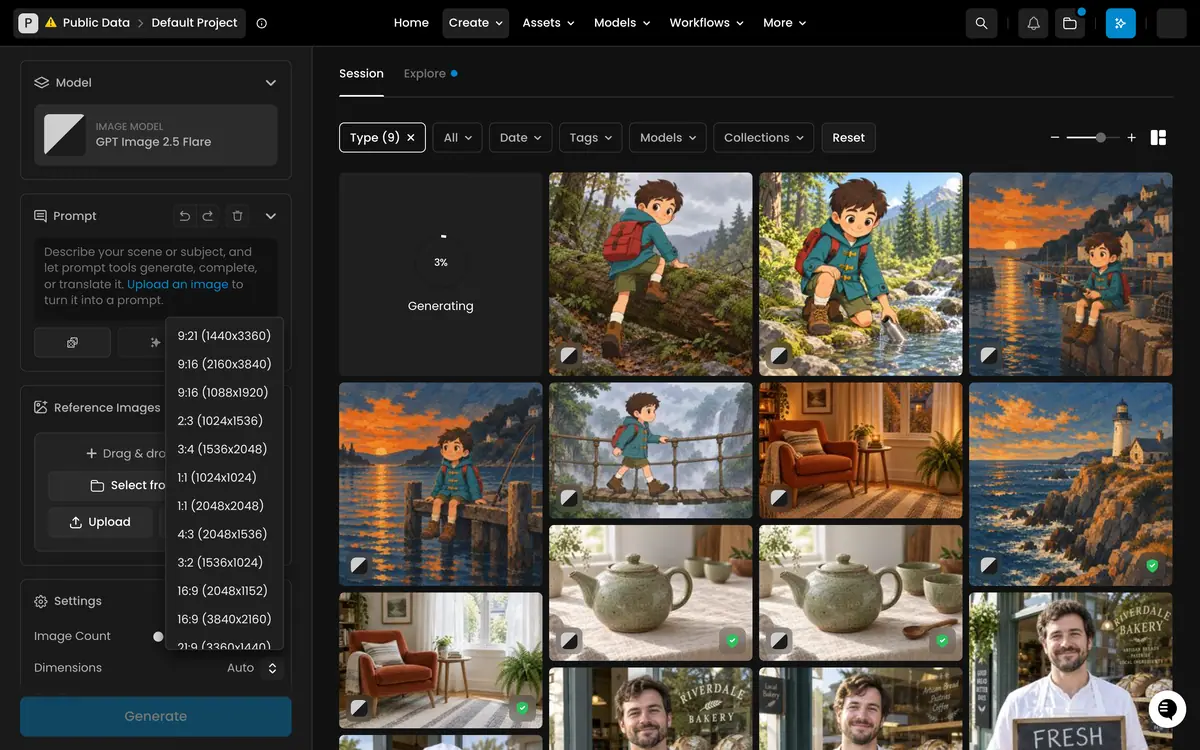
On October 16, 2026, the four takes arrived in about 55 seconds, in Session on the right.
5. Inspect the takes against the brief
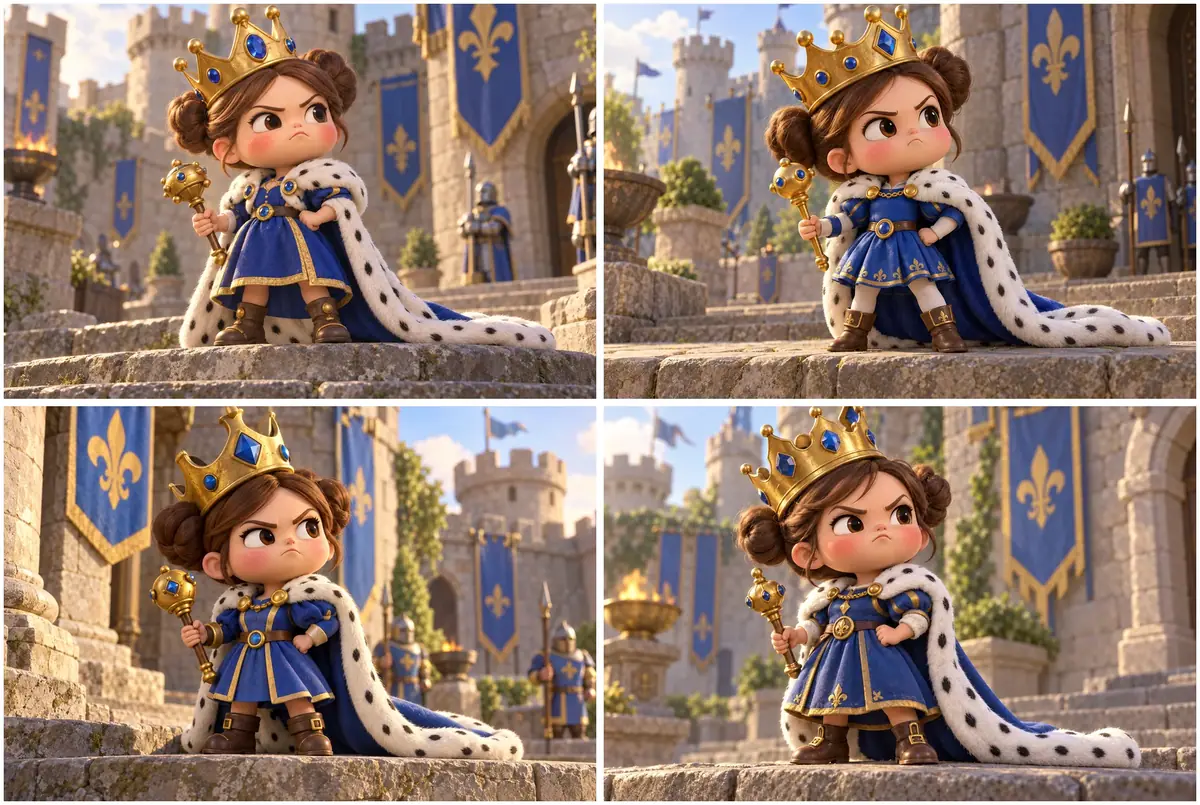
Open each take at full size and check the "must hold" line.
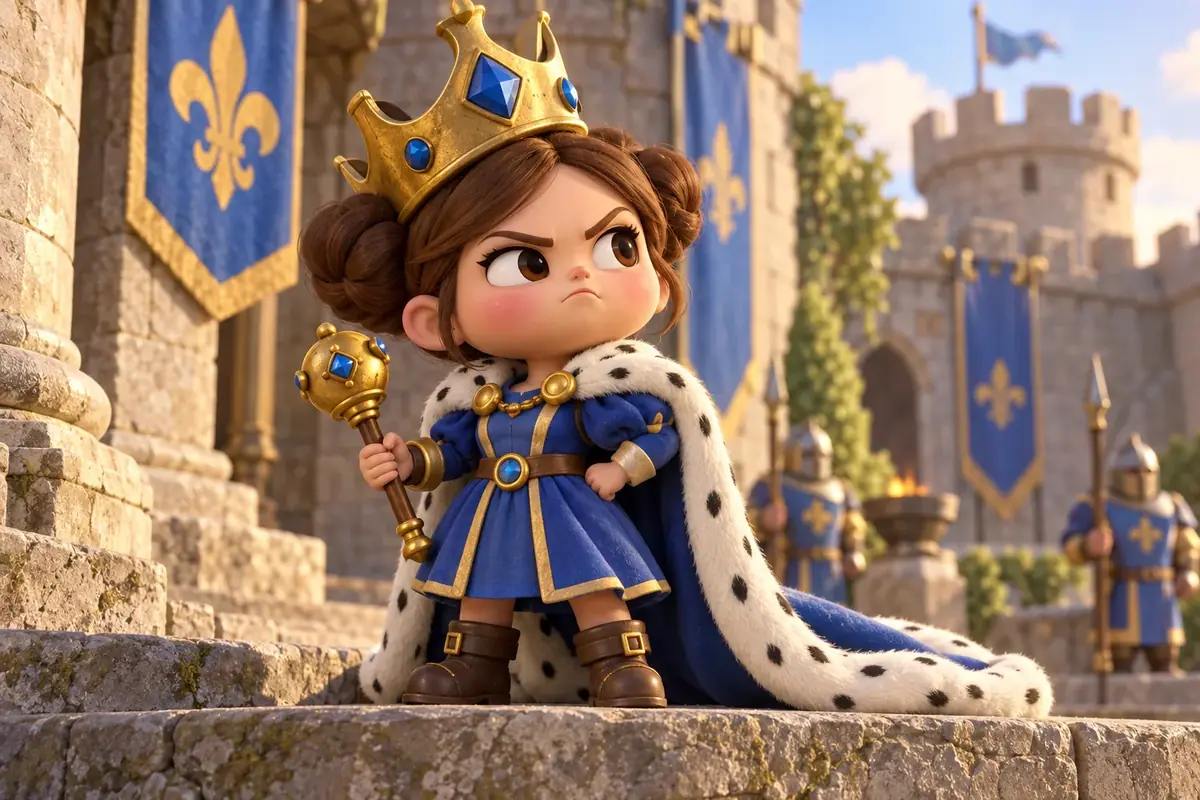 Rejected
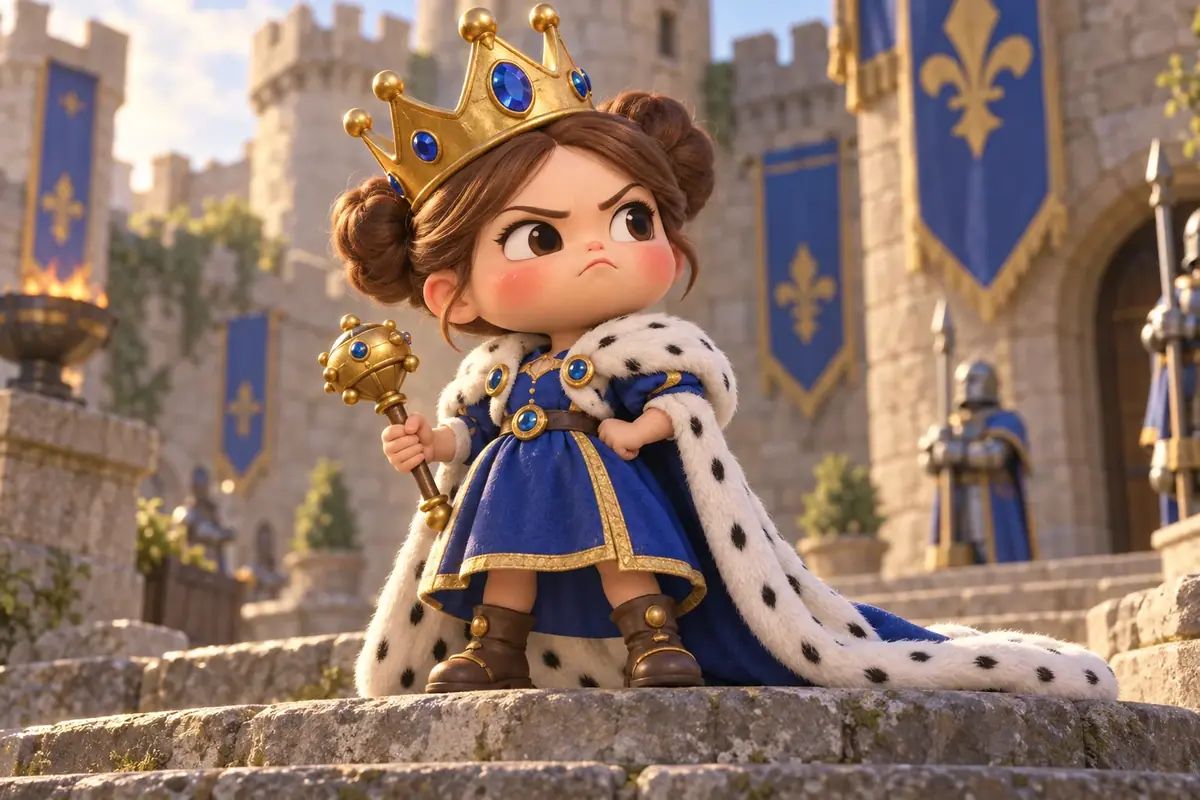
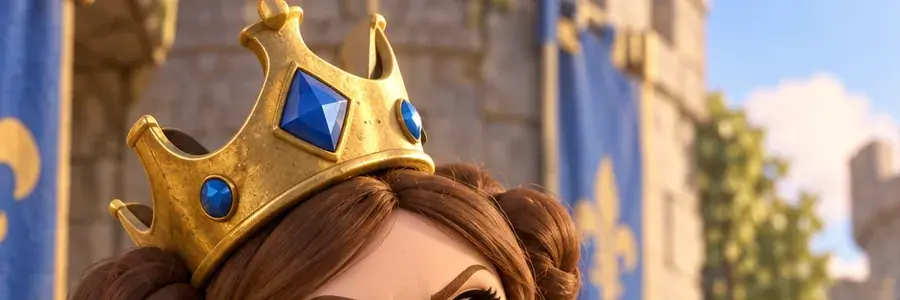
Takes 1, 2 and 4 met every point. Take 2 was kept: its cloak trails clear of her feet, so the silhouette reads best at small size. The guards in the background were not in the prompt; they stay soft and do not compete with her, so they passed.
the crown is tilted and fully inside the frame; the scepter is in her right hand and the left hand rests on her hip; the cloak is white ermine with black spots and trails on the ground; the whole queen, boots included, is in frame; there is no text or logo anywhere.
the crown, the boots or the cloak touch or cross the edge; the scepter changes hands or turns into a sword or a wand; the crown sits straight; the cloak loses its spots or its trail; letters, labels or a signature appear on the banners or the steps.
One reject in four is a good first run. On a new prompt, expect to reject more: it is why you generate four. See Inspect before you accept.
6. Download it and add it to a collection
- Click the accepted take to open its asset view.
- Details on the right records the model, the dimensions and the Cost.
- Click the download icon in the toolbar to save the file.
- Click Collections and choose the collection. To create one first, open the folder icon in the top bar, click New Collection and name it
Queen Pip.
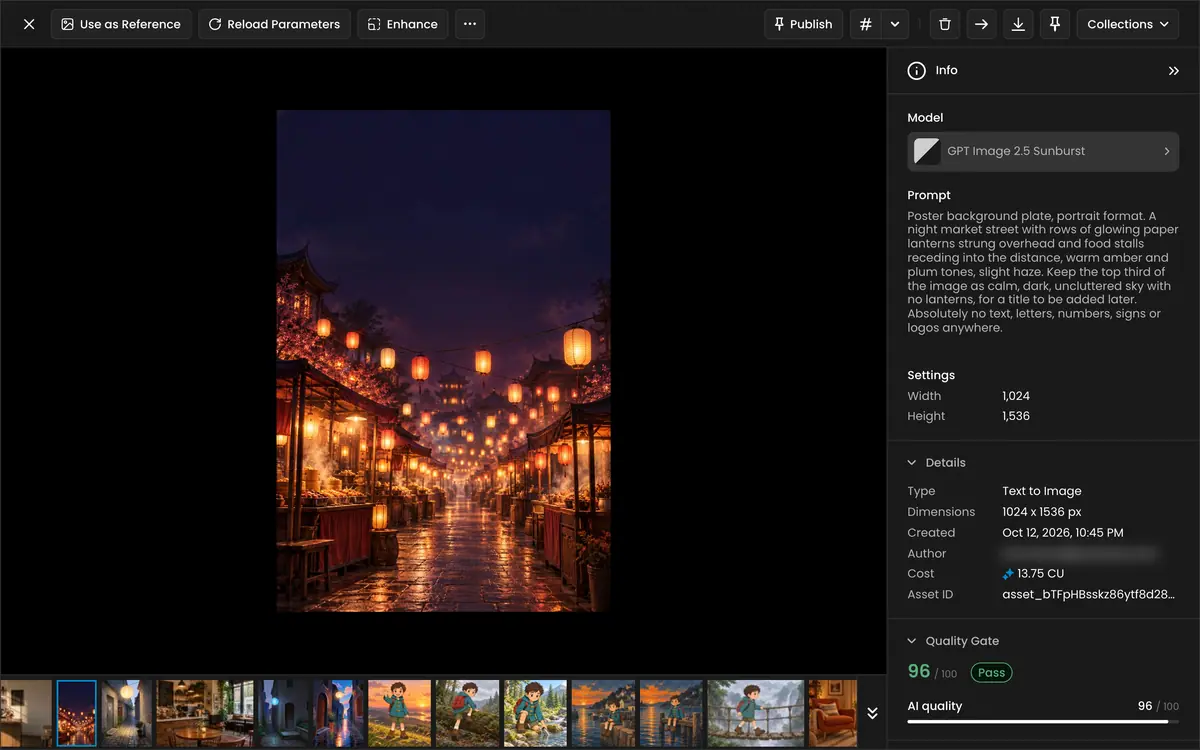
The collection is how your team finds the approved image later. See Organize your work.
If it breaks
- Generate is disabled or shows no price. The prompt is empty or your balance is too low. Lower Image Count to 1 or switch to GPT Image 2.5 Flare.
- The model is missing from Choose a Model. Check the spelling in the model search; if it is still missing, an admin may have turned it off for your organization or project. See Control model access.
- Text or a logo appears on the banners. Keep "No text, no logos." at the end of the prompt and regenerate one take.
- Every take misses the same feature. Name it more precisely ("the crown tilted toward her left ear"). Rerunning the same prompt rarely fixes a systematic miss.
- The subject is cropped. Ask for room: "full body in frame, with space above the crown".
- The takes differ a lot from each other. Normal variance: it is why you generate four.
- The job fails. Failed generations are refunded automatically: see Credits explained and Failed or stuck jobs.
- The prompt is blocked. See Blocked prompts and moderation.
Next
Change one thing in this image, keep the rest: Your first edit.