

Direct the camera and the motion in a shot
Name one camera move, describe the subject's action with a start and an end, and use a driving video when choreography must be exact.
- Guide
- Step 1 Learn
On this page12 sections
- Before you start
- Step 1: Start with a first frame
- Step 2: Name one camera move
- Step 3: Say what else moves
- Step 4: Test it as a draft
- Step 5: Check the move
- Step 6: Finalize the take you keep
- Nine camera moves from one frame
- Writing camera and motion
- When words aren't enough: a driving video
- Common problems
- What's next
A video model moves the camera whether you ask it to or not. This lesson shows how to choose the move yourself: from one first frame of a sunny living room with a cat, you write a Seedance 2.5 prompt that names one camera move, says what else moves, and test it as a cheap 480p draft. Then you see nine camera moves made from the same frame by changing only the camera words.
Quick version
- Start from an approved first frame in First Frame.
- In the prompt, name one camera move, how fast it goes, and where it ends.
- Say what else moves and what stays still, and end with "one continuous camera move, no cuts".
- Turn on Draft for a cheaper 480p test, and click Generate.
- Keep the take whose move is right, then finalize it in 1080p.
Before you start
- An approved first frame in the shape you want. With a first frame, the clip takes its shape from the image, so make it in the target aspect ratio. Here it's a wide, sunlit room with tall windows, a woman reading on a green sofa, and an orange tabby cat stretching on the rug.
- Where it lives: Create › Videos. The film uses Seedance 2.5. To pick a model, see Generate video.
- One move per clip. A clip of a few seconds has room for one clear camera move. Two moves in one prompt usually come out as neither. For several moves, make several shots and cut them together.
- Camera words are film words. Push-in, pull-out, pan, tilt, tracking, orbit, crane, handheld, static. The models know these terms better than a description of where the camera should go.
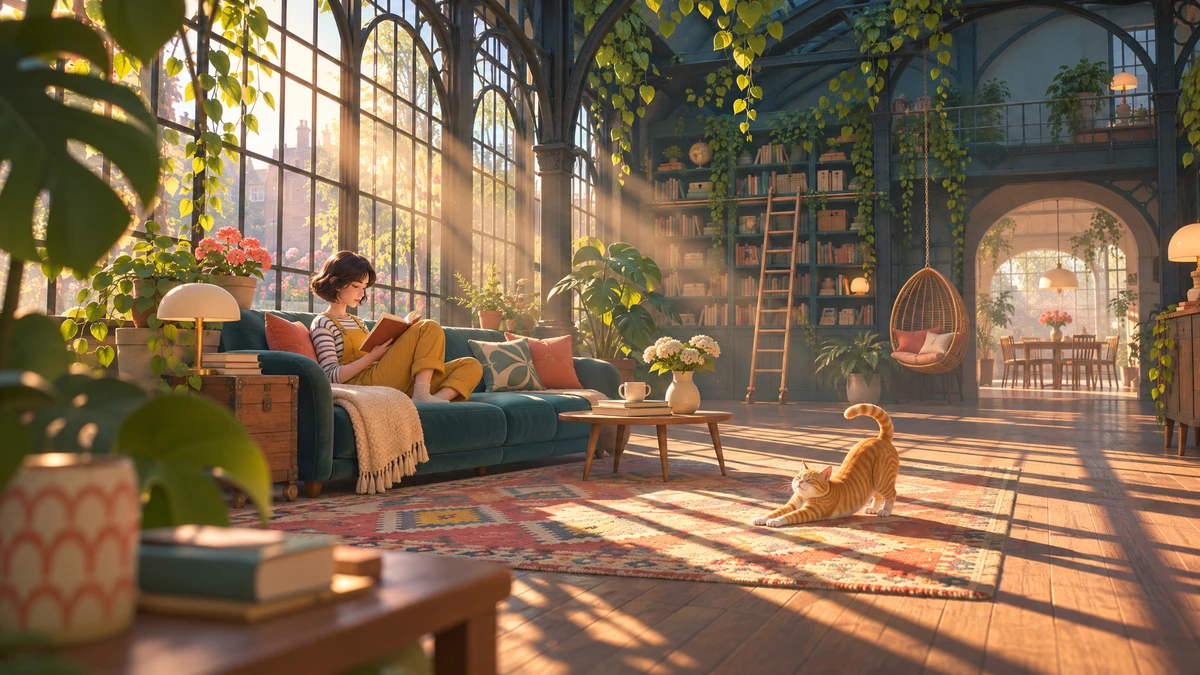
Step 1: Start with a first frame
Add the image to First Frame: drag and drop or paste it, or choose it from your library. Leave Last Frame empty: the move decides where the shot ends.
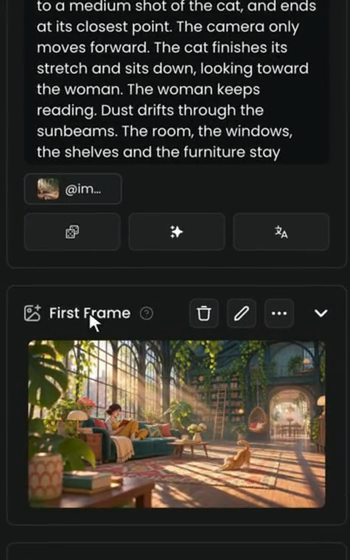
Step 2: Name one camera move
Write the camera move first, in three parts:
- The move, as a film term: "Slow push-in toward the orange tabby cat on the rug".
- How it moves and how fast: "the camera glides straight forward, low over the floor".
- Where it starts and ends: "from the wide view of the room to a medium shot of the cat, and ends at its closest point". Then rule out other moves: "The camera only moves forward."
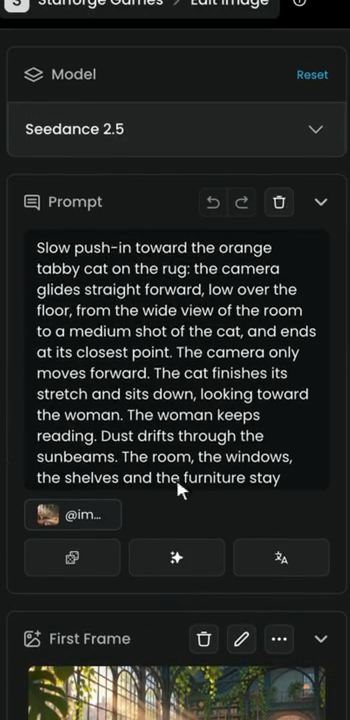
Step 3: Say what else moves
Then describe the subject's action with an end state, and what stays still:
- The cat finishes its stretch and sits down, looking toward the woman.
- The woman keeps reading.
- Dust drifts through the sunbeams.
- The room, the windows, the shelves and the furniture stay unchanged, in the same style as the first frame.
End with "One continuous camera move, no cuts", a steady speed, and the sound. The full prompt the film uses:
Slow push-in toward the orange tabby cat on the rug: the camera glides straight forward, low over the floor, from the wide view of the room to a medium shot of the cat, and ends at its closest point. The camera only moves forward. The cat finishes its stretch and sits down, looking toward the woman. The woman keeps reading. Dust drifts through the sunbeams. The room, the windows, the shelves and the furniture stay unchanged, in the same stylized 3D look as the first frame. One continuous camera move, no cuts, steady speed. Sound: quiet room tone, soft birdsong outside the windows. No music, no voices.
Step 4: Test it as a draft
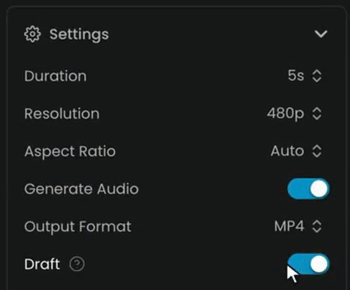
Open Settings. The film uses:
- Duration: 5s.
- Resolution: 480p. While Draft is on, the output is 480p whatever you set here.
- Aspect Ratio: Auto. The clip takes the shape of the first frame.
- Generate Audio: on, so the room tone and birdsong in the prompt are generated with the picture.
- Output Format: MP4. MOV keeps more color for grading but makes larger files.
- Draft: on. A draft is a cheaper test at 480p.
The price shows on the Generate button. Click Generate.
Step 5: Check the move
Open the draft. This move is a push-in: the camera glides forward in one smooth move, and stops on the cat. A banner above the video shows how long you have left to finalize the draft, for example "480p draft, 6 days left to finalize in 1080p".
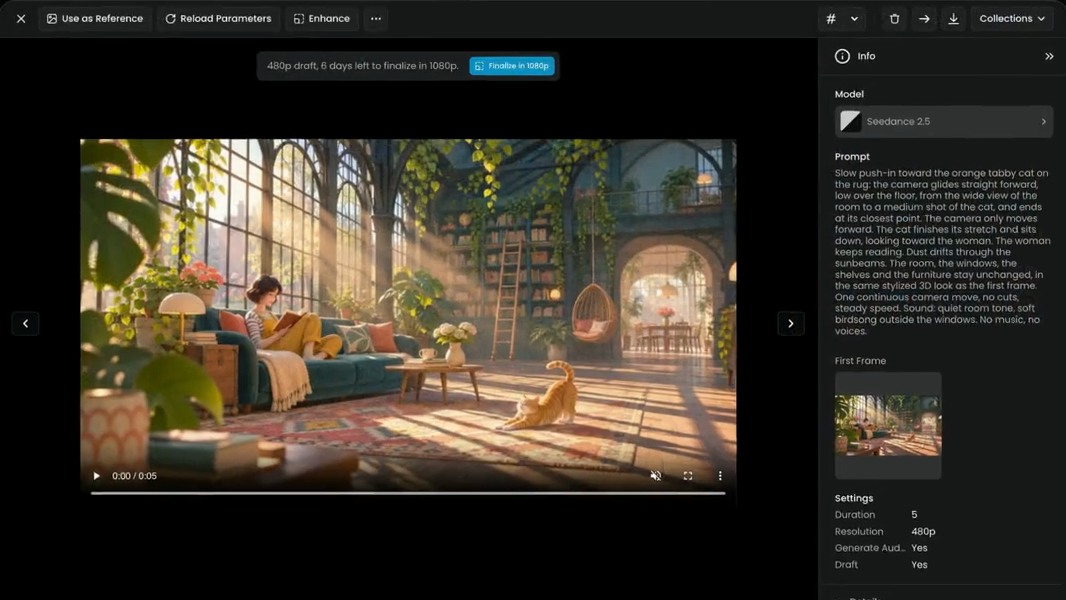
Watch the whole clip, not just the first and last frames. The move should be the one you named, at a steady speed, with nothing else moving that you didn't ask for.
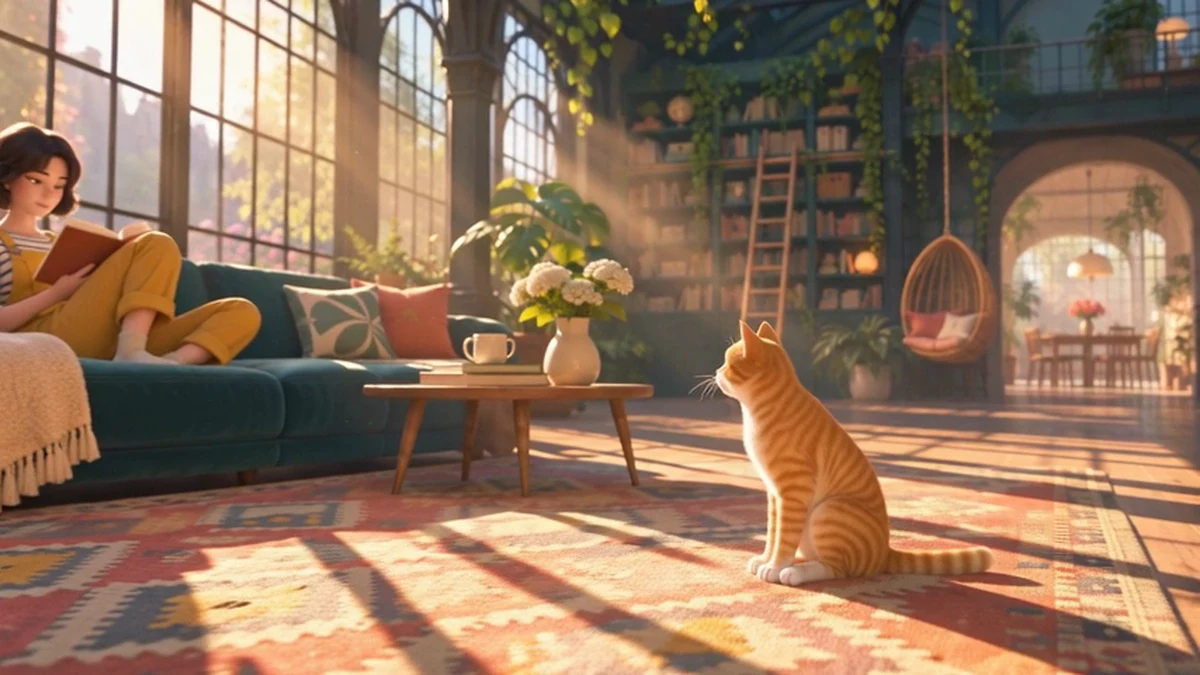
the camera makes the one move you named, at a steady speed, and stops where you said; the cat sits and the woman keeps reading; the room, furniture and style match the first frame; there are no cuts.
the camera adds a second move (a pan or a zoom you didn't ask for), cuts to another angle, speeds up or jerks, the subject doesn't reach its end state, or the room changes. Make the move words more exact and generate another draft.
Step 6: Finalize the take you keep
When a draft has the right move, click Finalize in 1080p in the banner above it. This opens Create › Videos with Seedance 2.5 Draft Complete selected and the draft already loaded under Draft Video. Click Generate to get the 1080p version of the same take, without generating it again. It's delivered as a MOV file.
A draft can be finalized for 7 days from when it was made. After that, the banner says it has expired, and you need a new draft.
Nine camera moves from one frame
From the same first frame, change only the camera words. The rest of the prompt stays the same. These are the camera words the film uses for each move:
| Move | Camera words | What it does |
|---|---|---|
| Static | static camera, locked-off | The camera stays still, and only the scene moves. |
| Push-in | slow push-in toward the cat | The camera moves closer. |
| Pull-out | slow pull-out | It moves back to show more of the room. |
| Pan | camera pans right | The camera sweeps sideways across the scene. |
| Tilt | slow tilt up | It turns up or down. |
| Tracking | tracking shot from the side | It follows a moving subject. |
| Orbit | slow orbit around the cat | It circles around the subject. |
| Crane | rising crane shot | It rises up over the scene. |
| Handheld | handheld, camera shake | The shot sways and bounces, like a camera held in the hand. |
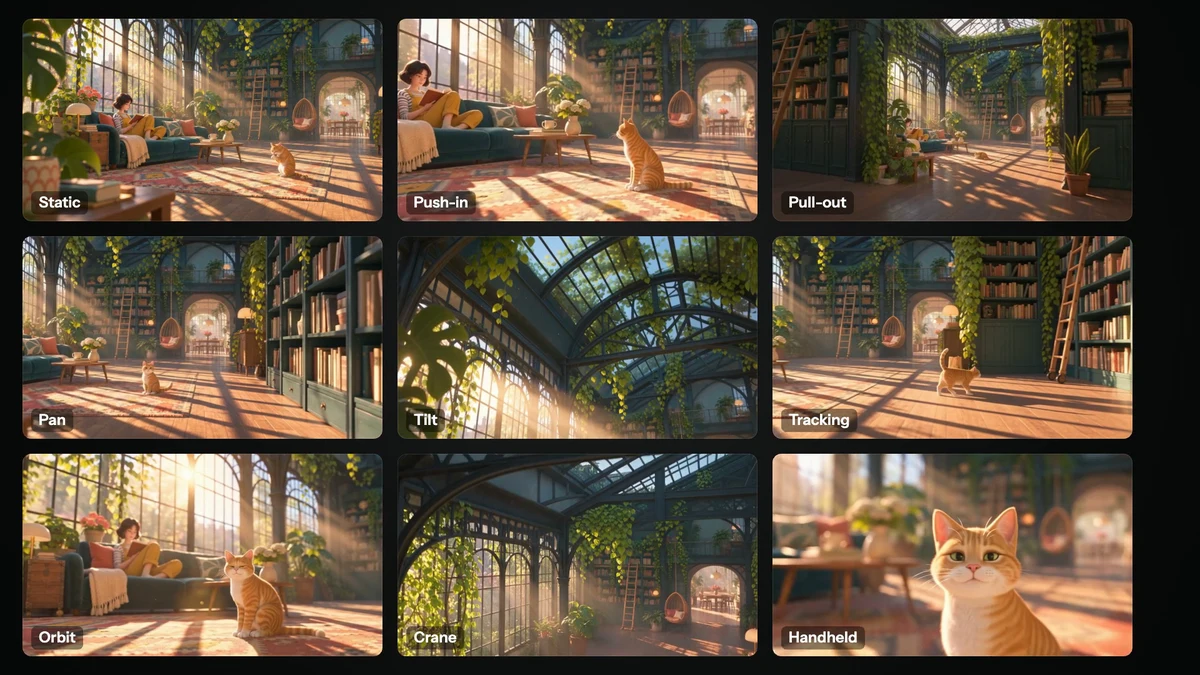
Ask for one move per clip. For several moves, make several shots.
Writing camera and motion
- Put the move first. The subject and the main action belong in the first words of the prompt; the camera move is part of that.
- Give the move a size and a speed. "Slow push-in", "a small pan", "a fast whip pan". Without them the model picks its own.
- Give the action an end state. "The cat sits down, looking toward the woman" tells the model where the action finishes, so it doesn't loop or stall.
- Say what doesn't move. "The woman keeps reading", "the furniture stays unchanged". Anything you leave out is free to change.
- For a still camera, say it at the start. Some models add a slow zoom or dolly by default. "Static camera, locked-off" or "the camera does not move" stops it.
- For a longer clip, write beats. Seedance 2.5 reads a shot split into short timed beats, each with one main action and one camera move, better than one dense paragraph.
When words aren't enough: a driving video
When the choreography must be exact (a dance, a fight, a precise gesture), describing it gets you close at best. Give the model a video of the movement instead:
- Kling V3 Std - Motion Control and Kling V3 Pro - Motion Control animate a Character Image by copying the movement in a Reference Video. Character Orientation aligns the result to the image or to the video, and Keep Original Sound keeps the reference video's audio. Use Pro for hands and complex body movement.
- Seedance 2.5 also takes reference videos to guide motion; tag them in the prompt as @video1.
Common problems
| What you see | What to do |
|---|---|
| The camera moves when you wanted it still | Start the prompt with "Static camera, locked-off. The camera does not move." |
| The camera does two moves, or the wrong one | Name one move as a film term, add "The camera only moves forward" (or the direction you want), and remove any other camera words |
| The shot cuts to another angle | End with "One continuous camera move, no cuts" |
| The move is jerky or changes speed | Add "steady speed" and say how fast: slow, smooth |
| The subject doesn't finish the action | Give it an end state: "sits down", "stops on the top stair" |
| The room or style changes during the move | Say that the room and furniture stay unchanged, in the same look as the first frame |
| The Finalize in 1080p button is gone | The draft is older than 7 days. Generate a new draft and finalize that one |
What's next
Write the rest of the prompt with Prompt video. To fix both the start and the end of a shot, use a first and a last frame in Generate video. To keep a character the same while the camera moves around it, see Reference to video.