About this lesson
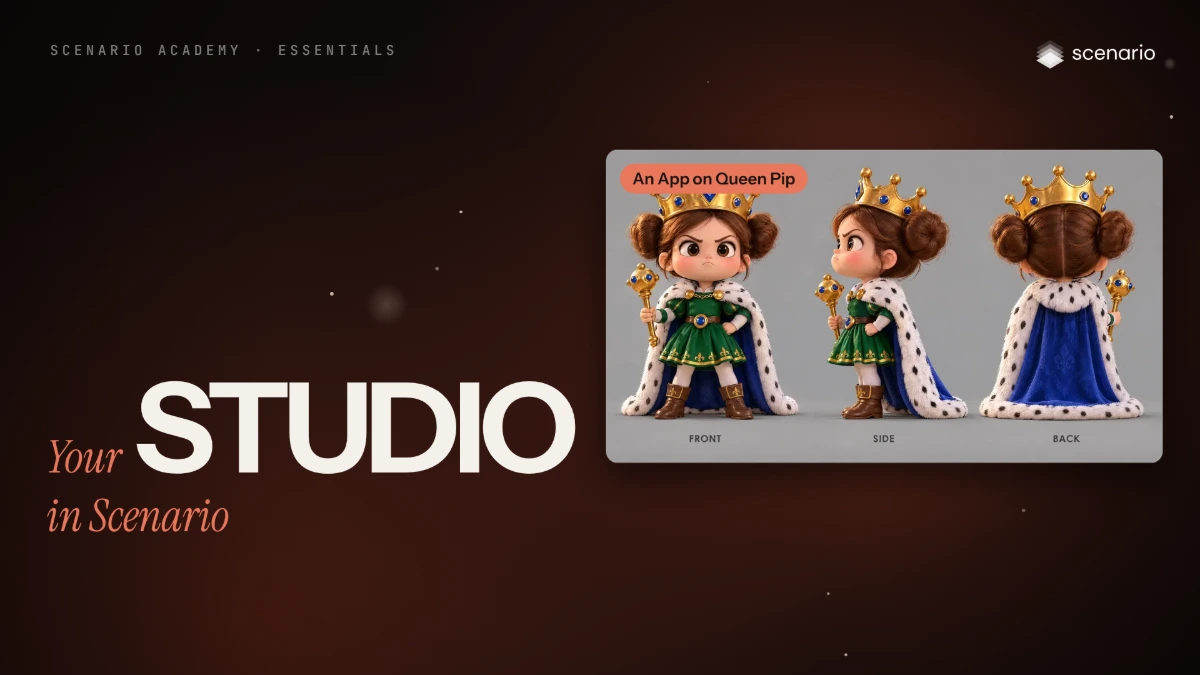
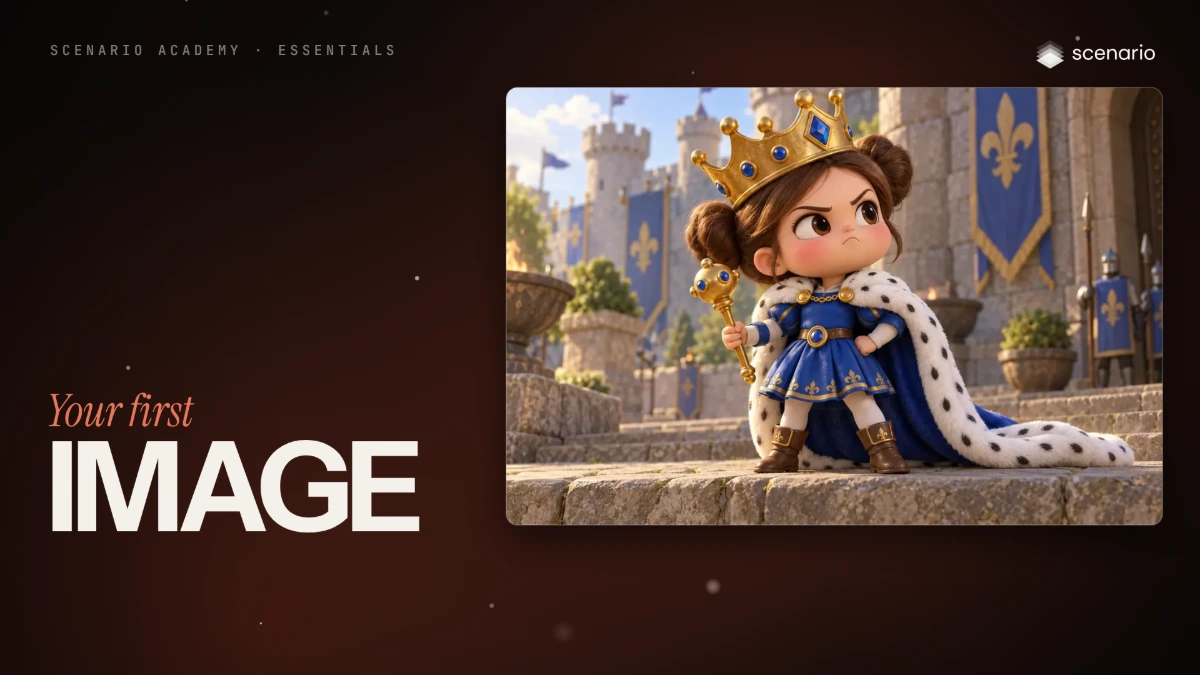
One character from start to finish: you generate it in the image playground, explore everything on its page, cut out its background, then bring it to life as a five-second video. Each step also has its own article with every click. The models and settings in this lesson are as of November 2026.
See moreSee less
- Generate your first image in the image playground: model, prompt, references, settings, then Generate.
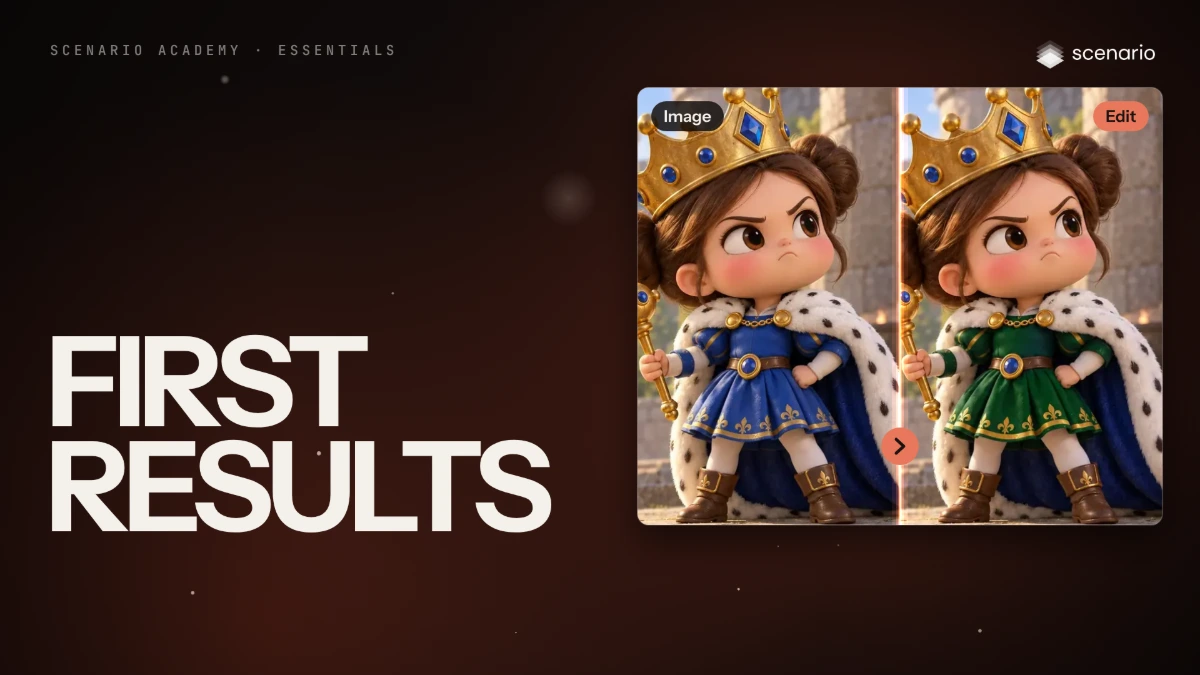
- Open its page to see how it was made, then remove its background: the original stays as it was.
- Turn the image into a five-second Seedance 2.5 draft, starting from it as the first frame.
Step by step in the web app (12 steps)Hide the steps
Open the image playground
Open Create › Images. Work down the left panel: Model, Prompt, Reference Images, Settings, then Generate; results land in your Session on the right.
Choose a model
Click the model's name, search for "Sunburst" and pick GPT Image 2.5 Sunburst. The Settings change with each model, so check them after you pick.
Write the prompt
Describe who or what, how it looks, where and the style, then click Improve (the wand) to expand it. Undo, redo and the bin sit in the Prompt header.
Prompta tiny mouse queen with a red cape and a gold crown, in a sunny forest, 3D animated film styleKnow your reference options
Reference Images takes Drag & drop or paste, Select from Library, Upload or Sketch. Queen Pip starts from text only, so leave it empty.
Check the settings and generate
Set Dimensions to 3:2 (1536 x 1024) and leave Quality and Background on Auto. Check the cost on Generate, then click it.
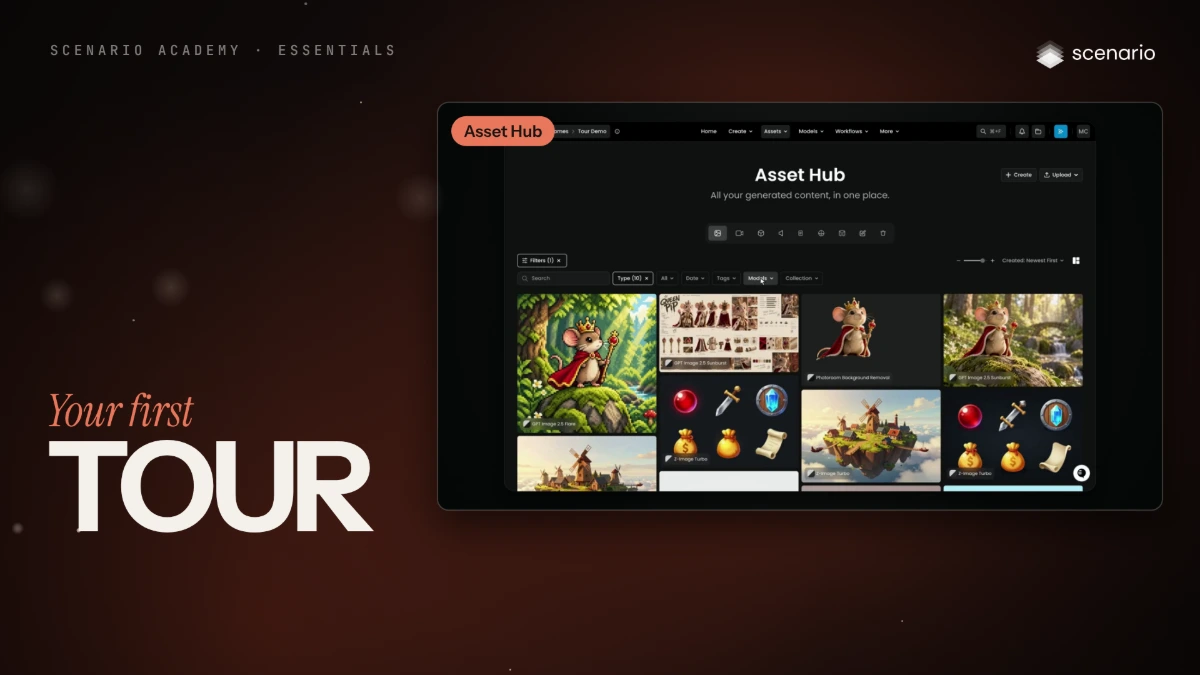
Open the image page
Click the result to open it. The Info panel shows the Model, the full Prompt, every setting, Derived images and Details with the Asset ID.
Use the actions along the top
Use as Reference, Reload Parameters and Enhance sit at the top left, every other tool under the three dots. On the right, # copies the Asset ID, then delete, transfer and download.
Tag it and file it
Type a tag such as Queen Pip in Add a tag and press Enter. Collections at the top right adds the image to a collection, or Create collection makes one.
Remove the background
Choose Remove Background in the Edit section of the Info panel, keep Transparent and click Remove Background. The cutout is a new image, made with Photoroom Background Removal; the original stays as it was.
Turn the image into a video
On the original, choose Convert › Video: the image lands in First Frame. With Seedance 2.5, set Duration 5s, Aspect Ratio Auto, Generate Audio off, Output Format MP4 and Draft on.
Describe the movement and generate
In Prompt, describe one action, not the look: the first frame already shows it. Click Generate; the clip lands in your session in a minute or two.
Promptshe raises her scepter, and her cape lifts in the windCheck the clip
Accept when the clip starts on your image, the character stays the same and the movement matches the prompt. When it's right, Finalize in 1080p makes the full version within 7 days.