

Pick a video model by inputs, length, audio and price
How to find a video model in the model library, the video model families as of November 2026, how their prices compare, and the length and resolution each one allows.
- Guide
- Step 1 Learn
On this page12 sections
- Before you start
- Step 1: Open the model library
- Step 2: Filter by what you start from
- Step 3: Read a row, then a model
- Step 4: Narrow the list
- Step 5: Search and sort
- Step 6: Compare models on the same shot
- Step 7: Choose, and check the price
- The models in the film
- Choose by the job
- Common problems
- What's next
There are hundreds of video models in Scenario, and the right one depends on what you start from, how long you can wait and what you want to spend. This lesson finds models in the model library with its filters, then compares a few of them on the same image and the same prompt, so you can choose on your own shot instead of on a sample.
Quick version
- In Create › Videos, click the Model card, then View all models.
- Under Input, tick what you start from: Text, Image, Video or Audio.
- Narrow with Budget and speed, Capabilities or New · last 30 days, or search by name or provider.
- Run two or three models on the same image and prompt at the same resolution.
- Pick the one that holds up, and read the price on Generate at the duration and resolution you will ship.
Before you start
- Have one shot ready to test. An approved image to start from and one prompt for it. Comparing models on your own shot tells you more than any sample.
- Know what you start from. A prompt only, a still to animate, a clip to edit or extend, or a sound track to follow. That is the first filter, and it removes most models.
- Know where it is going. The length and resolution you need rule out some models, and both change the price.
- Where the library lives. Open Create › Videos from the top menu. The Model card sits at the top of the panel on the left. The same library opens from every generation panel.
Step 1: Open the model library
Click the Model card. A short list opens: the top video models with their rank, typical time and cost, a search field, and buttons to filter by type (ALL, image, video, audio, 3D, world and text). At the bottom, click View all models.
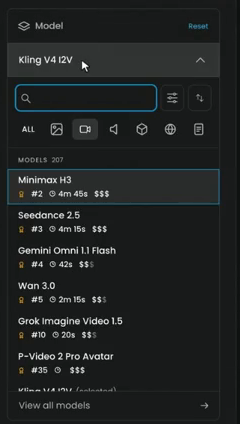
The library opens as Choose a model: filters on the left, the list in the middle and the details of the highlighted model on the right. Opened from Videos, it is already filtered to Video under Output.
Step 2: Filter by what you start from
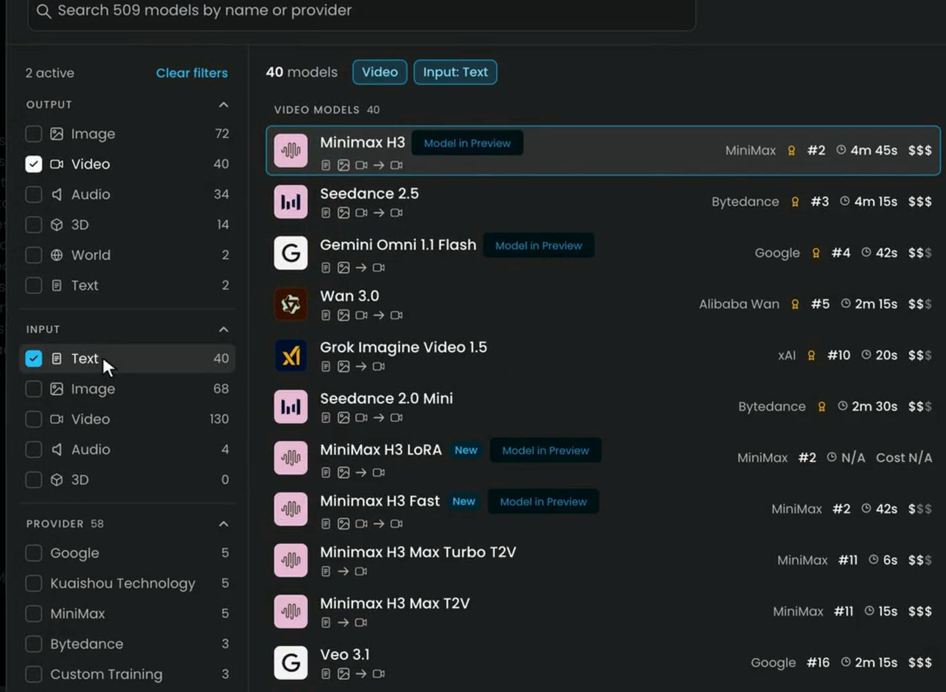
Under Input, tick what you are starting from:
- Text, to make a video from a prompt only.
- Image, to animate a still, or to use reference images.
- Video, to edit, restyle or extend a clip.
- Audio, to drive the video with a sound track.
The count above the list updates as you tick, and each filter shows as a chip next to it (for example Input: Text). Click Clear filters to start again.
Step 3: Read a row, then a model
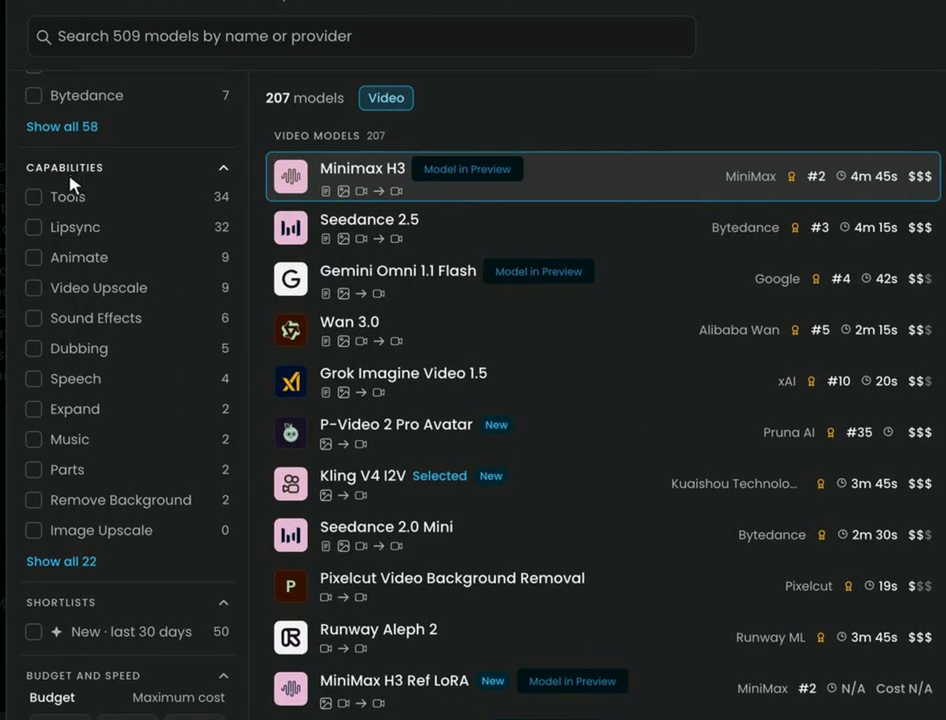
Each row shows the model's name, its provider, its rank, its typical time and its cost. The small icons under the name show what goes in and what comes out (for example image to video). Tags mark New models and models that are Model in Preview.
- Rank is the model's place in Scenario's recommendations. A lower number is a stronger pick.
- Typical time is how long a generation usually takes, from seconds to several minutes.
- Cost is shown as $, $$ or $$$, so you can compare models at a glance. The exact price for your settings shows on the Generate button.
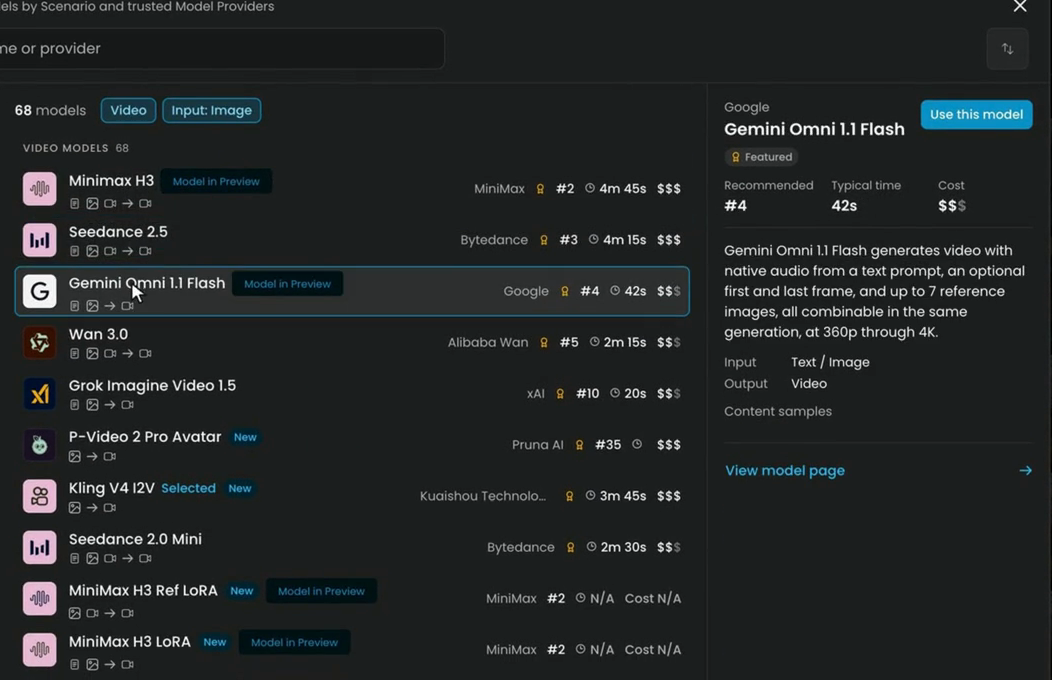
Point at a model to read its details on the right: Recommended, Typical time and Cost, a short description, its Input and Output, and Content samples. View model page opens its full page, and Use this model loads it into the panel.
Step 4: Narrow the list
There are other ways to narrow the list.
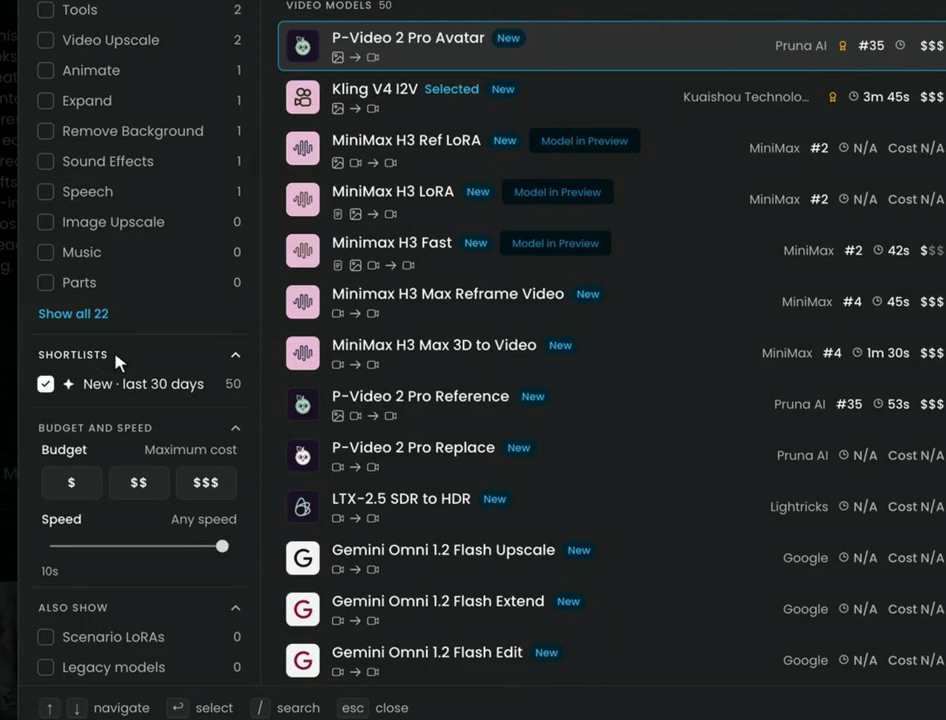
Budget and speed. Under Budget, click $, $$ or $$$ to set the most you want to spend (Maximum cost). Under Speed, drag the slider to set how long you can wait, from 10s to Any speed.
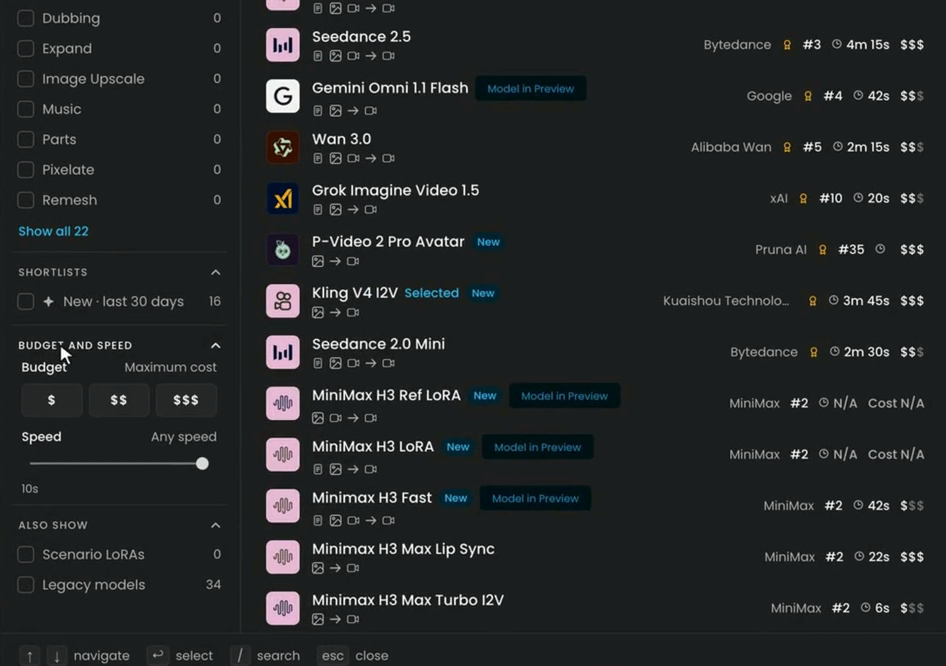
Capabilities finds models for a task, like Lipsync or Video Upscale. The list also has Tools, Animate, Sound Effects, Dubbing, Speech, Expand, Music and more. Click Show all 22 to see every one.
New · last 30 days, under Shortlists, shows the latest models. Under Also show, you can add Scenario LoRAs and Legacy models to the list.
Step 5: Search and sort
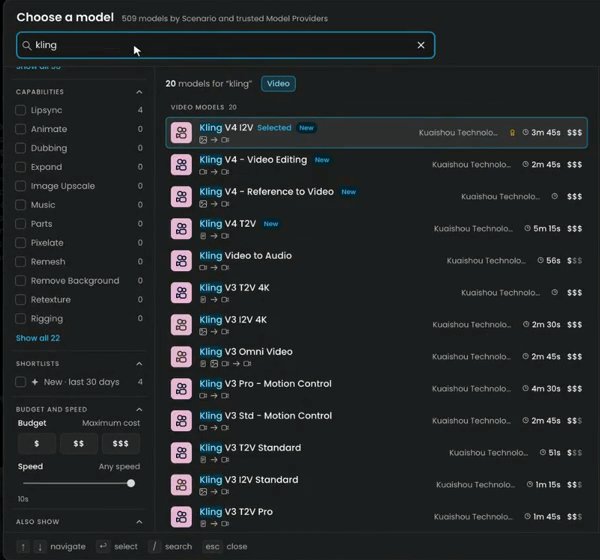
Type in the search field (Search 509 models by name or provider in the film) to find a model or a family. Here, "kling" finds 20 video models, from Kling V4 I2V to the Kling V3 motion-control models.
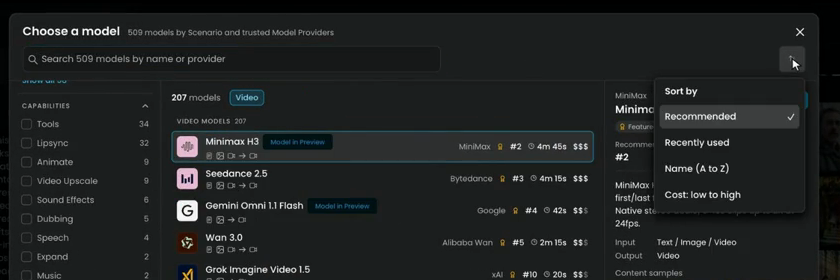
The button at the top right of the library sorts the list: Recommended (the default), Recently used, Name (A to Z) or Cost: low to high.
The keys at the bottom of the library work too: the arrow keys move through the list, Enter selects, / jumps to search and Esc closes.
Step 6: Compare models on the same shot
A model that looks best in its samples may not be the best on your shot. Run two or three candidates with the same image, the same prompt and the same resolution, then watch the takes side by side.
The film runs three tests at 720p, each with one start image and one prompt.
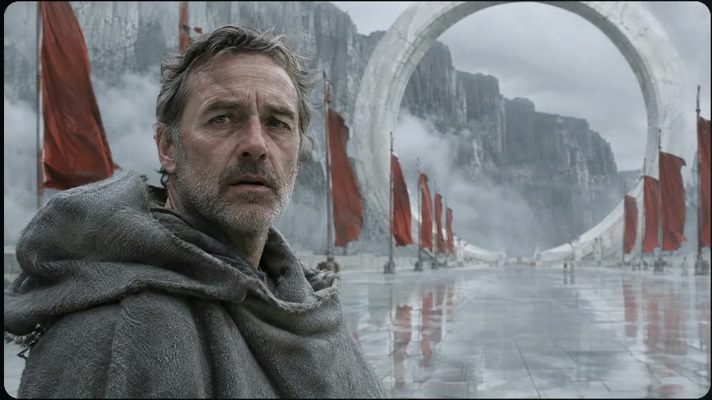
A slow push-in on a face:
He slowly turns his head toward the camera and looks straight into the lens, takes a breath, and his eyes narrow slightly into a quiet, determined expression. The wind lifts his hair and the edge of his hood; behind him the red banners ripple and the mist drifts through the ring gate. Slow push-in from a medium close-up to a close-up. Real-time pace. Sound: steady mountain wind, banners flapping. No music, no speech.
A time-lapse in a busy street:
Time-lapse. The woman in the camel coat stands perfectly still with her eyes closed while the crowd streams around her in fast blurred streaks, umbrellas flowing past; the blue-hour sky darkens into night, more shop lights come on, and headlights streak past behind. Locked-off static camera; the woman stays sharp and almost motionless, only her scarf moves slightly. Sound: muffled city ambience, light rain, distant traffic. No music, no speech.
A character in action:
The little brass robot grips the big iron gear with both hands and pushes it; the gear creaks and slowly begins to turn, the other wheels and the pendulum start moving, and dust shakes loose and drifts through the beams of golden light. The robot steps back and looks up at the turning gears, its amber porthole glowing brighter. Slow camera dolly to the right around the robot. Sound: creaking iron, a heavy clunk as the mechanism starts, ticking. No music, no speech.
Each test ran on Seedance 2.5 and Kling V4 I2V, with Wan 3.0 on the first two and FLUX.3 Max I2V on the robot. Minimax H3 Fast has no 720p option, so its takes are shown at 768P.
Keep the comparison fair:
- Same start image, same prompt, word for word.
- Same resolution, or the nearest one when a model doesn't offer it.
- Same duration where the models allow it.
- Watch every take to the end. Problems often show in the last second.
Step 7: Choose, and check the price
Based on what you need, choose the model you want. For example, if you want to test ideas at a lower cost, a fast model like Minimax H3 Fast costs far less per clip than Wan 3.0, and you can move to a stronger model once the idea works.
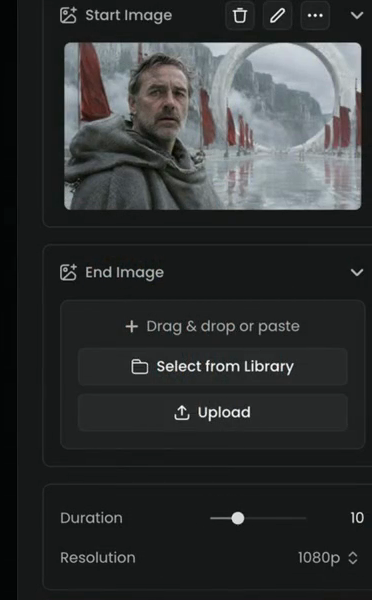
The price shows on the Generate button, and it changes with Duration and Resolution. Set both to what you will ship before you read it.
the model takes the inputs you have, makes the length and resolution you need, holds your subject and style from start to end, and moves the way the prompt says, at a price that fits the number of takes you expect to run.
faces or objects change during the clip, the camera moves when you asked for a static shot (or the reverse), the action stops halfway, or the model can't reach your delivery size. Try the next model on the same shot before you rewrite the prompt.
The models in the film
Ranks, times and costs in the library change as models are added, so read them there. This is what each model in the film does, from its Knowledge Center page.
| Model | Starts from | Length and resolution | Notes |
|---|---|---|---|
| Seedance 2.5 | Prompt, first frame, first and last frame, reference images or videos, a clip to edit or extend | 4 to 30 s, up to 1080p | One model for many jobs; it picks the mode from what you attach. Optional native sound |
| Kling V4 I2V | An image (Start Image, optional End Image) | 1080p in the film's panel | Animates a still; has Multi Prompt for timed beats |
| Wan 3.0 | Prompt, first frame with optional last frame, or up to 10 images, 5 videos and 5 audio clips | 2 to 30 s, up to 1080P | Picture and sound in one pass, including spoken dialogue |
| FLUX.3 Max I2V | An image | 5 to 20 s, up to 1080p (FLUX.3 Video family) | Native synchronized audio in the same pass |
| Minimax H3 | Prompt, first and last frame, or up to 9 references | 5 to 15 s, up to 2K | Native stereo audio and dialogue |
| Minimax H3 Fast | See its details in the library | 768P in the film | A low-cost way to test ideas before a stronger model |
| Gemini Omni 1.1 Flash | Prompt, optional first and last frame, up to 7 reference images | 360p to 4K | Native audio. It stops working on December 3, 2026: move to Gemini Omni 1.2 Flash |
| Grok Imagine Video 1.5 | Prompt or one image | Up to 15 s, 480p to 1080p | Native audio, strong faces, one camera move per clip works best |
For the full list of what each model takes and makes, see the model directory.
Choose by the job
- You only have a prompt. Filter Input to Text. Models with native audio (Wan 3.0, Minimax H3, Grok Imagine Video 1.5) can speak lines you write in the prompt.
- You have an approved still. Filter to Image. This is the most reliable way to keep a look: make the frame first, then animate it.
- You need the clip to end on a set frame. Search "last frame" and pick a model that takes a first and a last frame. See Generate video.
- You need the same character across shots. Look for reference-to-video models. See Reference to video.
- You need a task, not a generation. Use Capabilities: Lipsync, Video Upscale, Dubbing, Sound Effects.
- You are still exploring. Use a fast, low-cost model at a lower resolution, then rerun the winner at full quality.
Common problems
| What you see | What to do |
|---|---|
| The model you want isn't in the list | Check the filters: clear Input, Budget or Speed, or tick Legacy models under Also show |
| The resolution you need isn't offered | Pick the nearest one to compare, then upscale the chosen take, or filter for a model that reaches it |
| The price on Generate is higher than expected | Lower Duration or Resolution for test runs; check the price again before the final run |
| Takes from two models are hard to compare | Run them with the same image, prompt, resolution and duration |
| The subject changes during the clip | Try another model on the same shot, simplify the background, or use a reference-to-video model |
| The camera moves when it shouldn't | Put "Static camera" or "Locked-off static camera" early in the prompt, or try a model that follows camera directions more closely |
| A model you use is going away | Read its Knowledge Center page for the replacement, for example Gemini Omni 1.1 Flash to 1.2 Flash |
What's next
With a model chosen, generate the video with your first and last frames, or learn how to prompt video so each take moves the way you want.