

Sound for video
Generate sound effects from a description or from the clip itself, add music that follows the picture, keep the dialogue already there, and mix a clean track.
- Guide
- Step 1 Learn
This lesson gives a silent clip its sound. You'll make a single effect from a description with ElevenLabs Sound Effects v3, let Sonilo V1.1 Video to SFX watch a locked clip and generate effects timed to it, and then see how the tracks come together in one mix.
Quick version
- For one sound, open Create › Audio and pick a model under Sound Effects, such as ElevenLabs Sound Effects v3.
- In Sound Description, name the source and material, the action in stages, the space, and what to leave out.
- Set Duration with room for the tail, raise Guidance if a take ignores part of the description, turn on Loop for a steady sound.
- For sound that follows the picture, lock the cut, pick Sonilo V1.1 Video to SFX, add the clip, set Audio Format to WAV, and generate.
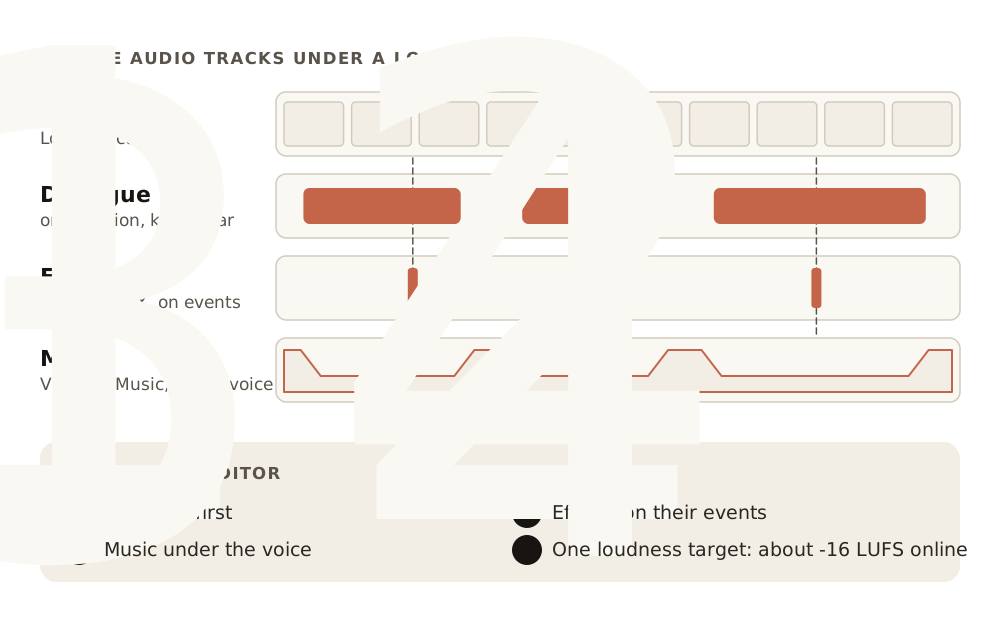
- Mix the tracks in your editor: dialogue first, effects on their events, music under the voice, one loudness target.
Before you start
- Know which kind of sound you need. A single effect (a door, footsteps, wind) comes from a description. Sound that has to follow a moving picture comes from the video itself.
- Lock the picture first if you start from a clip. Every trim after generation moves the picture away from the sound.
- Scenario makes the tracks; you mix them in your audio or video editor.
- Takes are cheap compared with video. Make two or three of anything you'll use. The cost shows on the Generate button.
Models
| You need | Model | Notes |
|---|---|---|
| A precise single effect with a set length, or a loop | ElevenLabs Sound Effects v3, ElevenLabs Sound Effects 2 | Duration, Guidance, Loop; Sound Effects 2 makes 0.5 to 30 seconds |
| Many variations, in lossless formats | Sonilo V1.1 Text to SFX, MM Audio 2 Text-To-Audio (SFX) | WAV or FLAC output; Sonilo makes 1 to 180 seconds |
| Effects for a clip, as a separate track | Sonilo V1.1 Video to SFX | Optional prompt, timed segments |
| Music that follows a clip, as a separate track | Sonilo V1.1 - Video to Music | Reads the clip's pacing, motion and mood |
| The clip back with effects or music mixed in | Sonilo V1.1 Video to Video SFX, Sonilo V1.1 Video to Video Music | A finished clip, for one that goes out as is |
| Effects and music on a short clip | Kling Video to Audio | Clips of 3 to 20 seconds |
Take a separate track when you'll mix, add narration or adjust levels; take the video with sound in it for a single clip that goes out as is. A music cue with an exact length comes from a music model (Generate music).
Step 1: Pick an effects model
Open Create › Audio, click the model name, then View all models. Tick Audio under Output and Sound Effects under Capabilities.
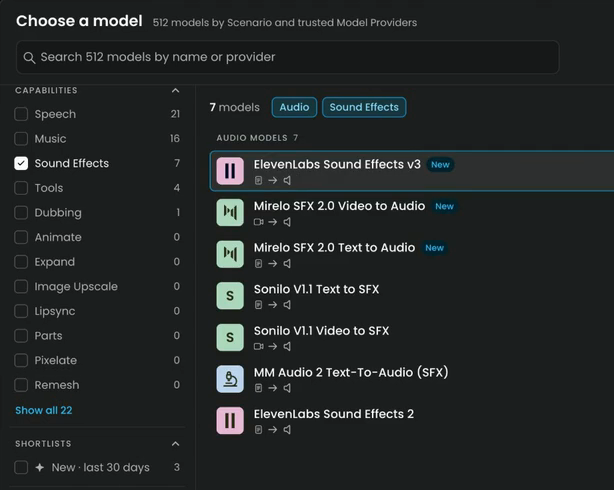
- ElevenLabs Sound Effects gives you a set length and a loop switch. This lesson uses v3.
- Sonilo V1.1 Text to SFX gives many variations, in lossless formats.
Step 2: Describe the sound
The main field is called Sound Description. An effects model reads physical facts, so give it, in this order:
- The source and material: "A heavy wooden door with iron hinges."
- The action, in stages: "creaks open slowly, then closes with a solid thud."
- The space: "inside a stone hallway with a short echo." The space changes the sound as much as the source.
- What to leave out: "No music, no voices." Effect models can add both.
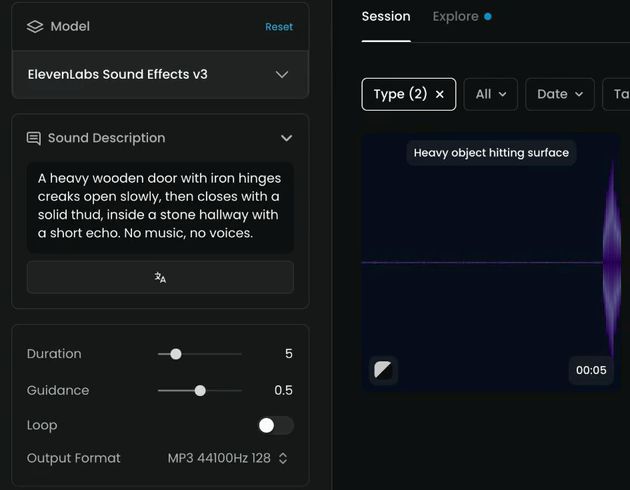
A heavy wooden door with iron hinges creaks open slowly, then closes with a solid thud, inside a stone hallway with a short echo. No music, no voices.
Describe the sound, not the reaction. "Massive", "cinematic" or "scary" won't help. Write what makes it scary instead: "a slow low creak, then silence".
Step 3: Set the length and guidance, then generate
Below the description:
- Duration: set the length with a little room after the last sound, so the tail can fade. Here 5 seconds.
- Guidance: how closely the take follows the description. It opens at 0.3; here it's raised to 0.5. If a take ignores part of your description, raise it. Lower it to let the model vary the sound.
- Loop: leave it off for a one-shot like this door.
- Output Format: MP3 by default.
Click Generate. The take arrives at 00:05, with the creak, then the thud, in a stone hallway.
Here is the same description on ElevenLabs Sound Effects 2, at 5 seconds:
Audio: oak-door-creak-and-thud-elevenlabs-sfx-2.mp3
Loops
For rain, a room tone or an engine, describe a steady sound with no beginning or end event, such as "steady light rain on a tin roof, constant, no thunder", and turn Loop on. Play the take twice back to back and listen for a click at the join.
Layers
Real effects are often layers: a body (the heavy door closing), a detail (the iron latch clicking) and a space (the stone room's tail). Make each one on its own, so you can balance them later and redo a bad layer cheaply.
Step 4: Start from the video
When the sound has to follow the picture, start from the clip. Lock the cut first: every trim afterwards moves the picture away from the sound, and you'd have to generate again.
- Pick Sonilo V1.1 Video to SFX in the model menu.
- Under Video, add the clip.
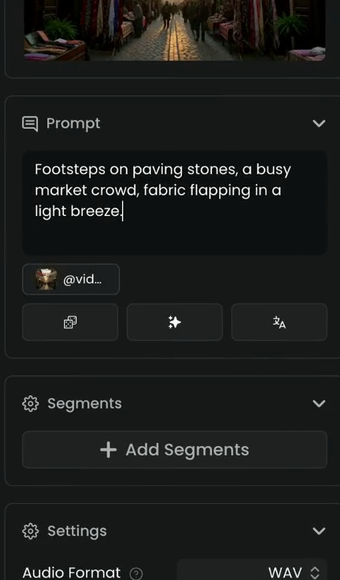
- Leave Prompt empty to let the model describe the clip, or name the key sounds in one line:
Footsteps on paving stones, a busy market crowd, fabric flapping in a light breeze
- For a clip with distinct scenes, click Add Segments and give each part its own description.
- Under Settings, set Audio Format to WAV if you'll mix it.
- Click Generate.
Then play the clip with its new track and check the hardest moments: impacts, footsteps, doors. They should land on the frames where they happen.
Step 5: Music, and dialogue that's already there
- For music that follows the clip, use Sonilo V1.1 - Video to Music the same way. It reads the clip's pacing and mood and returns the music as its own track.
- If the clip already has dialogue, protect it. Pull the audio out with Audio Extract, keep only the voice with ElevenLabs Voice Isolator, then add the new sound around it. The Video to Video models can also keep existing speech.
Step 6: Mix the tracks
Scenario makes the tracks; you mix them in your editor, in this order:
- Dialogue or narration first, at a steady level.
- Effects on their events. Nudge a few frames if an impact lands early or late.
- Music under the voice, lower while someone speaks.
- One loudness target for the whole piece: about -16 LUFS integrated for online video, checked with a loudness meter.
For quick fixes without an editor, three tools run in Scenario. Find them by name in the model menu:
| Tool | What it does |
|---|---|
| Audio Cut | Trims a track to a time range |
| Audio Split | Divides a track at the times you give |
| Audio Extract | Pulls the sound out of a video |
For a series, keep a sound list (time range, sound, prompt, kept asset) and run it through one node in a workflow. The trailer playbook runs the whole process on one piece.
every stage you described is audible in order, impacts and footsteps land on their frames, the sounds match the materials on screen, tails fade naturally and loops repeat without a click, existing dialogue stays clear, music sits under the voice, and the loudness is even from start to end.
a stage is missing or out of order, a voice or melody appears that you didn't ask for, a sound arrives early or late by more than a couple of frames or has nothing on screen to cause it, original speech is muffled, or the level jumps between shots.
Common problems
| What you see | What to do |
|---|---|
| The sound is generic or wrong | Name the material and the space; for a clip, name the key sounds and use segments where the scene changes |
| A take ignores part of the description | Raise Guidance, or split the sound into layers |
| A specific sound comes out as something else | Describe its shape: rising or falling pitch, how fast, how loud |
| Music or voices appear in an effect | Add "No music, no voices" and remove words that suggest a scene with people |
| The tail is cut off | Raise Duration so there's room after the last sound |
| A loop clicks at the join | Describe a steady sound with no start or end event, with Loop on |
| Sound out of sync with the clip | Check the clip wasn't trimmed after generation; generate again on the final cut, or nudge the track |
| Dialogue damaged, or music covers it | Use the layered route (Audio Extract, Voice Isolator, new sound), or lower the music under each line |
| The job failed or is stuck | See Failed or stuck jobs |
What's next
Next, Transcribe and subtitle turns speech into a transcript, an SRT you can fix, and subtitles burned into the video. To make the score for a clip, see Generate music.