

Platform workflows and templates
Find a ready-made workflow or App from Scenario, run it on your own input, then duplicate it into your project to adapt it.
- Guide
- Step 2 Repeat
On this page6 sections
Start from a platform workflow when a ready-made one covers most of your job: product angles, background swaps, turnarounds, upscales, sketch to concept. Scenario builds and maintains them, so the models and settings are already chosen.
Quick version
- Open Workflows > Apps, tab Platform, and search for the job ("angles", "background", "turnaround").
- Run it as it is on your own input.
- To change it, open the workflow, choose ... > Duplicate Workflow, and edit the copy.
- Run the copy on two test inputs and compare with the original.
As of October 12, 2026, Scenario publishes 164 public workflows, all runnable as Apps. The list changes often.
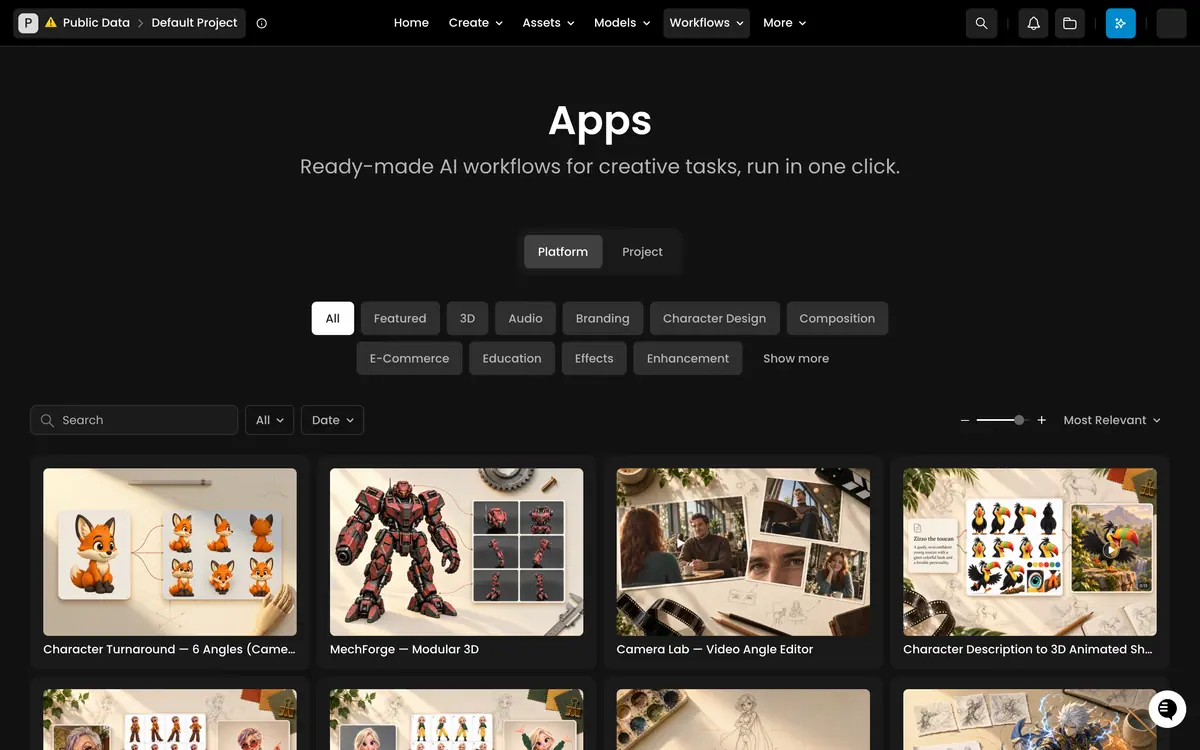
Find one
Two pages list them:
| Page | What you get |
|---|---|
| Workflows > Workflows, tab Platform | The node graphs, opened in the editor |
| Workflows > Apps, tab Platform | The same kind of pipelines with a simple form, filtered by category chips: All, Featured, 3D, Audio, Branding, Character Design, Composition, E-Commerce, Education, Effects, Enhancement and Show more |
- Search by the job, not the tool: "angles", "background", "turnaround", "upscale".
- See what is new on the Workflows page: sort with Most Relevant or filter by Date.
Run one as it is
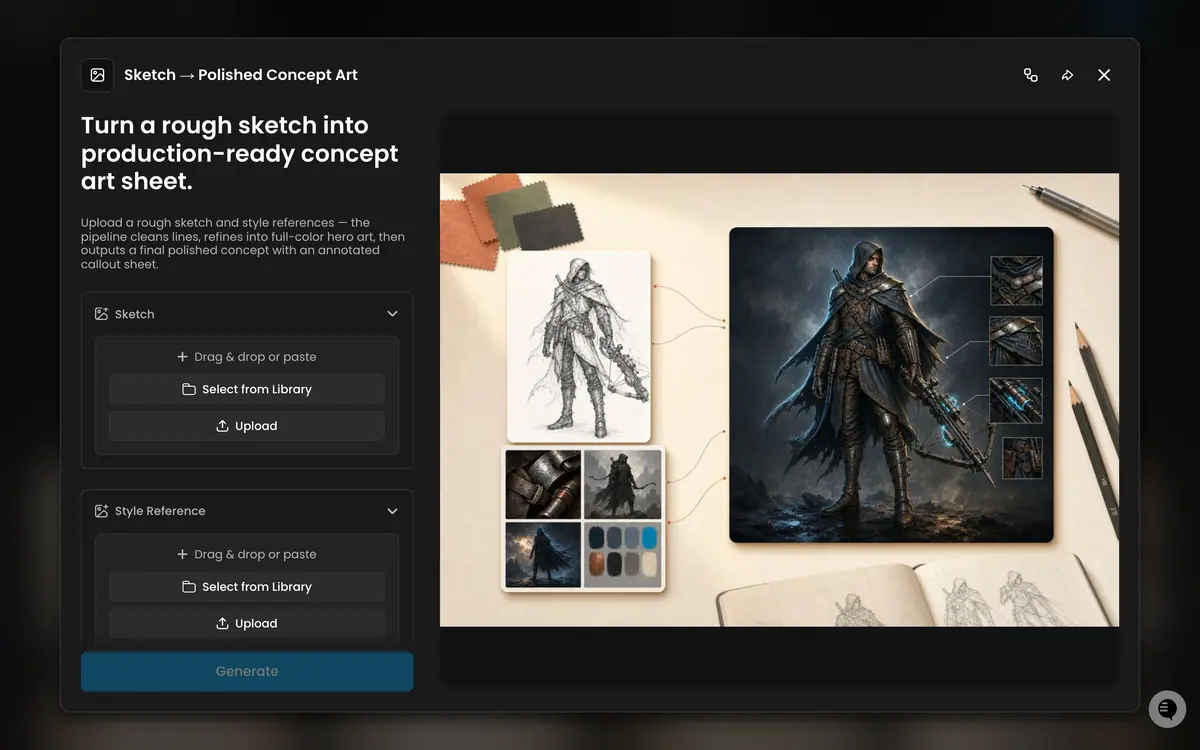
The example below uses Angle Multiplier, a public App that turns one product photo into a 3 x 2 grid of six camera angles.
- Open Workflows > Apps, tab Platform, and search for
Angle Multiplier. - Open the card. The run page shows the inputs on the left and a preview on the right.
- In Upload Product, add your image: drag and drop, paste, Select from Library or Upload.
- Click Generate.
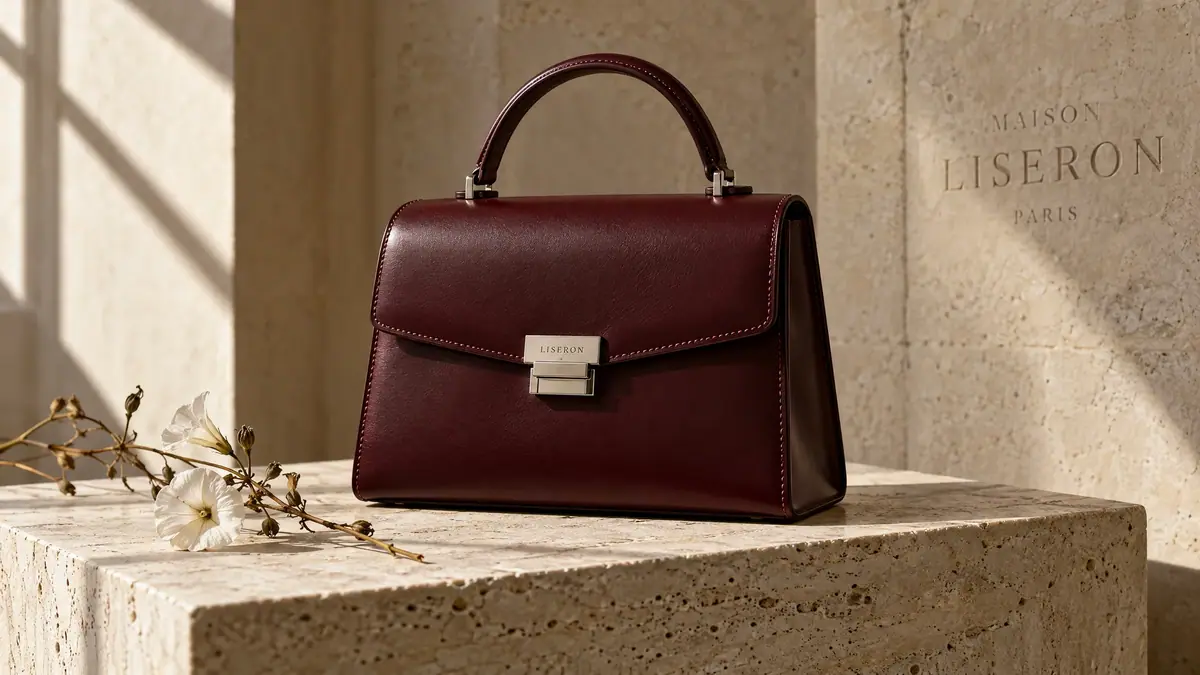
This is the input used on October 16, 2026, the top-handle bag of Maison Liseron, an invented Paris leather house:
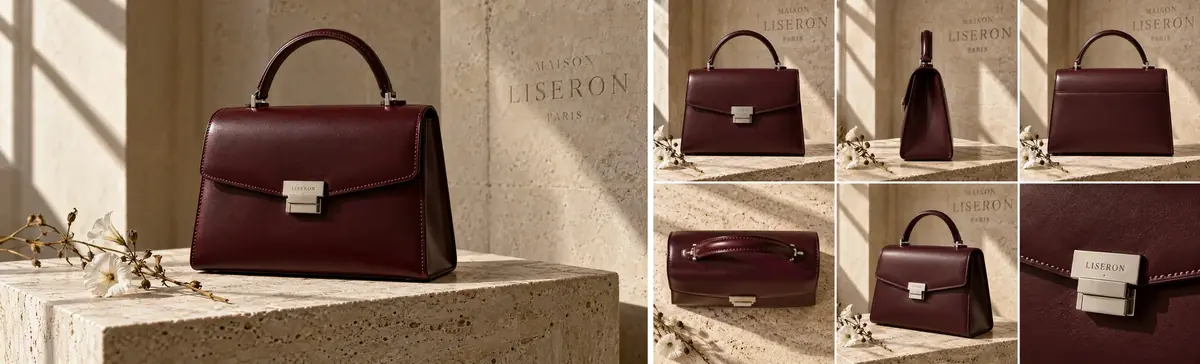
And the result, in about 30 seconds:
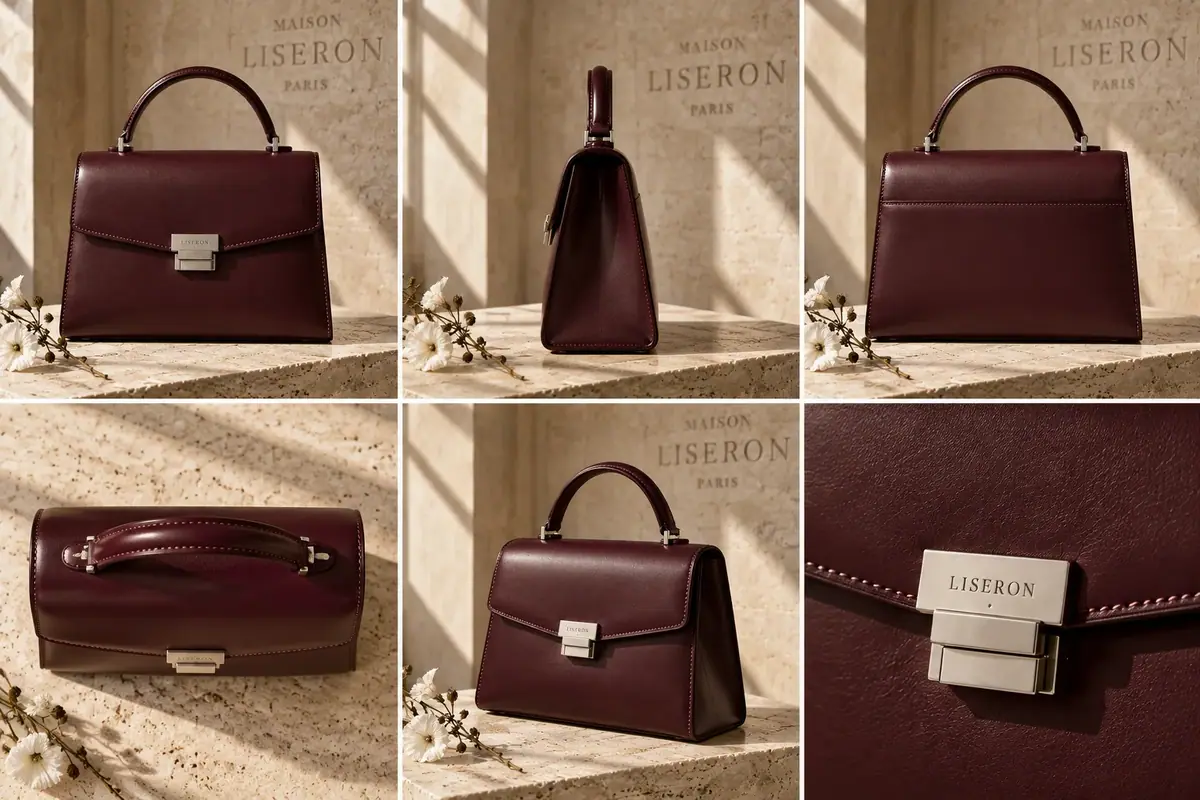
Inside, the workflow is three nodes:
- 1Upload Productan Image input
- 2Grid instructionssix views, one studio setup
- 3Image GeneratorGPT Image 2.5 Sunburst
The Text node asks for front, side, back, top-down, three-quarter and a detail close-up, with consistent lighting and studio setup. The editor shows the estimated cost next to the workflow title; the run billed exactly that.
Look inside
Open the same pipeline from Workflows > Workflows > Platform, or click Edit workflow at the top right of an App's run page. Platform workflows open in Run-only Mode, "The workflow cannot be edited": you can fill inputs, run and read every node, but not change them until you duplicate the workflow.
Reading a platform workflow is a fast way to learn:
- Model pairings: which models Scenario pairs for a job, and in what order.
- Instruction writing: how the text in Text and LLM Node nodes is written.
- Documentation: how groups and Sticky Note nodes explain a long graph.
Duplicate and adapt
- In the editor, open ... and choose Duplicate Workflow. The copy lands in your project, on the Project tab.
- Rename the copy so your team can tell it from the original.
- Change what you need: the instruction text, the model on a generator (click its model footer), the aspect ratio, or add nodes after the output.
- Run on two test inputs and compare with the original's results.
Common adaptations:
- Change the brief. In Angle Multiplier, edit the Text node to ask for four angles on a white sweep instead of six, or for the product alone without the set.
- Swap the model. Try GPT Image 2.5 Flare, the cheaper sibling as of October 2026, and compare on your own products.
- Add a step. Put an upscaler or a background removal after the generator.
- Expose it as an App. Pin the inputs your team should fill. See Publish a workflow as an App.
You can also copy individual nodes from a platform workflow and paste them into your own.
the object keeps its shape, proportions, materials and details in every view; lighting and background match across the grid; no view shows a part that does not exist on the real product.
the object changes between panels (a handle moves, a color shifts, a part appears); two panels show the same angle; the grid has fewer or more panels than promised.
On this run, all six views kept the bag's oxblood leather, contrast stitching, palladium hardware and handle consistent, and the clasp reads LISERON wherever it is visible, in the close-up too. The plinth, the bindweed sprig and the wall engraving came along into five panels: right for a campaign set, wrong for a catalog that needs a plain background.
The back and top-down views show sides the input photo never showed, so the model invented them plausibly: a plain back panel with one seam, a flat top. For a catalog, check those panels against the real product.
If it breaks
| Symptom | Cause and fix |
|---|---|
| You cannot edit a node | A platform workflow is run-only. Duplicate it, then edit the copy |
| The App ignores your image | Check that it went into the required field, marked with a star or asterisk |
| The views drift from your product | Use a clean, well-lit photo on a plain background. Busy backgrounds and partial views give the model less to hold on to |
| Each run gives a slightly different grid | Normal variance. Run twice and keep the better one rather than editing the workflow after one take |
| A platform workflow changed | Scenario updates them. If your process depends on a fixed version, duplicate it into your project; your copy does not change |
Run them from code
Every public workflow has an ID (Angle Multiplier is wflow_angle-multiplier) and runs through the API or the Scenario MCP with the same inputs. See Run workflows from code and agents.